Products
This article explains what products are in Amaspace, how they function as customizers, and what you can configure within them. It also guides you on creating your first product and managing products after creation.
Overview
Products are the core of your experience in Amaspace.
A product is not just an item in a catalog. A product is your customizer. It defines how users interact with the UI, how attributes behave, and how customization works.
Each product brings configuration into one place:
- The configuration UI your customers see
- Attributes that control options, logic, and pricing
- 3D assets, materials, and variants
- Rules that connect user actions to visual changes
When you create a product, you design how customization works from start to finish.
If you want to build your first customizer, start here:
👉 Creating products — learn how to create a product, define its base structure, and make it ready for configuration.
Once a product exists, you can fine-tune and maintain it. You can update options, adjust behavior, and control how the product evolves over time.
To understand how to edit, update, and organize existing products, continue with:
Product fields
Each product has a set of core fields. These fields define how the product appears, behaves, and calculates its price. You configure them when creating a product and can update them later while managing it.
Name
The product name identifies your product inside the platform.
This name also appears in the configurator. Users see it while customizing the product, so it should be clear and recognizable.
Use a name that reflects the product you are configuring.
Model
The model defines the 3D visualization of the product.
If you select a model, it becomes the base of the 3D scene in the configurator. Users interact with this model while changing options.
If this field is empty, Amaspace creates an empty scene. You can then add 3D models dynamically using attributes.
This approach works well for modular products or products that build the scene step by step.
👉 See Attributes to learn how to add and control models dynamically.
Description
The description explains what the product is.
This text appears in the configurator and helps users understand what they are customizing. Keep it short and informative.
You can update the description at any time if the product changes.
Tags
Tags help you organize products inside the admin dashboard.
You can add one or more tags to a product to make searching and filtering easier later. This field exists only for your convenience as an admin and does not affect the configurator or the customer experience.
Use tags to group related products or mark products by category, client, or purpose.
Base price
The base price defines the starting cost of the product.
This price does not include additional options or upgrades. PCOs adjust the final price based on user selections during customization.
Use the base price to represent the minimum cost of the product before any pricing conditions apply.
Show prices
This option controls whether prices are visible in the configurator.
When enabled, users see prices while customizing the product.
When disabled, the configurator hides all prices, including the base price and pricing changes from options.
Currency
The currency defines how prices display in the configurator.
You can add multiple currencies to one product. This allows you to show prices for different markets without duplicating the product.
Each price calculation uses the selected currency.
Preview
The preview is an image of the product for your internal use.
It does not appear in the configurator. You use it to recognize products quickly inside the dashboard, especially when working with many products.
Status
The status controls whether a product is visible or hidden.
A product can have one of two statuses:
- Published — the product is active and visible
- Draft — the product is hidden and not available
By default, your plan allows up to 5 published products. Draft products do not count toward this limit.
You can upgrade your plan at any time to publish more products.
👉 See Subscriptions to learn more about available plans and limits.
Common issues
Product does not appear
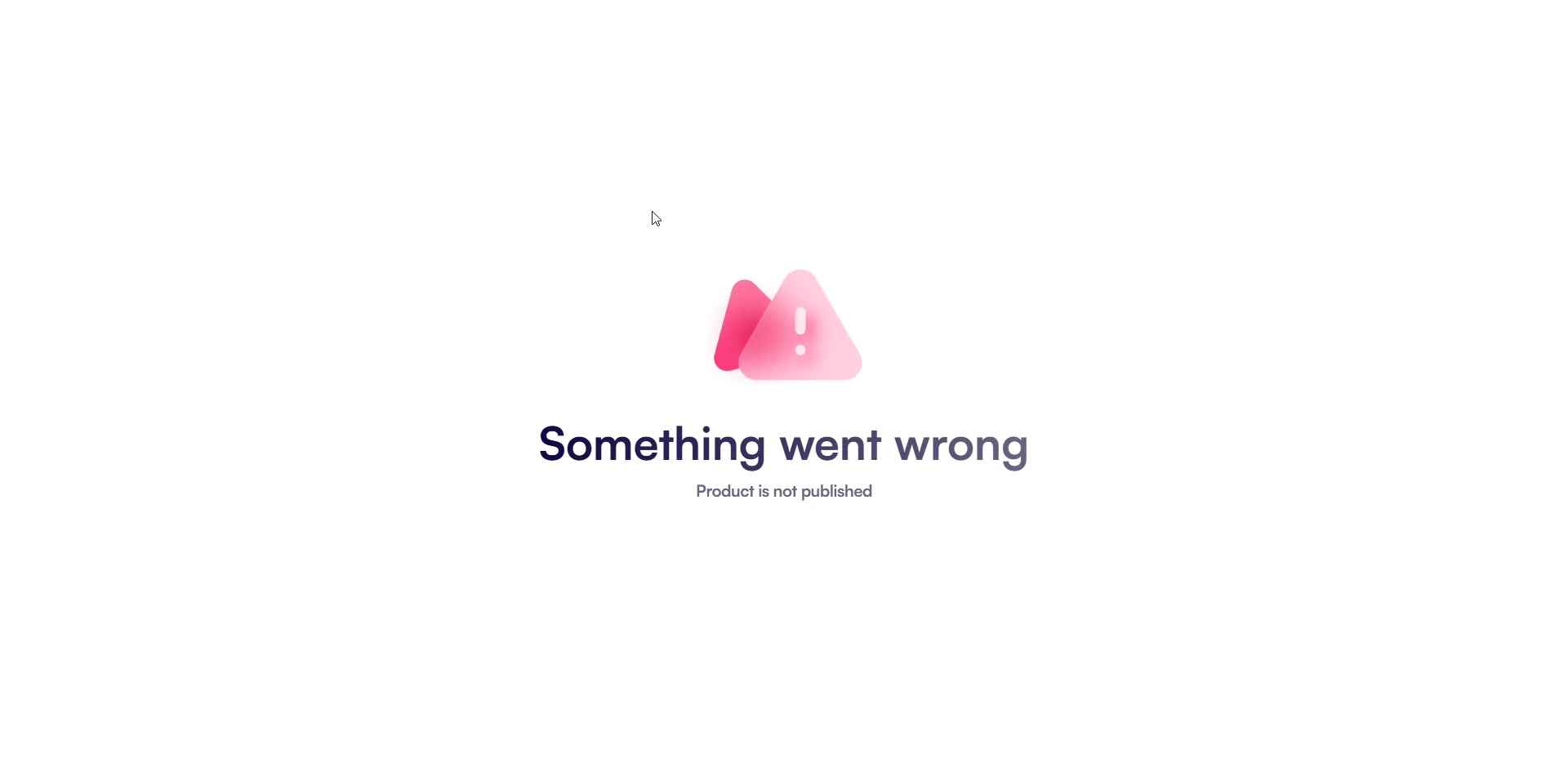
If your product does not appear in the configurator or product list, check its status.
Only products with the Published status are visible. If the product is set to Draft, it remains hidden and cannot be accessed.
When this happens, the platform shows a corresponding error message.