Events System
The Event System works in two different scopes, depending on what the event controls.
Both scopes use the same concept of conditions and actions, but they affect different parts of the configurator.
UI & Product behavior (Attribute-based events)
Location: Product editorThis type of event works directly with Attributes and their PCOs.
Actions also target other attributes or their values.
Example scenarios:
- When a specific PCO is selected, hide another attribute
- When one option is chosen, disable values in another attribute
- When a value changes, automatically set a value in a different attribute
This scope controls product logic and UI behavior.
Triggers
Use Triggers to define when an event becomes active.
Each trigger represents one condition.
The event runs only when all triggers are satisfied.
What you configure in a trigger
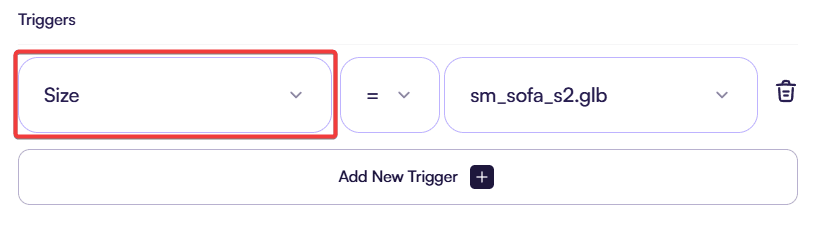
- Attribute Select the **attribute **you want to observe.
The trigger reacts when the value of this attribute changes.
-
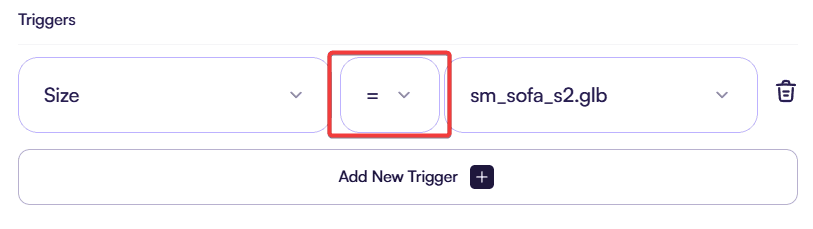
Operator Define how the value is evaluated:
- Equals (=) — the trigger matches when the attribute equals the selected PCO
- Not equals (≠) — the trigger matches when the attribute differs from the selected PCO
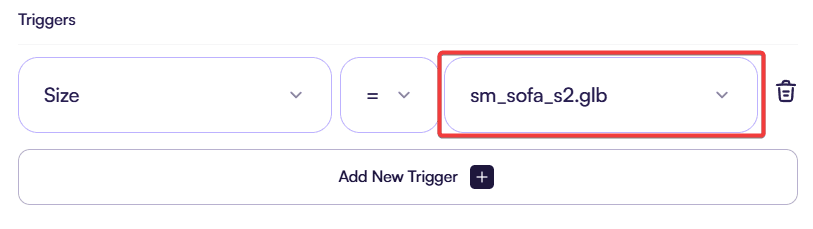
- Value Select a **PCO **from the chosen attribute.
This value is used for comparison.
Multiple triggers
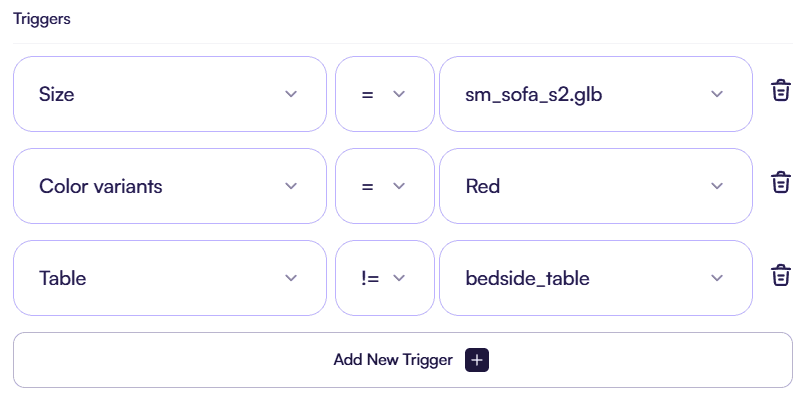
You can add multiple triggers to a single event.
- All triggers are evaluated together
- The order does not matter
- The logic works as AND
The event activates only when every trigger condition is true.
Actions
Use Actions to define what happens when an event becomes active.
Each action represents one change.
All actions run only after all triggers are satisfied.
Set Attribute Visible
Controls whether an attribute is shown or hidden.
Fields:
-
Attribute Select the attribute whose visibility you want to control.
-
Visible (checkbox) Defines whether the attribute is visible:
- Enabled — the attribute is shown
- Disabled — the attribute is hidden
This action affects the entire attribute, not individual values.
Set Attribute Enabled
Controls whether an attribute can be interacted with.
Fields:
-
Attribute Select the attribute you want to enable or disable.
-
Enabled (checkbox) Defines whether the attribute is interactive:
- Enabled — the attribute can be changed
- Disabled — the attribute is locked and cannot be changed
The attribute may remain visible while disabled.
Set Attribute Value
Sets a specific PCO as the active value for an attribute.
Fields:
-
Attribute Select the attribute whose value you want to change.
-
Value (PCO) Select the PCO that becomes active for this attribute.
When the action runs, the selected value replaces the current one.
Set Attribute Value Visibility
Controls whether a specific PCO is shown or hidden.
Fields:
-
Attribute Select the attribute that contains the value.
-
Value (PCO) Select the PCO whose visibility you want to control.
-
Visible (checkbox) Defines whether the value is visible:
- Enabled — the value is shown
- Disabled — the value is hidden
Other values of the attribute remain unchanged.
Set Attribute Value Enabled
Controls whether a specific PCO can be selected.
Fields:
-
Attribute Select the attribute that contains the value.
-
Value (PCO) Select the PCO you want to enable or disable.
-
Enabled (checkbox) Defines whether the value is selectable:
- Enabled — the value can be selected
- Disabled — the value is disabled and cannot be selected
The value may remain visible while disabled.
Set Tooltip Message
Displays a contextual tooltip message related to an attribute.
Fields:
-
Attribute Select the attribute where the tooltip should appear.
-
Value (PCO) Select the PCO for which you want to add a tooltip
-
Message Enter the text that is shown in the tooltip.
You use this action to explain why an attribute or value is unavailable or restricted.
3D behavior (Scene-based events)
Location: 3D EditorThis type of event works with the 3D scene instead of attribute UI.
Conditions are based on scene interactions, such as:
- Clicking a model or model part
- Interacting with a 3D element
Actions affect 3D behavior, for example:
- Switching the active camera
- Playing an animation
- Changing the visual focus in the scene
This scope connects user interaction in 3D with dynamic scene behavior.
How both scopes work together
You can use both event types in the same product:
- Attribute-based events handle configuration logic
- Scene-based events handle visual and interactive behavior
Together, they allow you to build complex but structured configurator behavior without custom code.