Annotations: Add interactive notes to the 3D scene
Use Annotations to add interactive information points directly to the 3D scene.
Annotations help you explain product details, highlight features, and guide users through the configuration.
Each annotation appears as a visual marker in the scene and opens additional content when interacted with.
Where Annotations are located
You manage annotations inside the 3D Editor.
To access annotations:
- Open the 3D Editor
- Switch to the Annotation mode
- Use the left sidebar to view and manage all annotations
The annotation list shows all existing annotations for the current product.
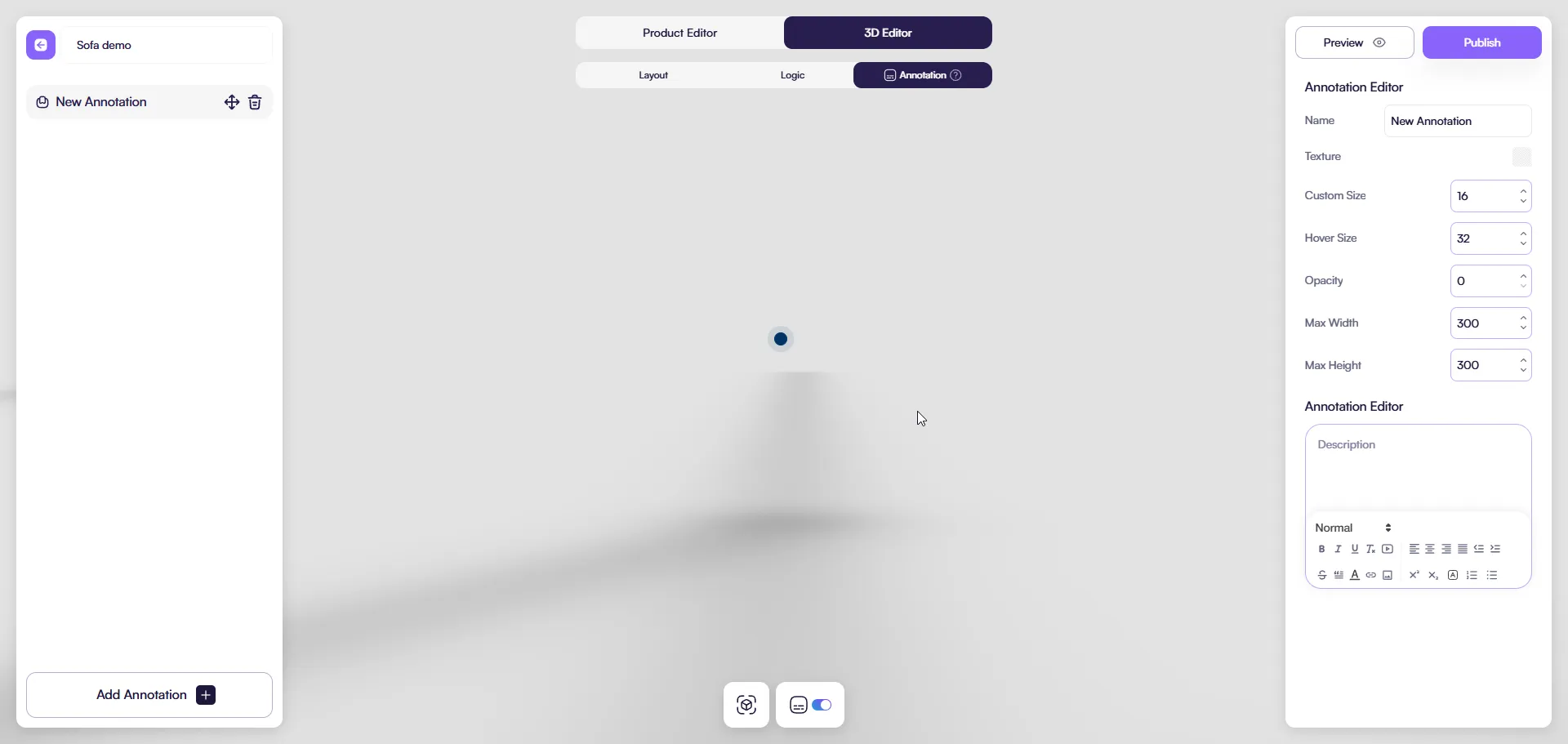
3D Editor with Annotation mode active and annotation list visible
How to create an annotation
To create a new annotation:
- Open the Annotation mode in the 3D Editor
- Click Add Annotation
- Drag the annotation from the UI and drop it into the 3D scene to place the annotation point.
- Configure annotation settings in the right panel
The annotation appears immediately in the scene and updates in real time while editing.
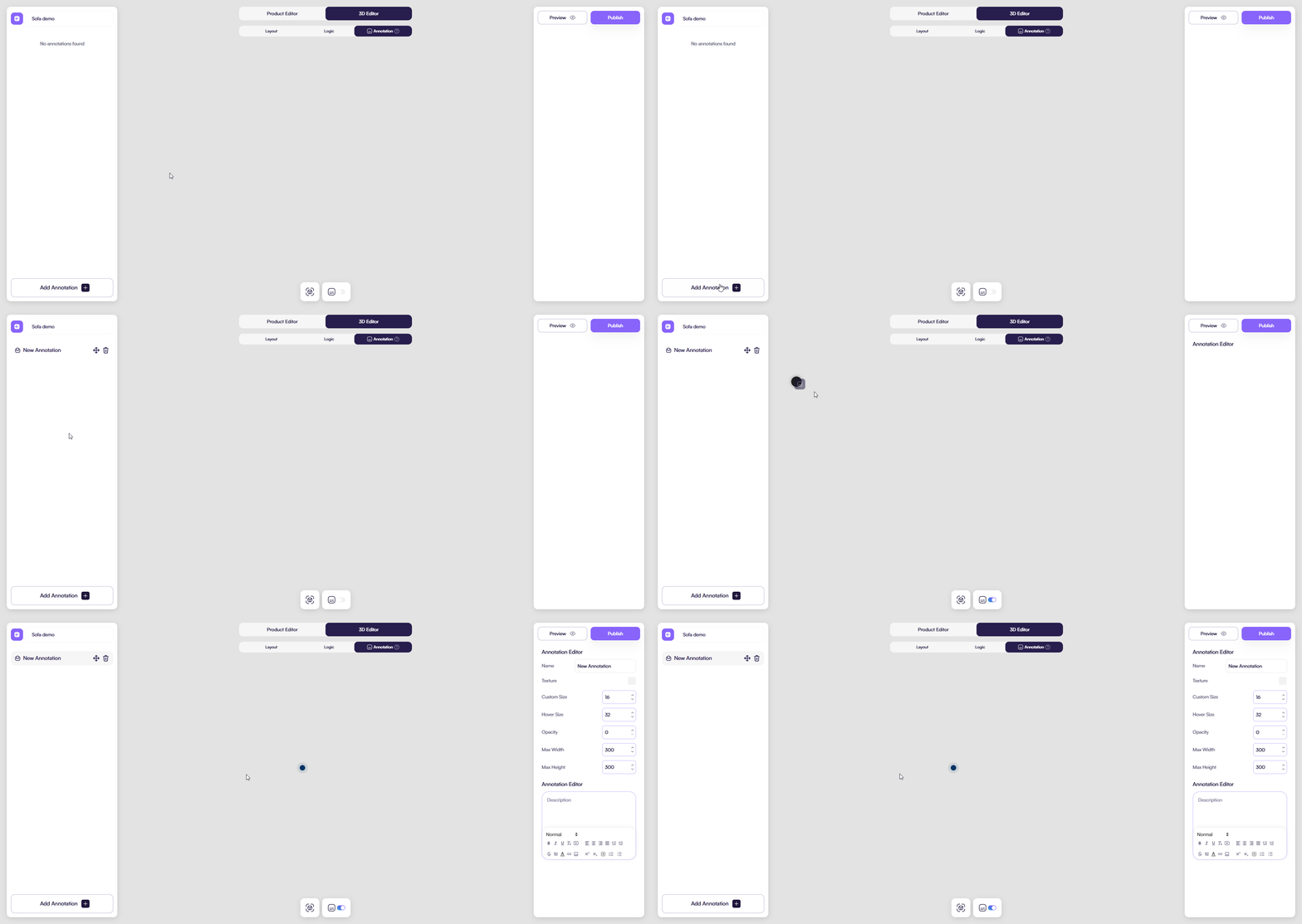
Add Annotation button and placement in the 3D scene
Annotation Editor fields
Use the Annotation Editor on the right side to configure how the annotation looks and behaves.
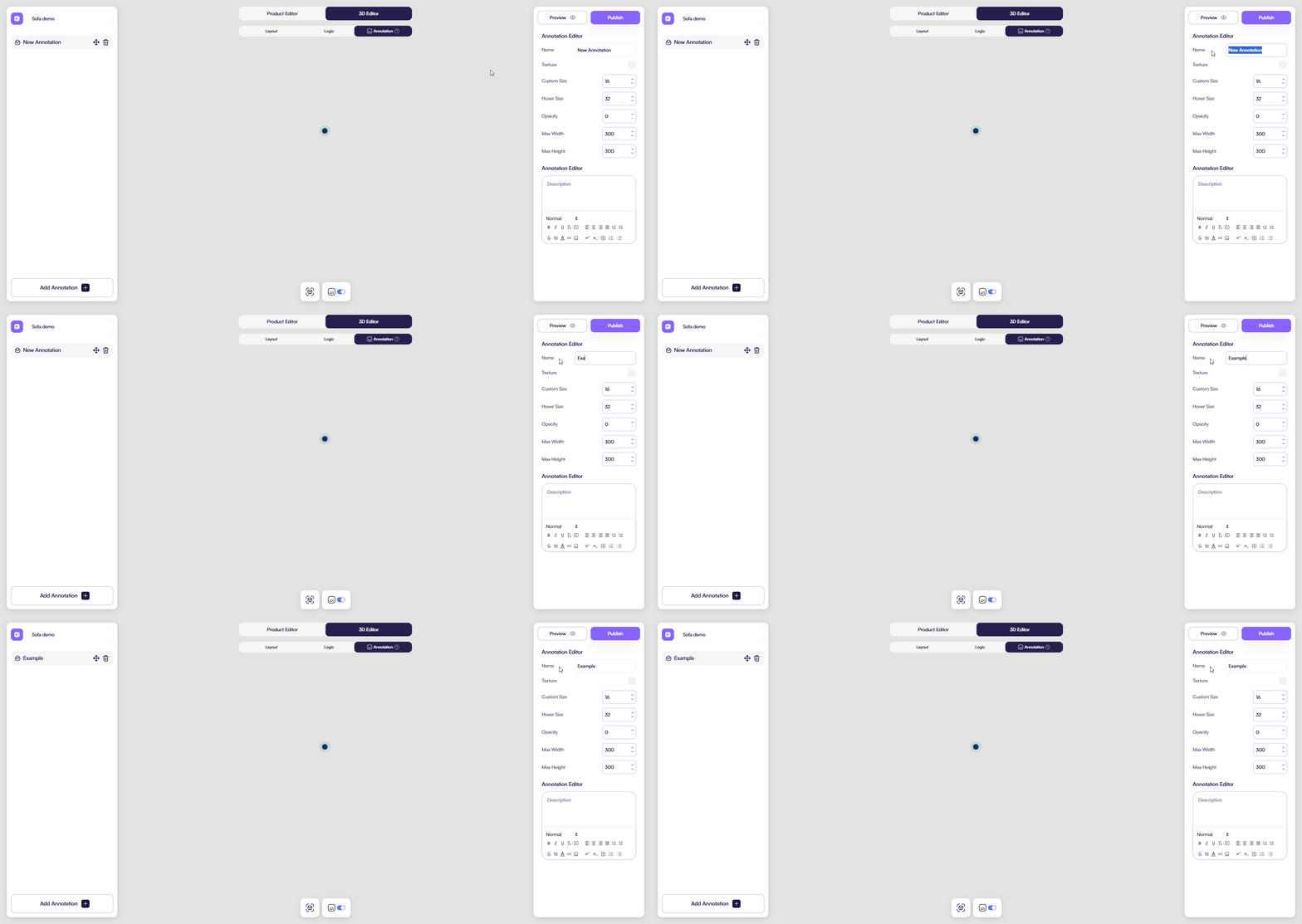
Name
Defines the annotation name.
You use this name to:
- Identify the annotation in the list
- Manage multiple annotations easily
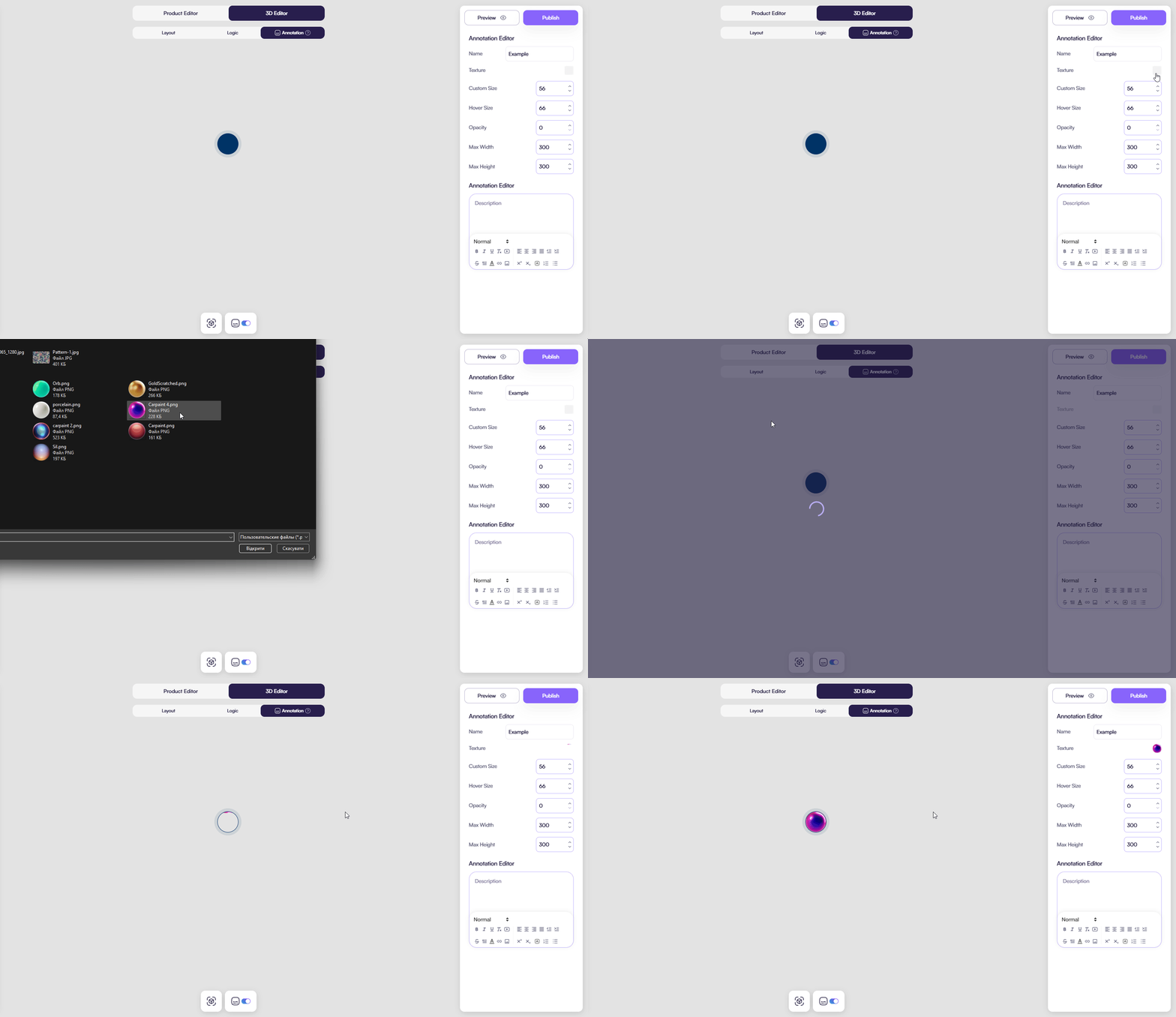
Texture
Defines the visual marker texture used in the scene.
You use this field to customize how the annotation point looks.
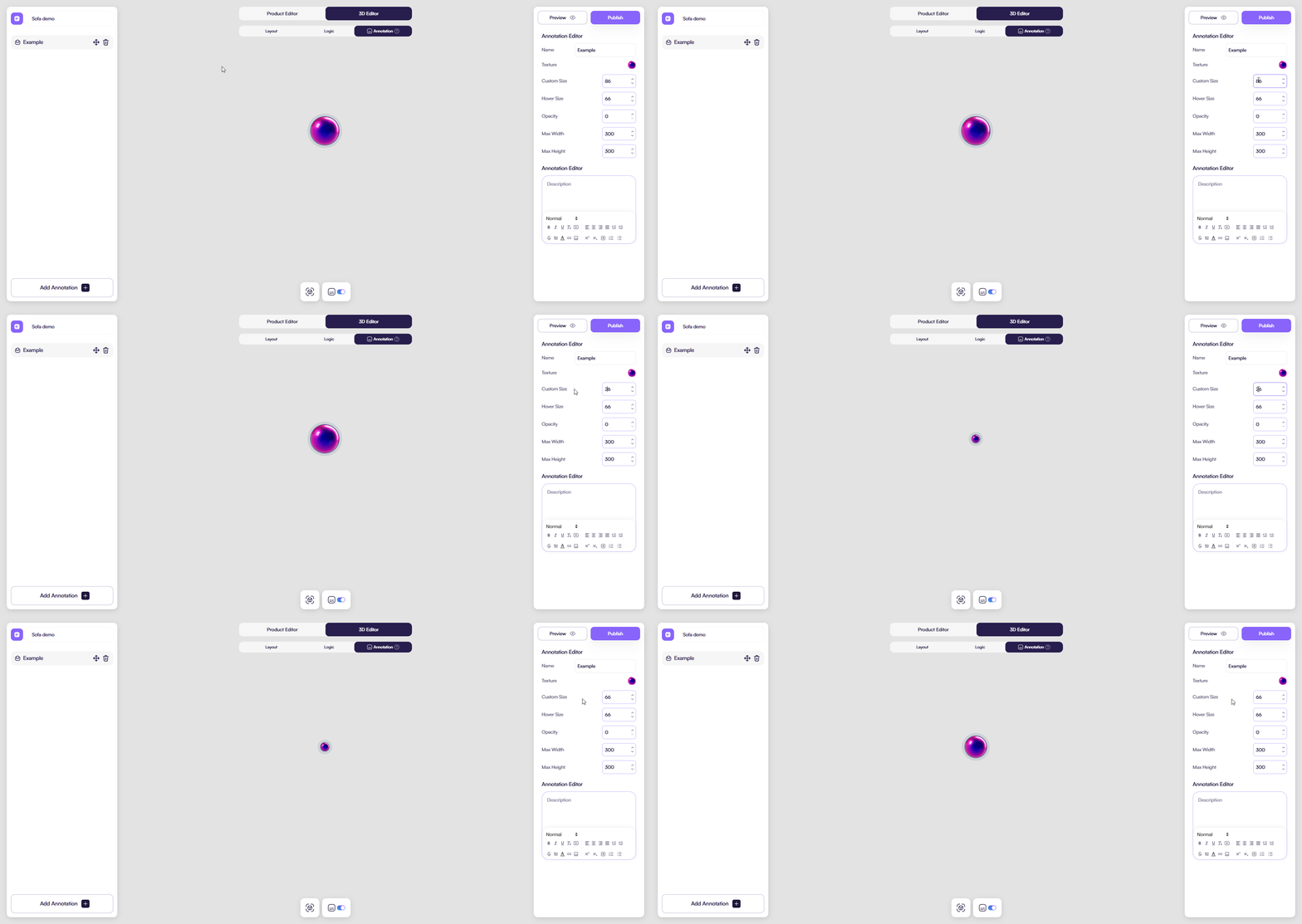
Custom Size
Defines the default size of the annotation marker.
This value controls how large the marker appears before interaction.
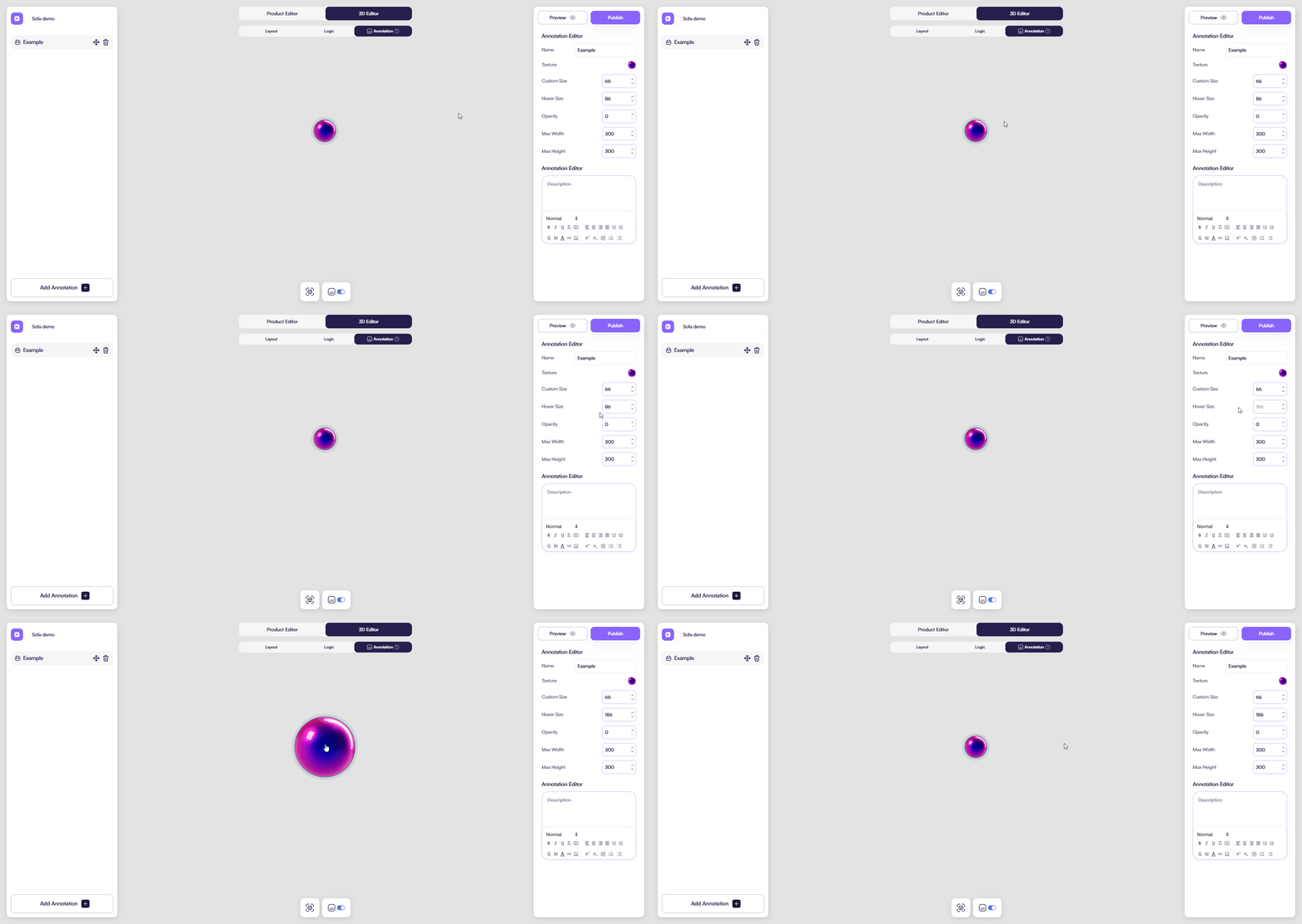
Hover Size
Defines the marker size on hover.
This helps draw attention when users move the cursor over the annotation.
Opacity
Defines the opacity level of the annotation marker.
You use this to make annotations subtle or visually prominent.
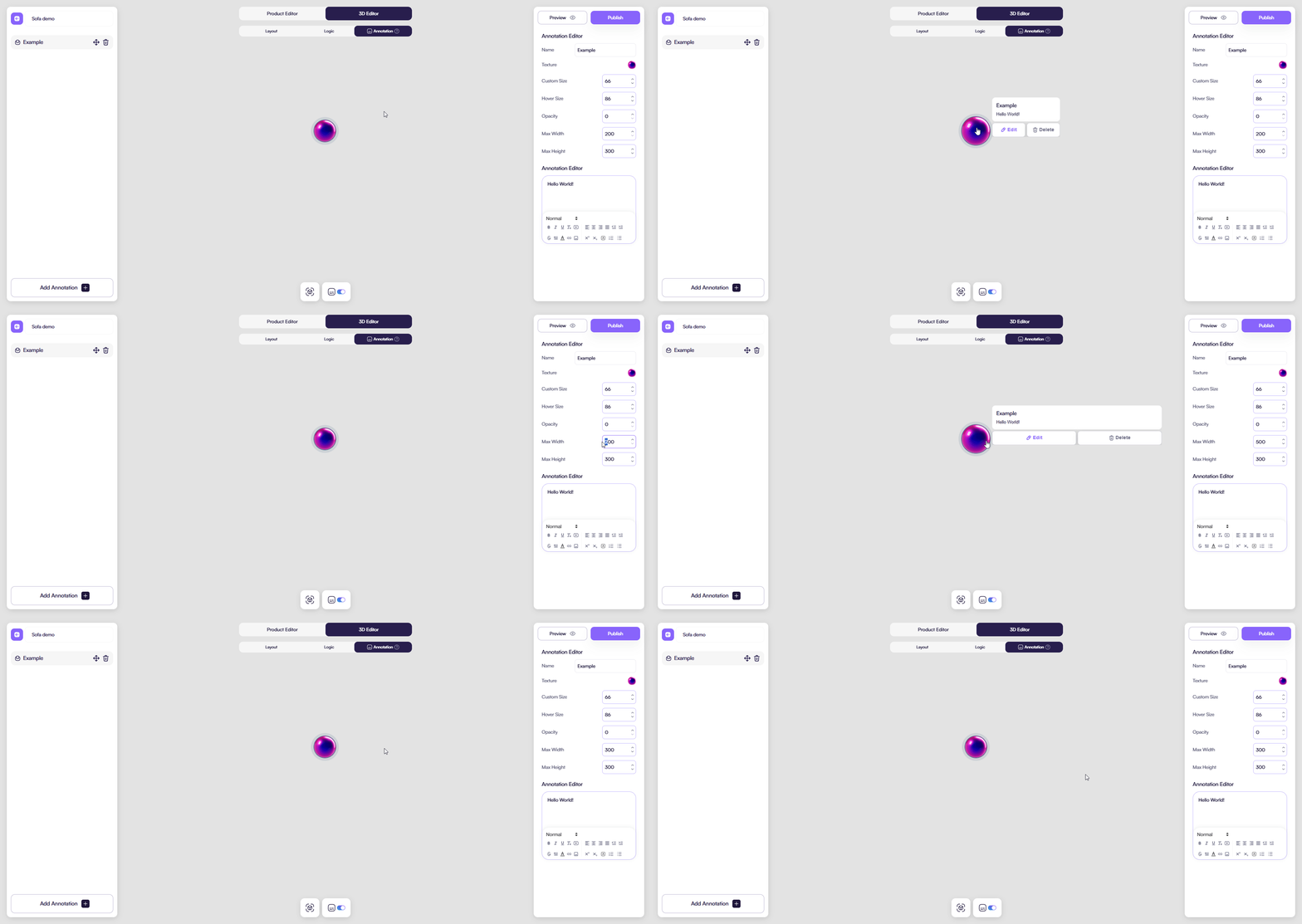
Max Width
Defines the maximum width of the annotation content panel.
This helps control text layout and readability.
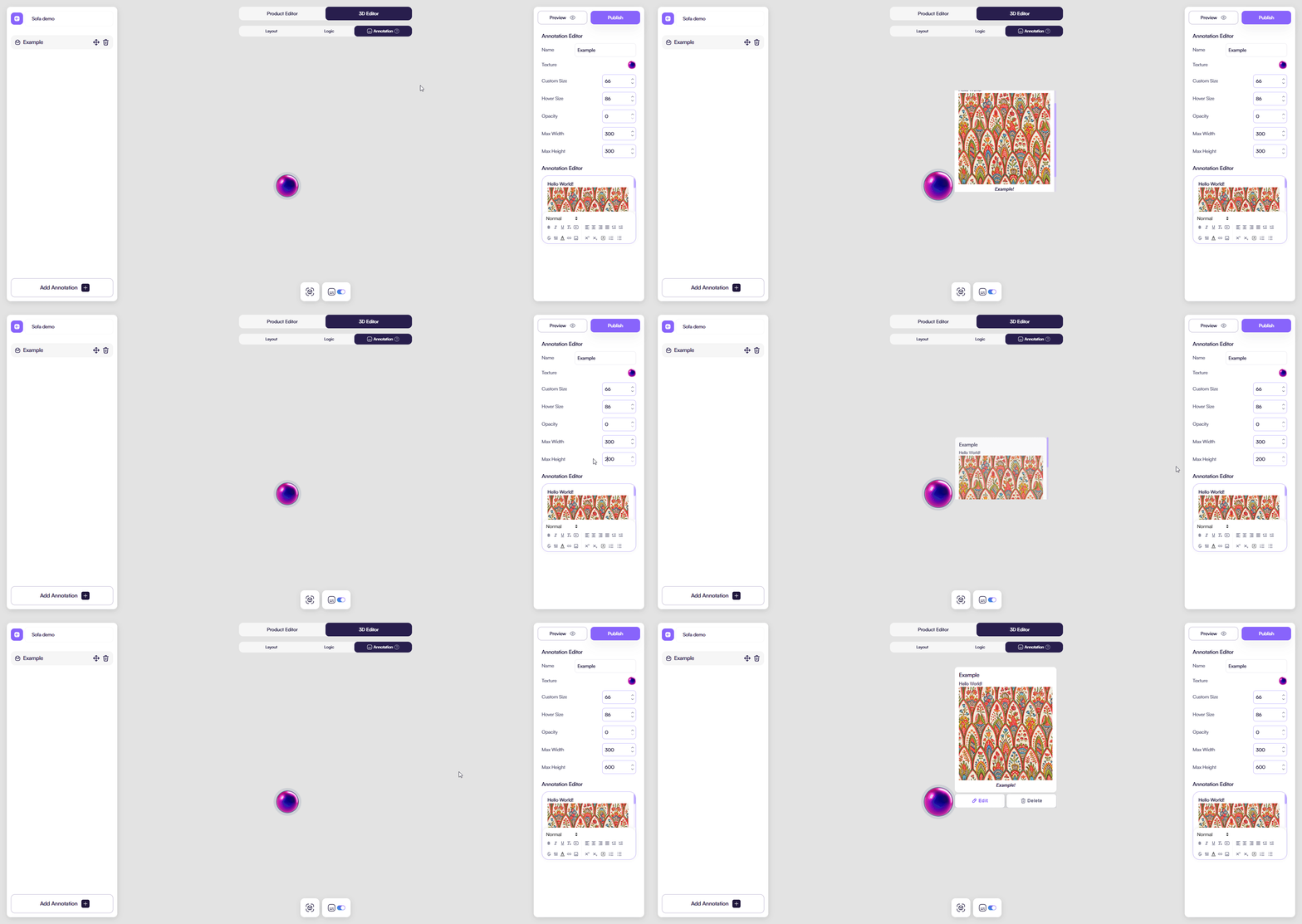
Max Height
Defines the maximum height of the annotation content panel.
Use this setting to prevent large content blocks from covering the scene.
Description
Defines the content shown when the annotation is opened.
You can:
- Add formatted text
- Use links
- Structure content for clarity
This content explains the selected part of the product.
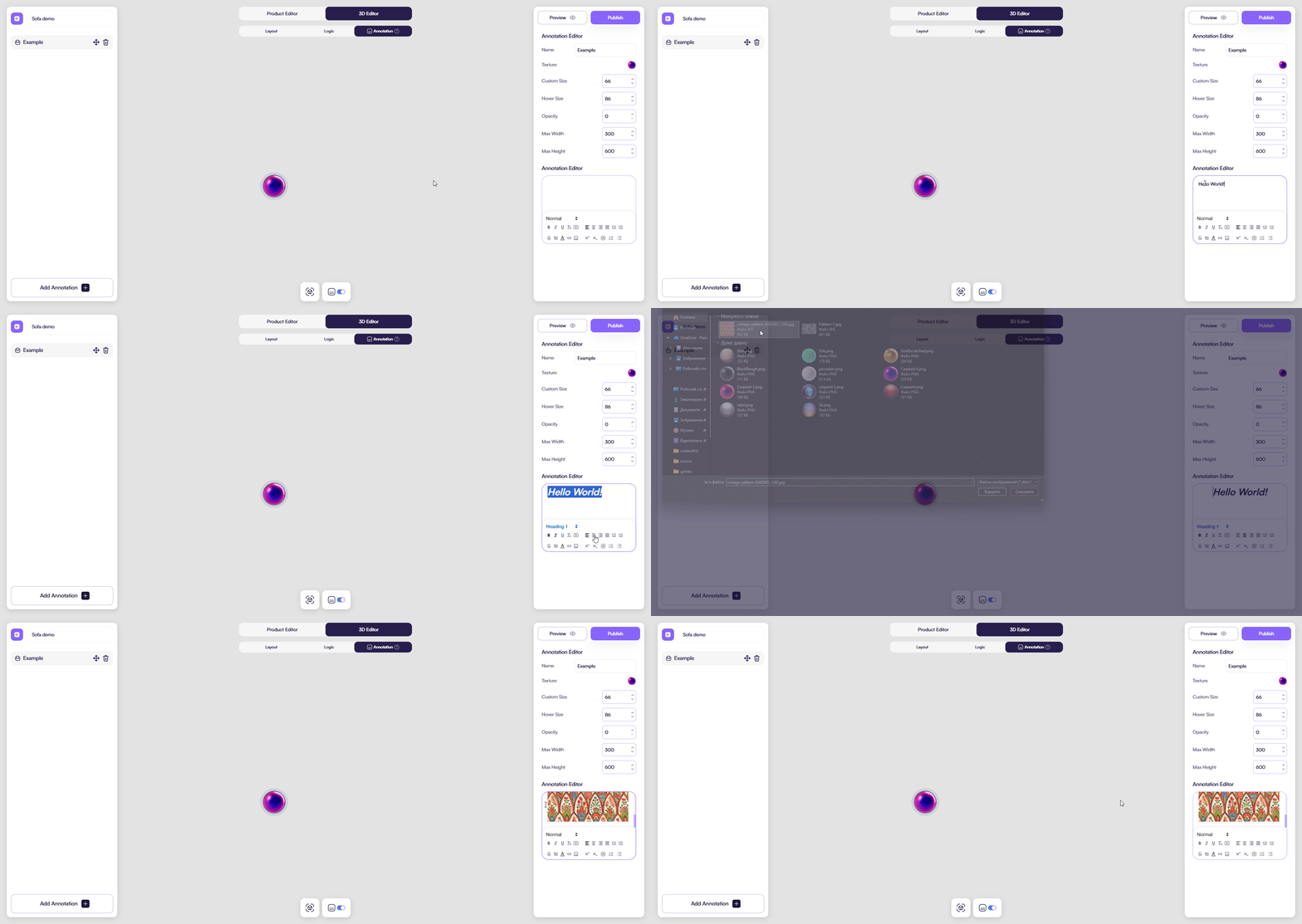
Annotation Editor with Description field filled
References
Related features and systems that work together with annotations.
Event System (3D)
You can use annotations as triggers in scene-based events.
When a user interacts with an annotation, it can trigger 3D actions such as camera changes or animations.
👉 Learn more: Events system
Hotspot-based themes
Annotations work with hotspot-based themes.
Their appearance and interaction states follow the active theme automatically.
👉 Learn more: Theme Editor
Tips & Best Practices
- Place annotations near relevant product details
- Keep descriptions short and informative
- Avoid overlapping annotations
- Use consistent marker sizes across the scene
Common Issues
-
The annotation is not visible Check marker size and opacity settings.
-
The annotation is hard to read Adjust max width and height values.
-
The annotation appears in the wrong position Reposition it directly in the 3D scene.