Product Editor
Use the Product Editor to configure how a product is structured, priced, and presented to the end user.
It combines attributes, PCOs, assets, and pricing logic into a single configuration flow that defines the final product experience.
Product structure tree
The left panel displays the product structure as a hierarchical tree.
The tree represents:
- Categories
- Attributes
- Attribute values (PCOs)
- Linked assets and models
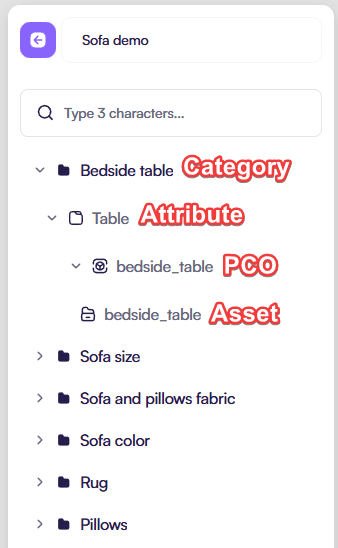
This structure defines both configuration logic and UI order.
Drag & Drop behavior
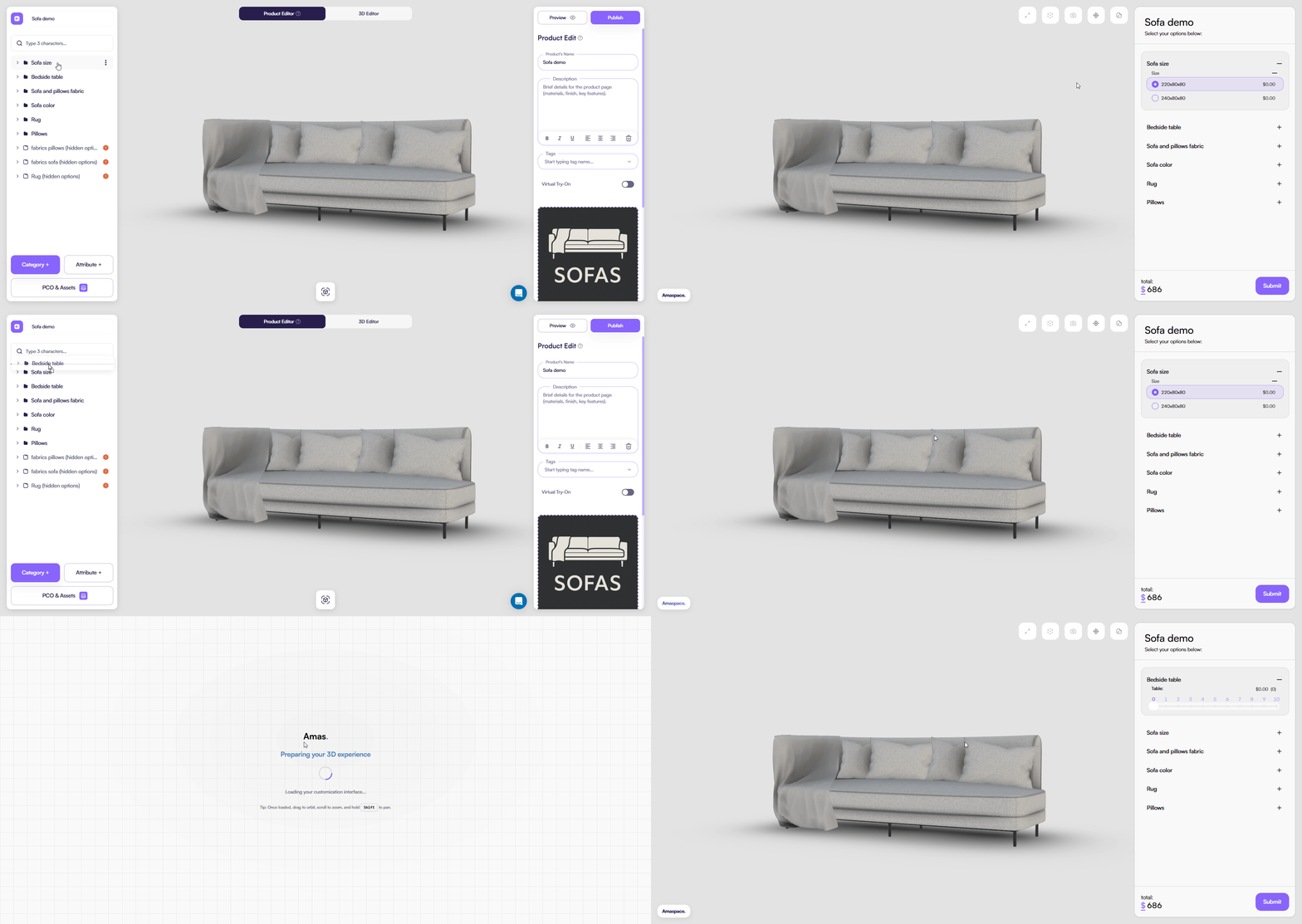
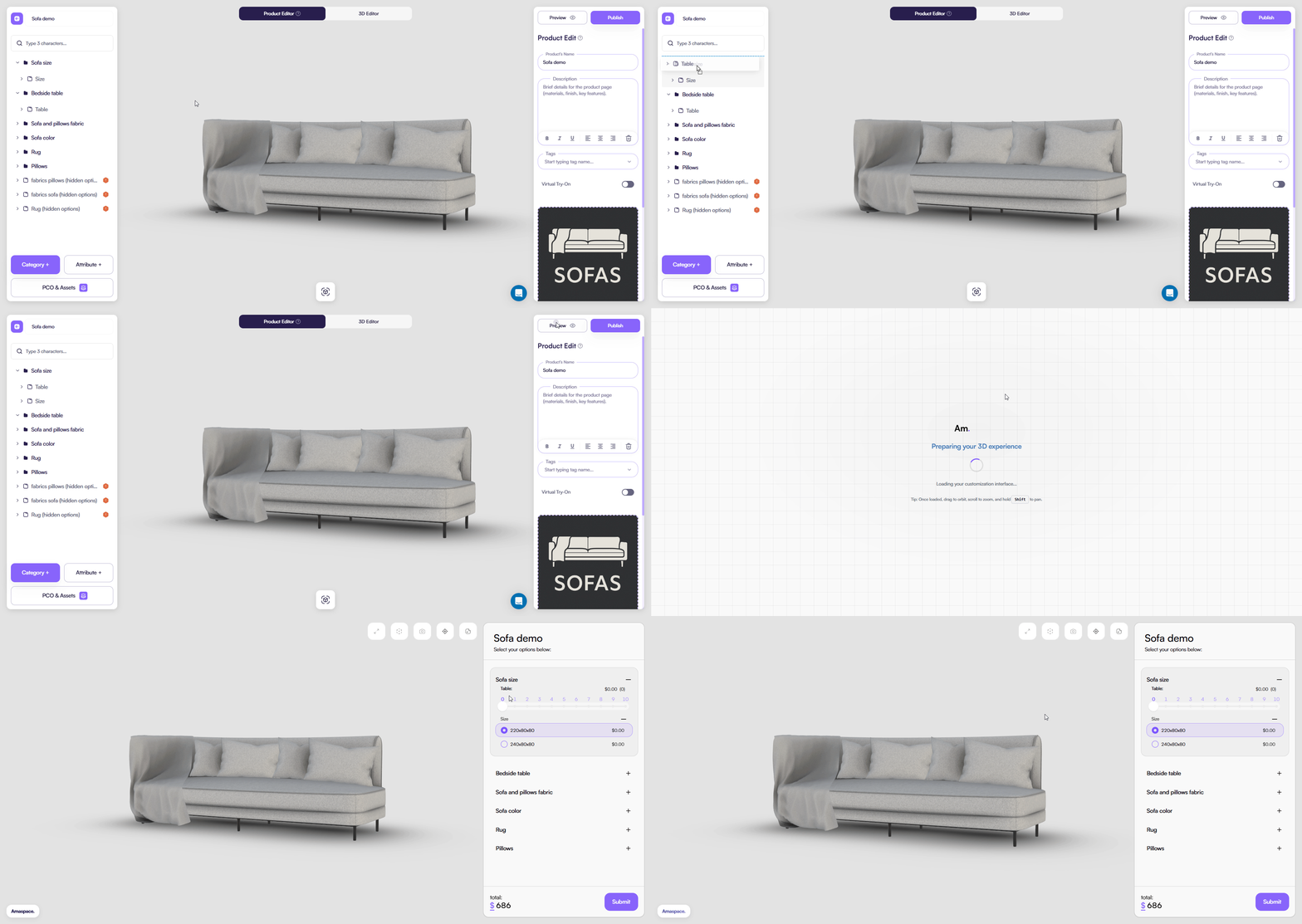
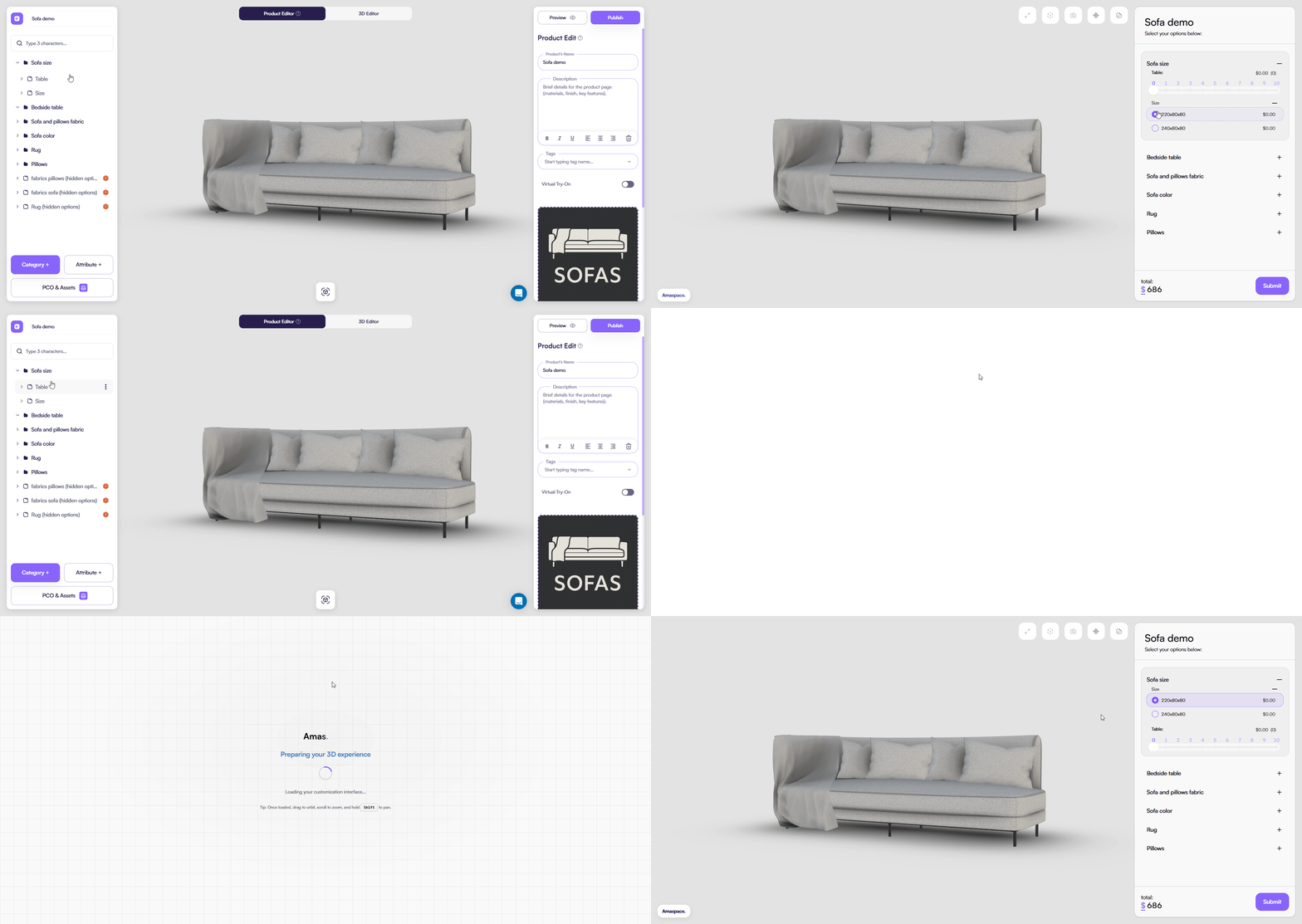
The Product Editor tree fully supports drag & drop.
You can use it to reorganize the product structure without breaking configuration logic.
What you can do
-
Reorder categories
-
Move attributes between categories
-
Reorder attributes within the same category
-
Change the display order of configuration options
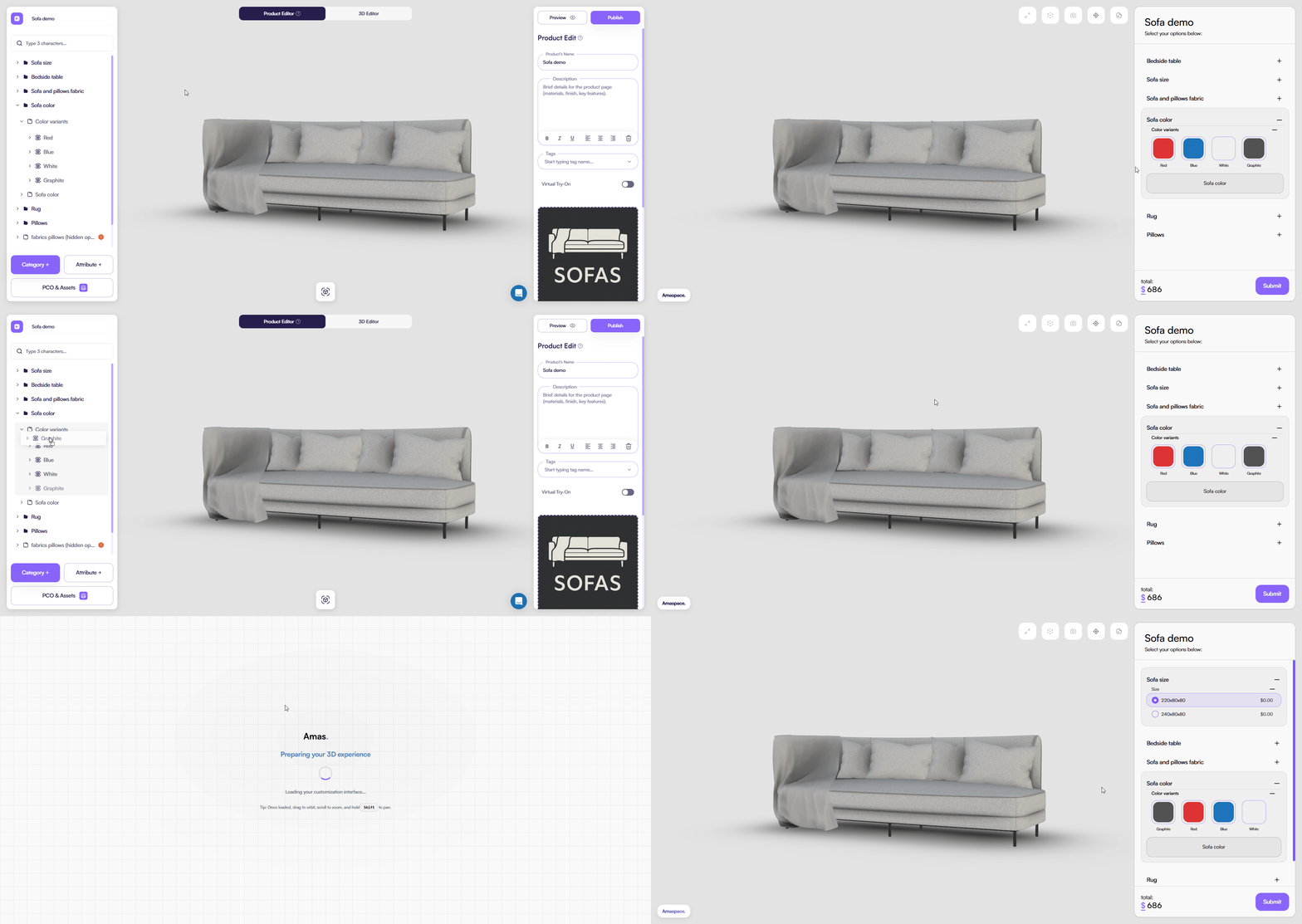
All changes apply instantly and affect how the product appears in the configurator UI.
Configure
The right panel contains product-level settings.
Here you configure:
-
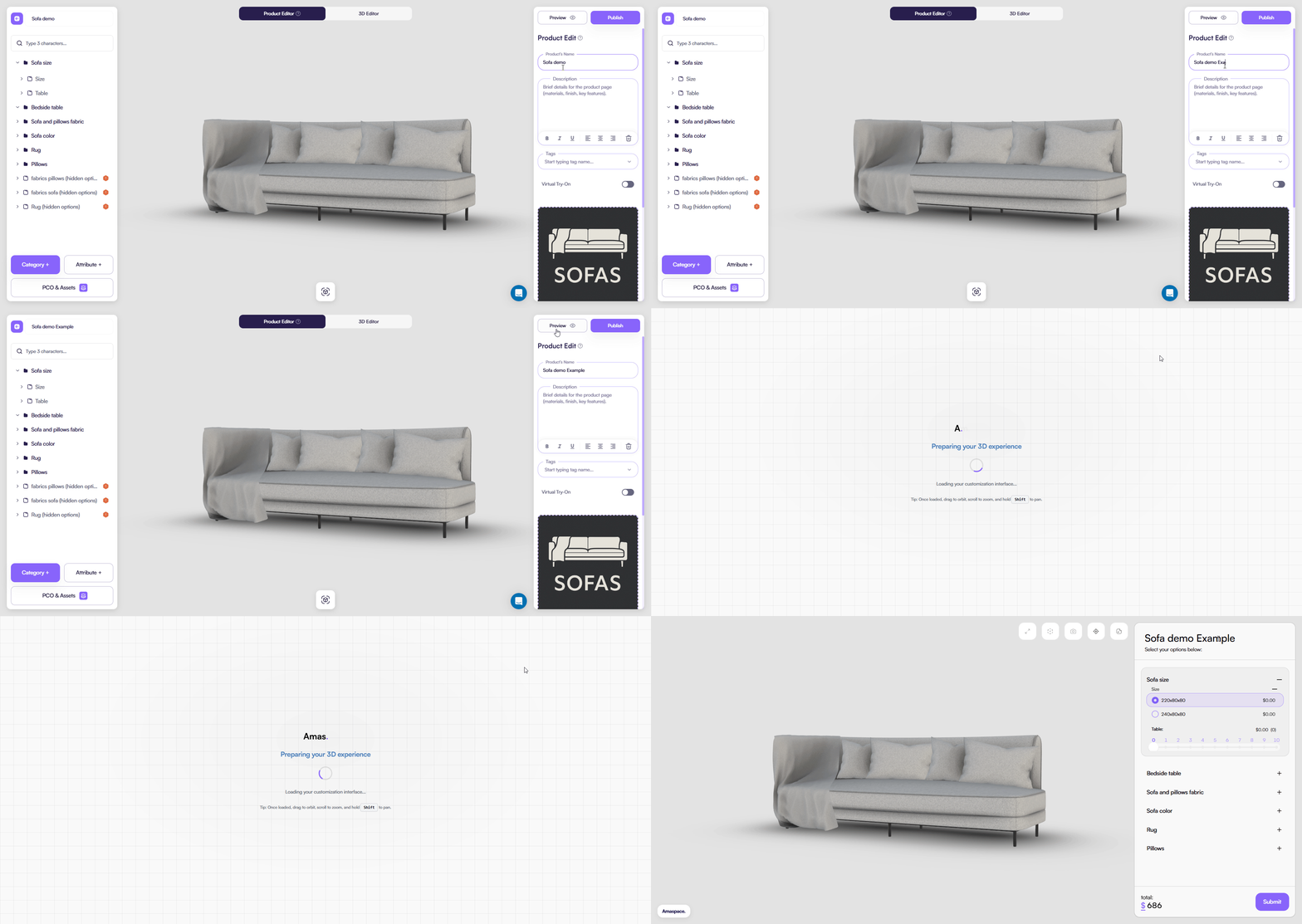
Product name Defines the display name of the product across the platform, including the Product list, editor header, and published configurator.
-
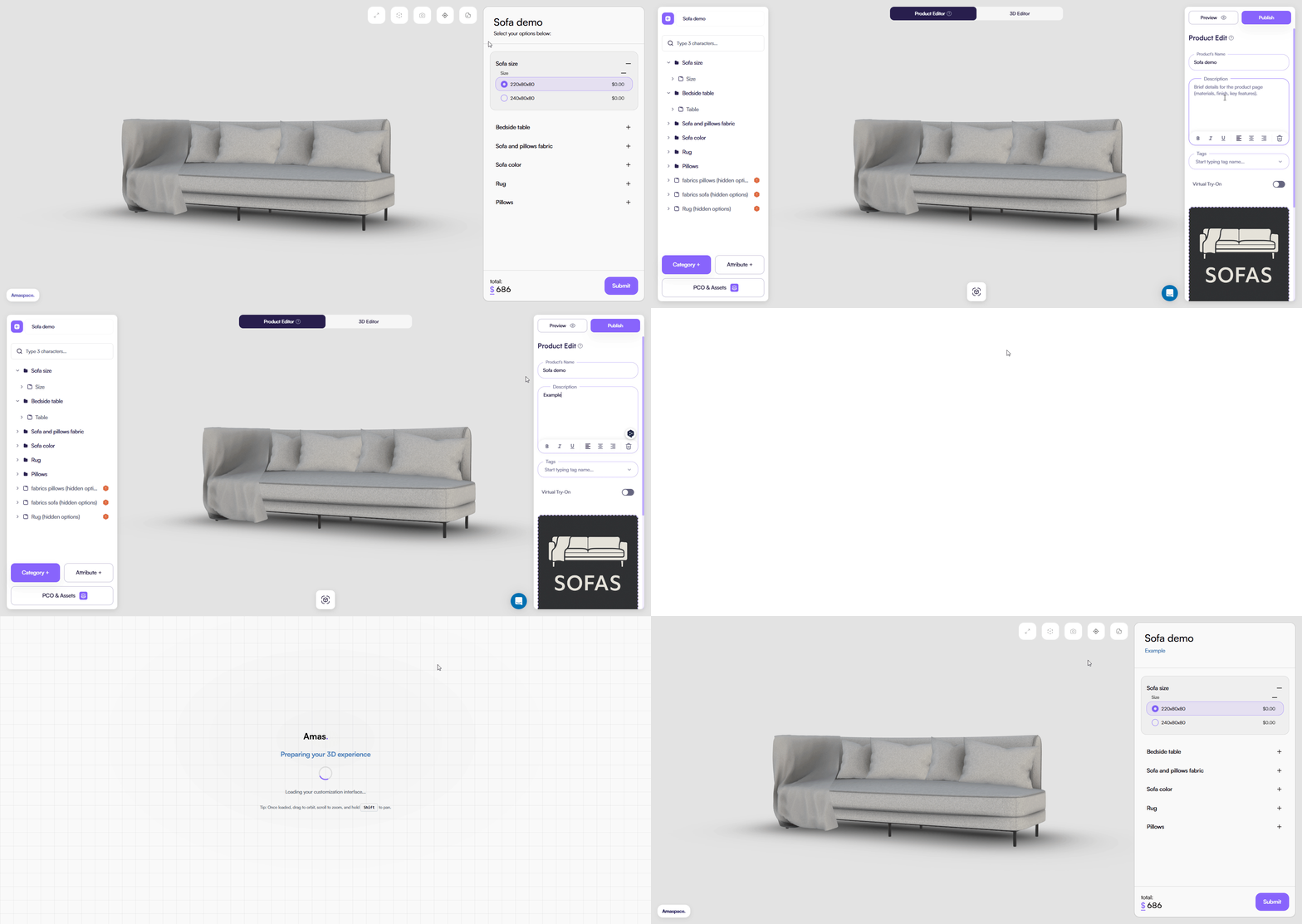
Description Provides a short product description used for product pages and previews.
-
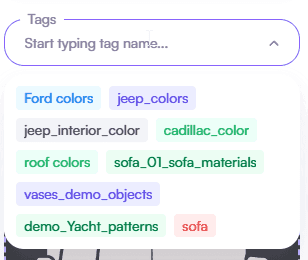
Tags Help organize and group products for search, filtering, and internal management.
- Preview image Represents the**main visual thumbnail **of the product.
Used in product lists, previews, and external integrations.

- Base price and currency Sets the **starting price of the product **before any configuration options are applied.
All attribute-based price changes are calculated on top of this value.
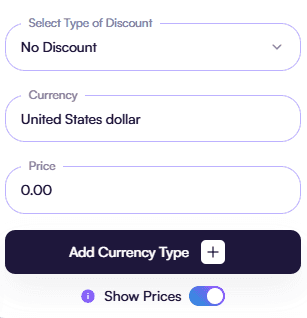
- Discount rules Define price adjustments such as fixed or percentage discounts applied to the product under specific conditions.
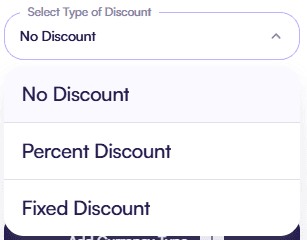
These settings define how the product is presented outside the configurator itself.
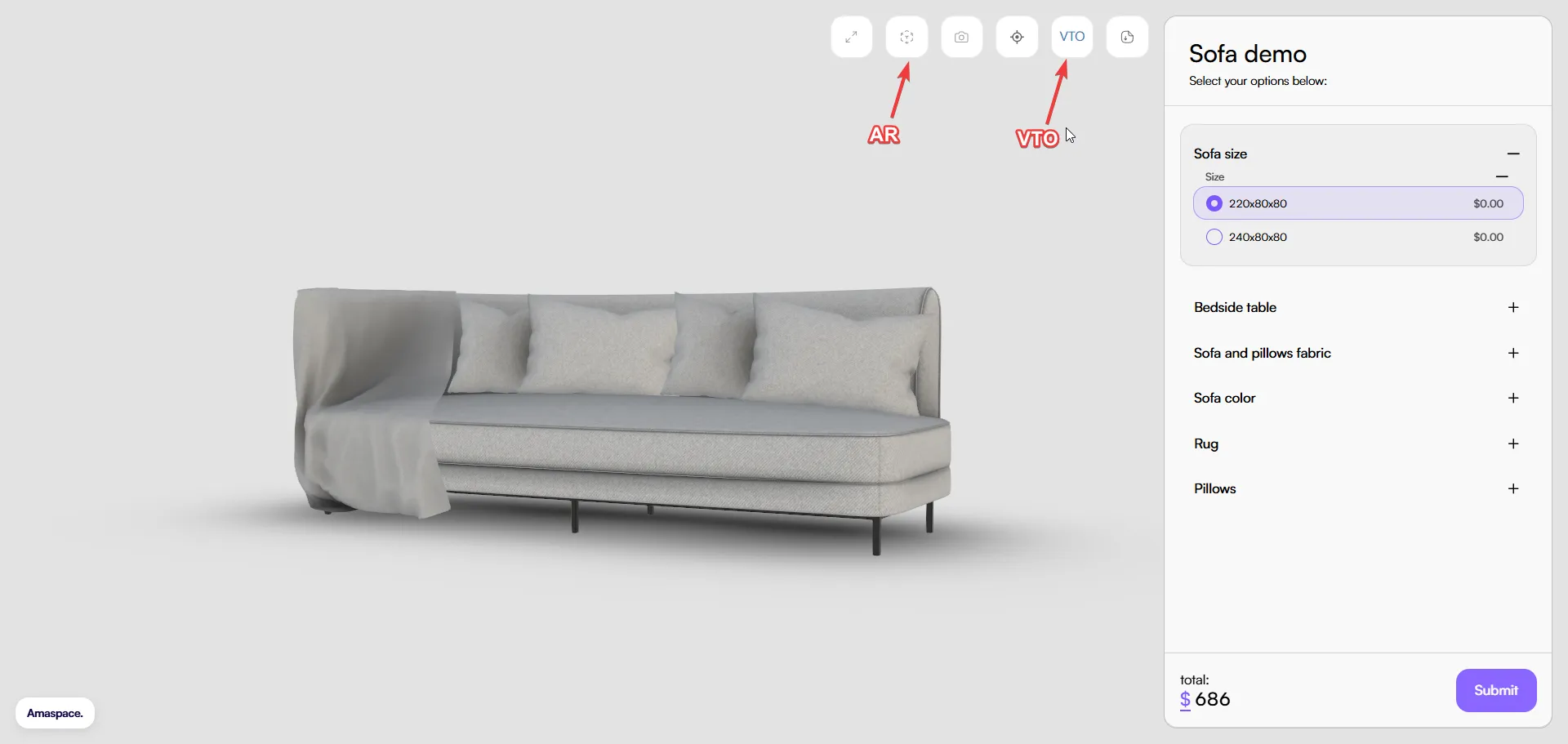
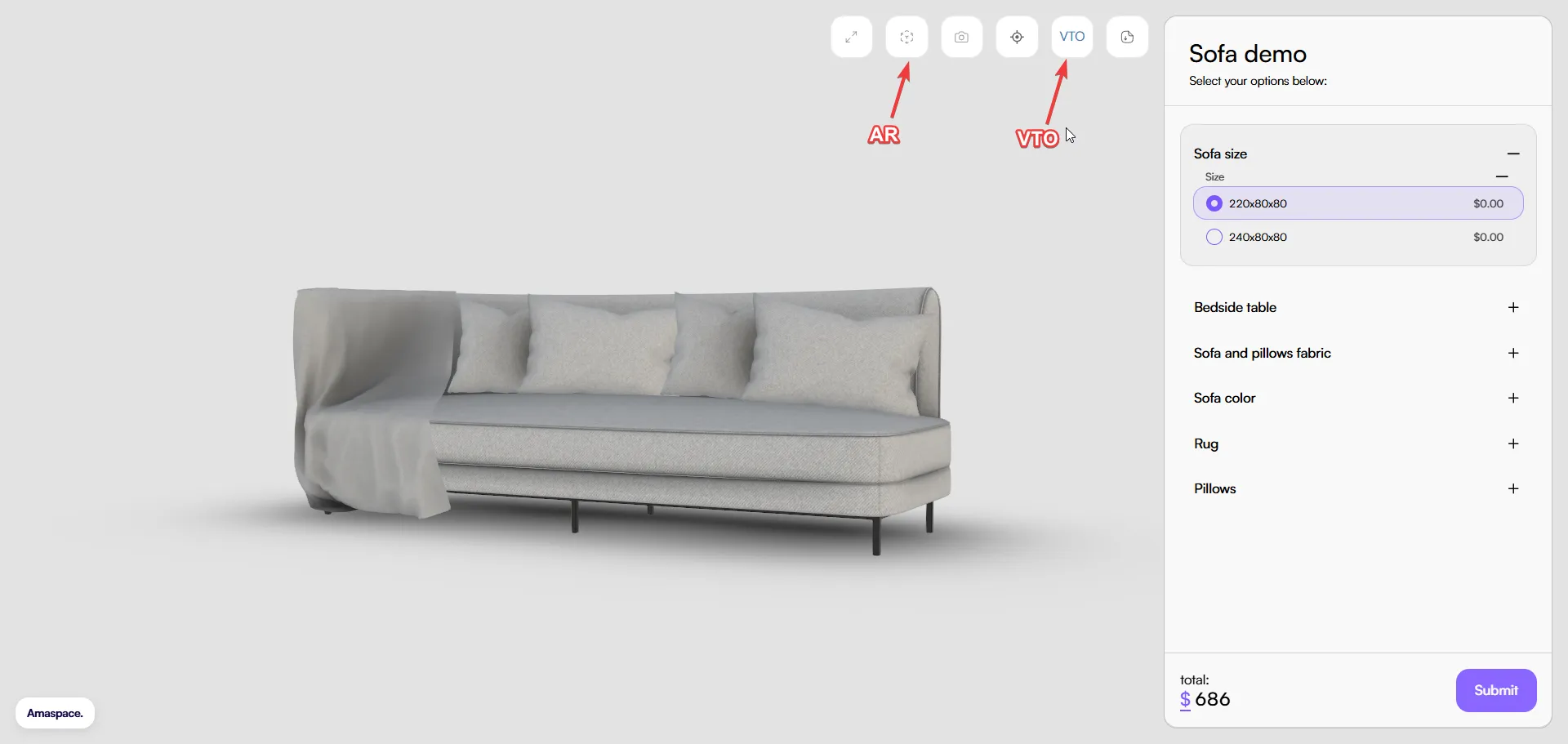
AR
AR is enabled by default for every product.
AR lets you view the product in a real-world environment using a device camera.
You can control the AR experience directly from the Product Editor:
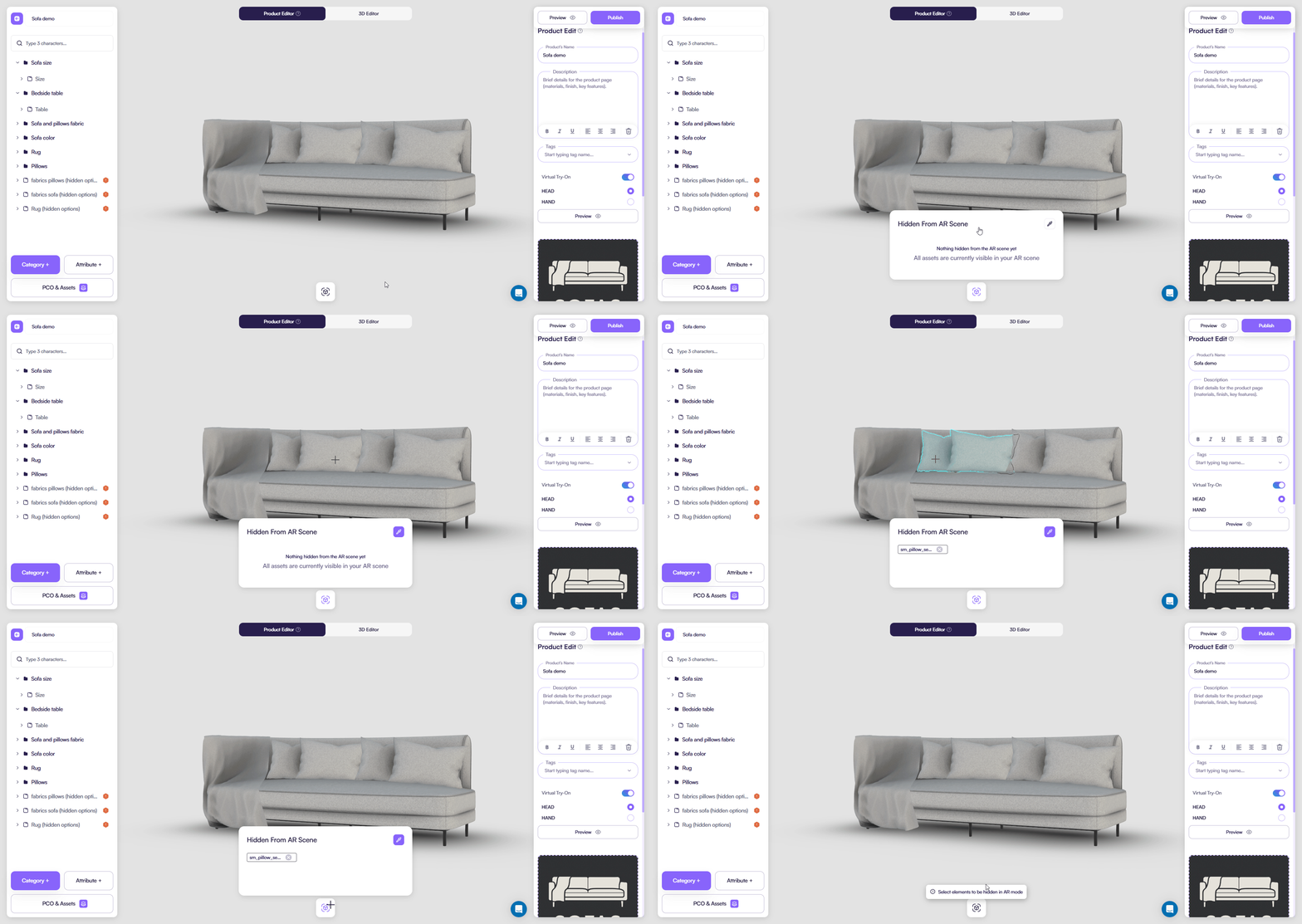
- Hide unnecessary objects from the AR scene
- Keep only relevant parts visible for real-world placement
- Optimize the AR view for clarity and performance
This helps you prepare a clean and focused AR experience without changing the main 3D configuration.
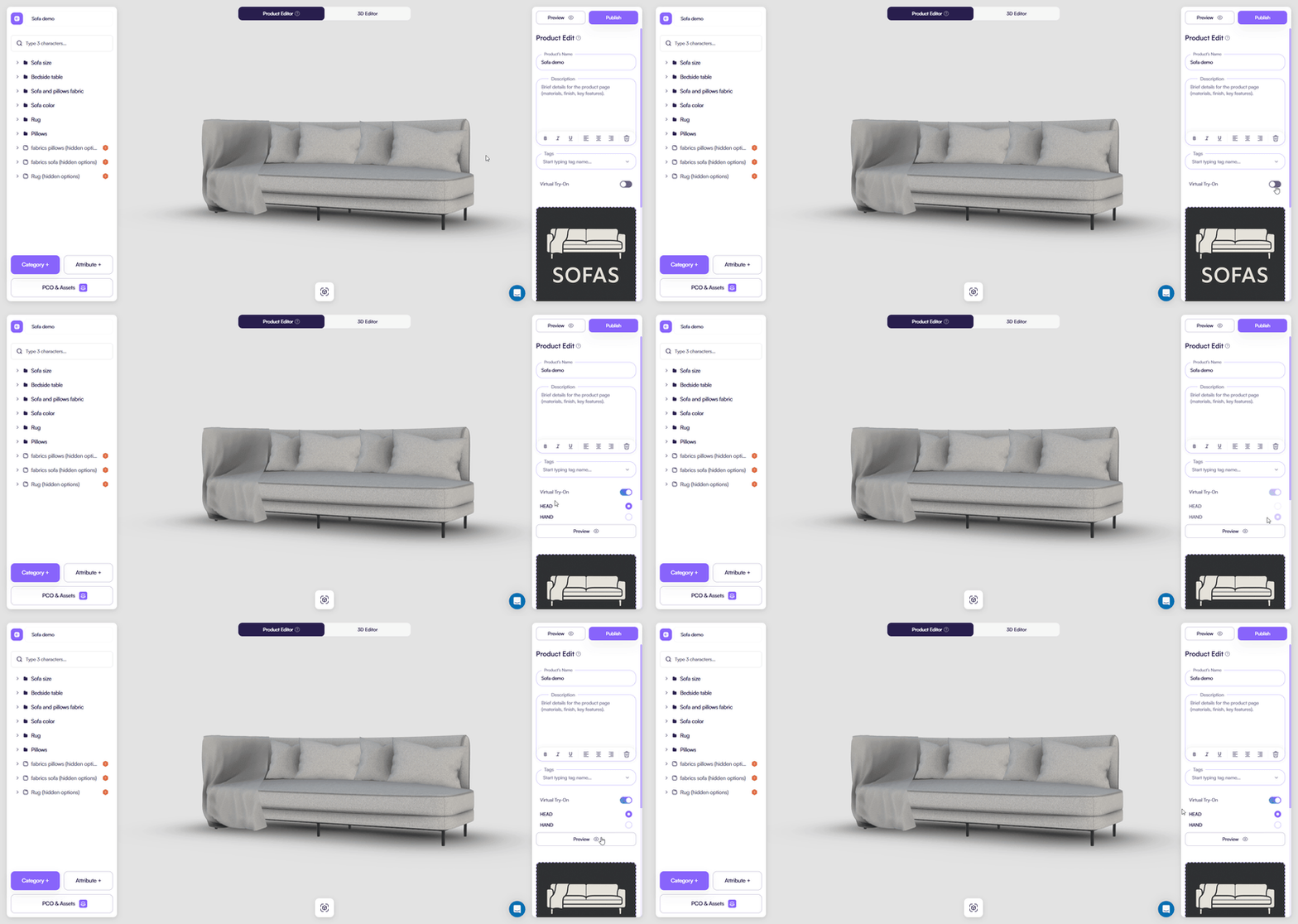
VTO
Virtual Try-On is disabled by default.
VTO allows users to preview a product on specific body parts, such as:
- Head
- Hand
You enable VTO per supported body area and configure it based on the product type.
The Preview option lets you see how the product appears in VTO mode before publishing.
This helps you fine-tune positioning and behavior to achieve the best visual result.
PCO & Assets integration
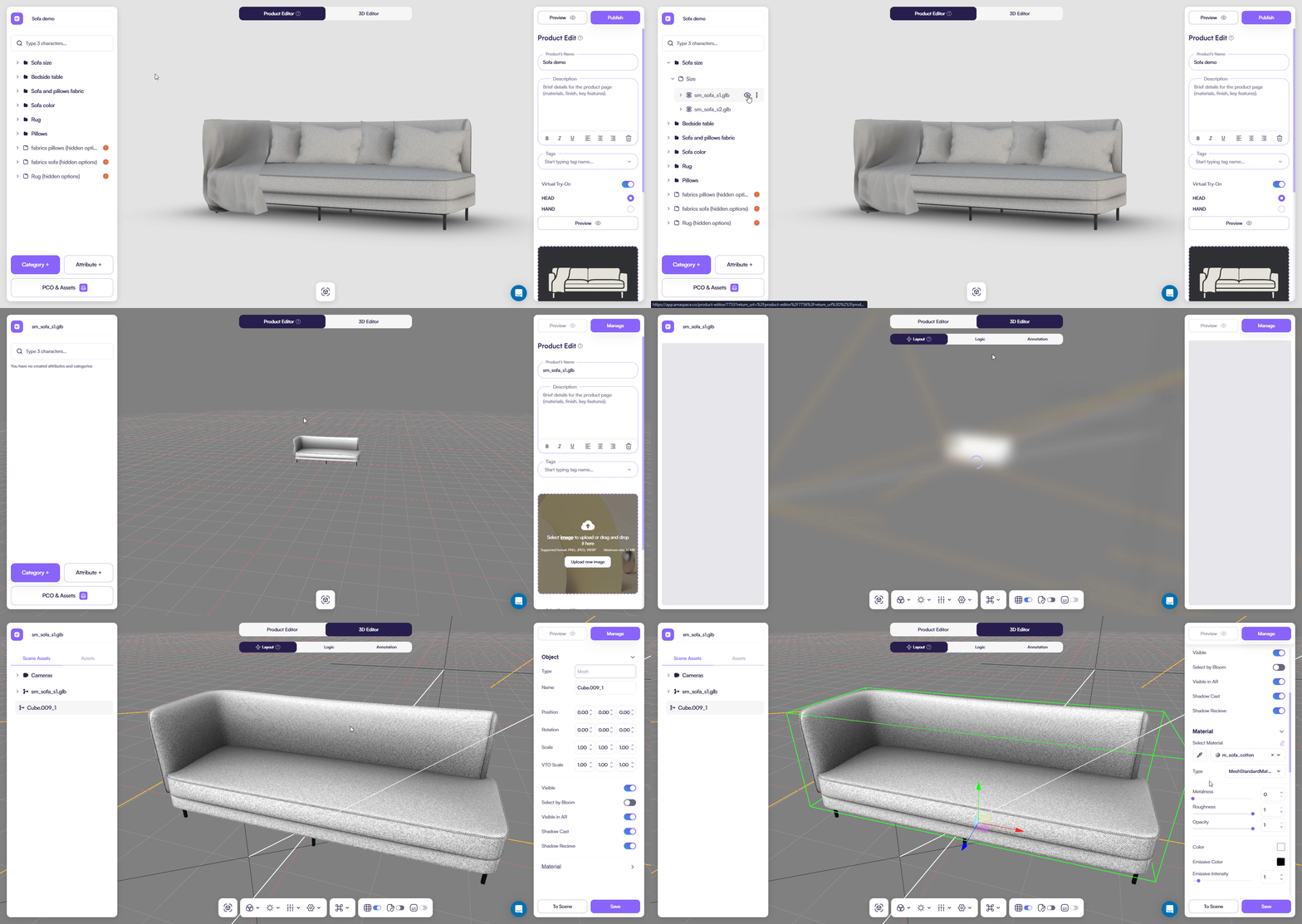
From the Product Editor, you can open PCO & Assets to:
- Assign PCOs to attributes
- Link materials, textures, and models
- Manage reusable assets
- Control which assets participate in configuration
This keeps product logic and asset management connected but clearly separated.
Preview and publish
At any time, you can:
- Open Preview to test the full configuration flow
- Publish changes when the product is ready
Preview reflects the current tree structure, attribute logic, events, and pricing in real time.