Part Reference Attribute: Select one model from a list of variants
Article Brief
What this article covers:
- What the Part Reference attribute does
- How variant selection works
- How to configure Part Reference settings
- How variant selection affects product price
Overview
Use the Part Reference attribute to let you select one model from a predefined list of variants.
This attribute switches between alternative models and always keeps exactly one active option.
You use the Part Reference attribute when a product has multiple visual or structural variants and only one should be visible at a time.
How the Part Reference attribute works
The Part Reference attribute represents a variants selector.
Each option links to a different model, and selecting an option activates that model in the scene.
When you change the selected option:
- The chosen variant becomes active
- The previous variant is replaced
- The scene updates instantly
At any moment, only one variant is active.
UI behavior
Use PCO Displaying to control how variants are selected.
The Part Reference attribute supports two display modes:
- Radio Buttons Displays all variants as a list of selectable options.
You select one option to activate the corresponding model.
- Dropdown Displays variants inside a dropdown list.
You open the list and choose one option to activate the model.
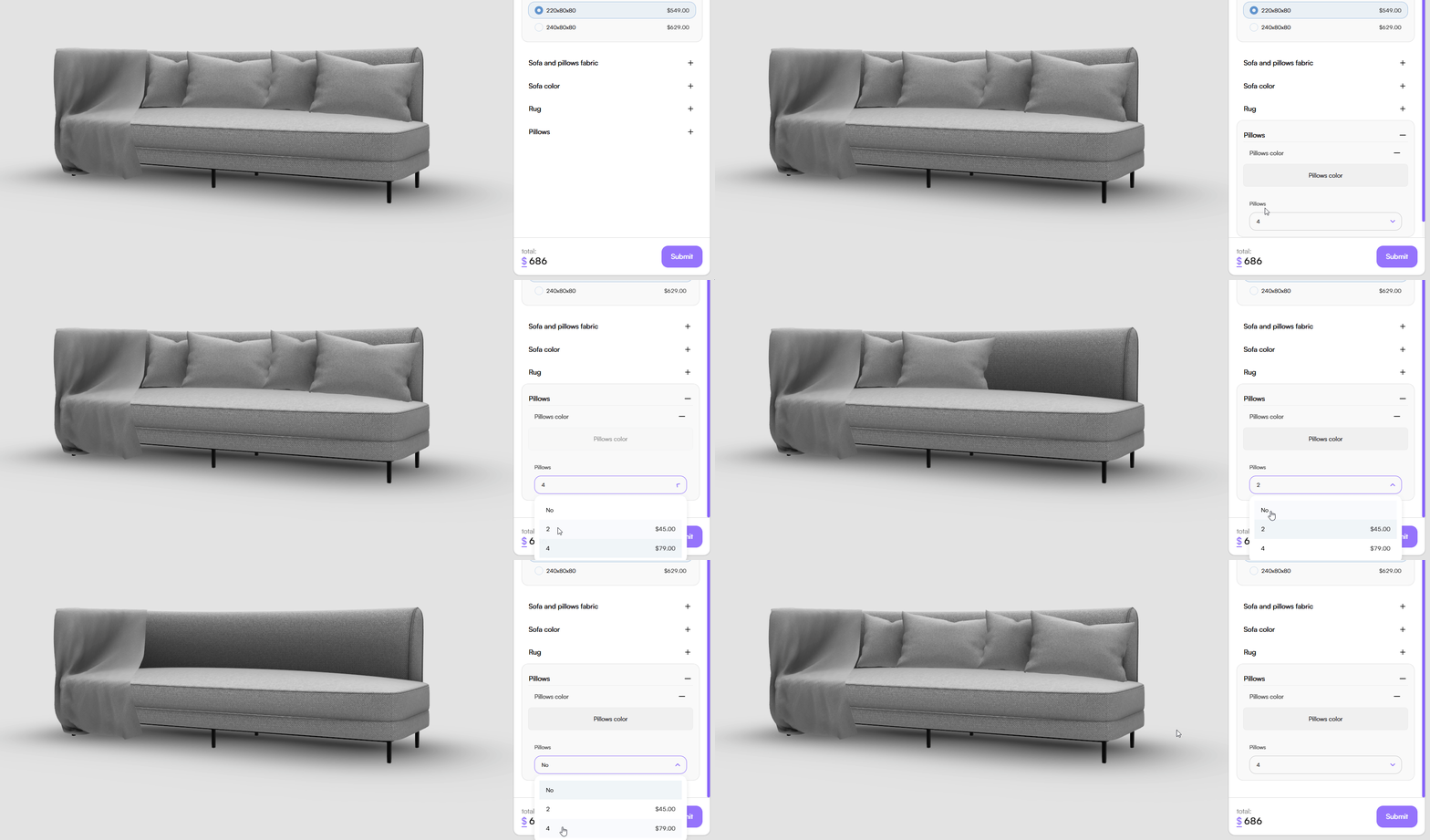
In both modes:
- Only one variant can be selected at a time
- The active variant is clearly highlighted
- The scene updates immediately after selection
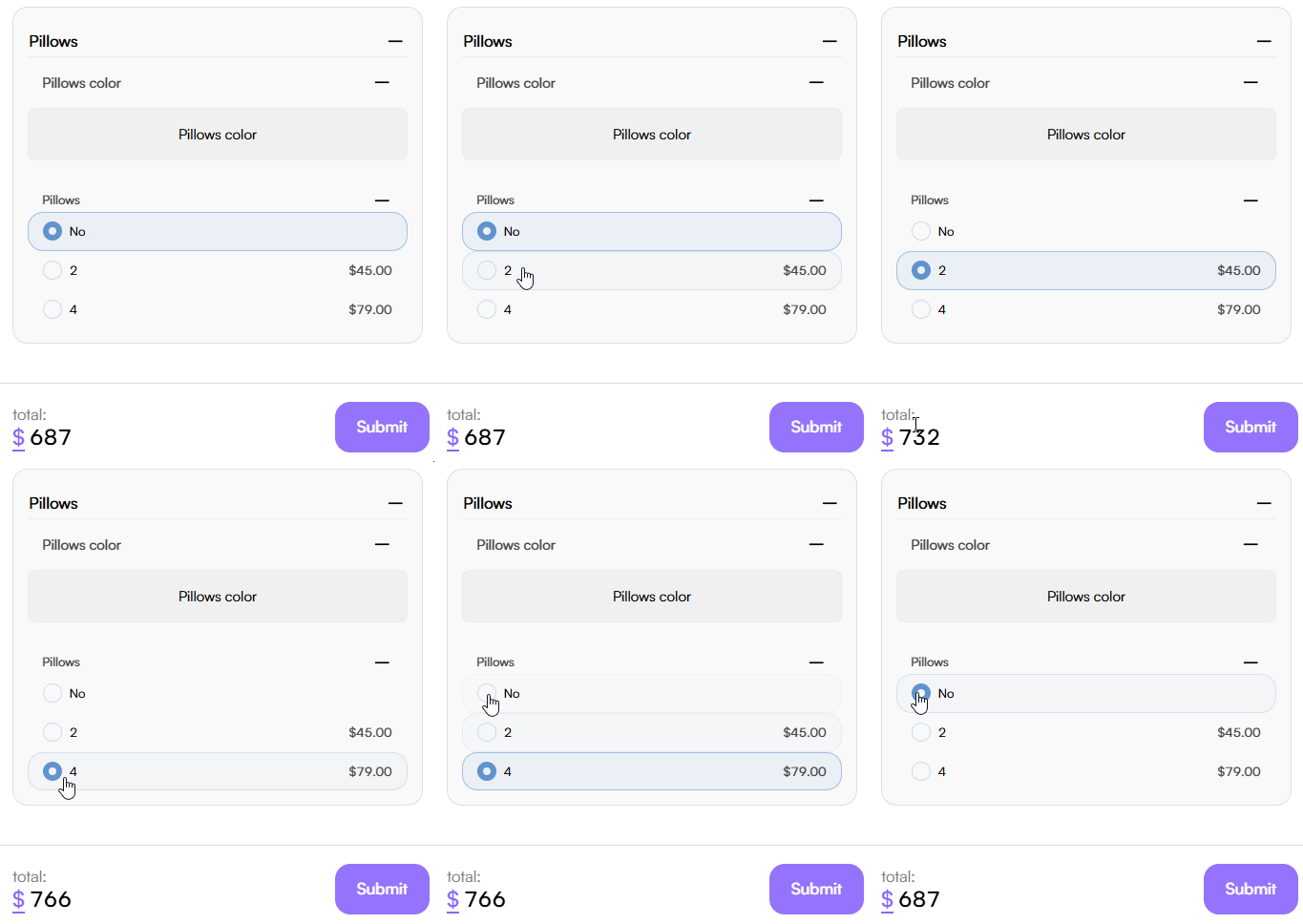
Price calculation with variants
Each variant can have its own price.
When you select a variant:
- The system activates the corresponding model
- The product price recalculates automatically
- Variants with a price greater than zero update the total cost
This behavior keeps variant selection aligned with pricing logic.
Tips & Best Practices
- Use Part Reference for one-of-many choices
- Group only mutually exclusive models
- Name variants clearly to reflect differences
- Assign prices to premium variants
Common Issues
-
The attribute does not appear Check whether the Products field is empty.
-
The price does not update Check whether the selected variant has a price greater than zero.
-
The model does not appear Ensure that the tied PCO has the Model asset type.