Controls Bar
Overview
The Controls Bar is the toolbar at the bottom of the 3D Editor. It gives you quick access to the most common actions: adding lights, creating helper objects, switching transform tools, and controlling what’s visible while you work.
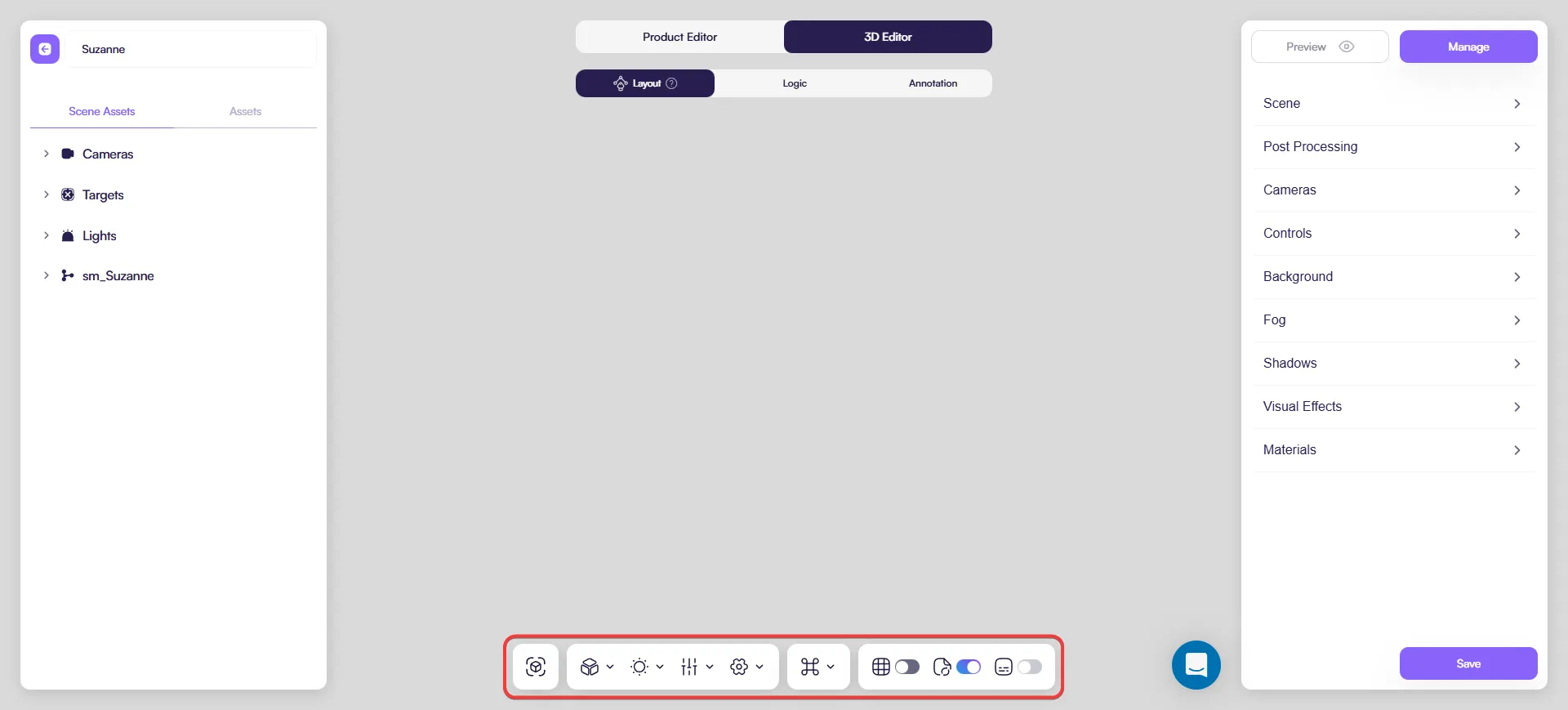
Buttons (left → right)
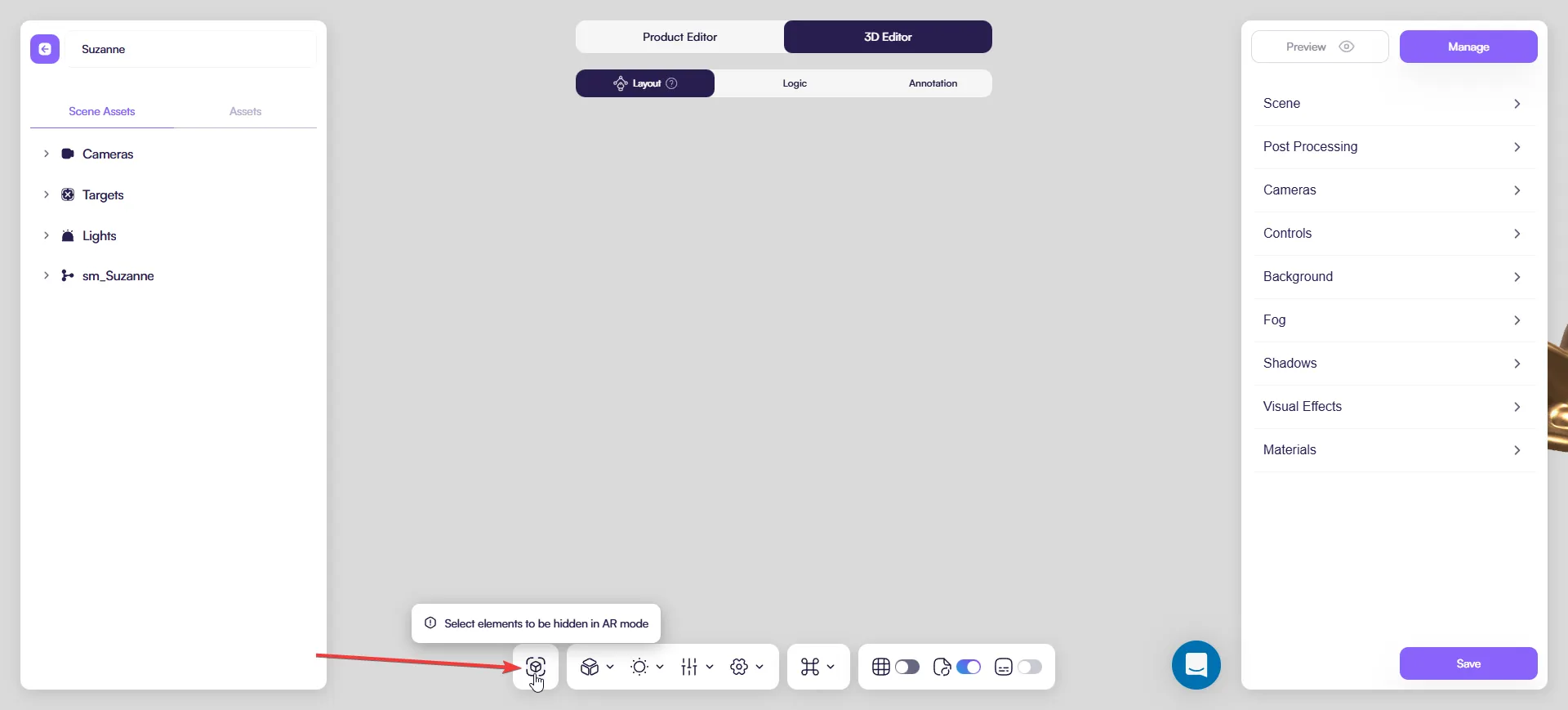
1) Hide from AR scene
Opens Hidden From AR Scene. Use it to choose which elements should not appear in AR mode.
Typical use:
- hide helper objects (targets, connectors, guides)
- hide scene-only elements that don’t make sense in AR
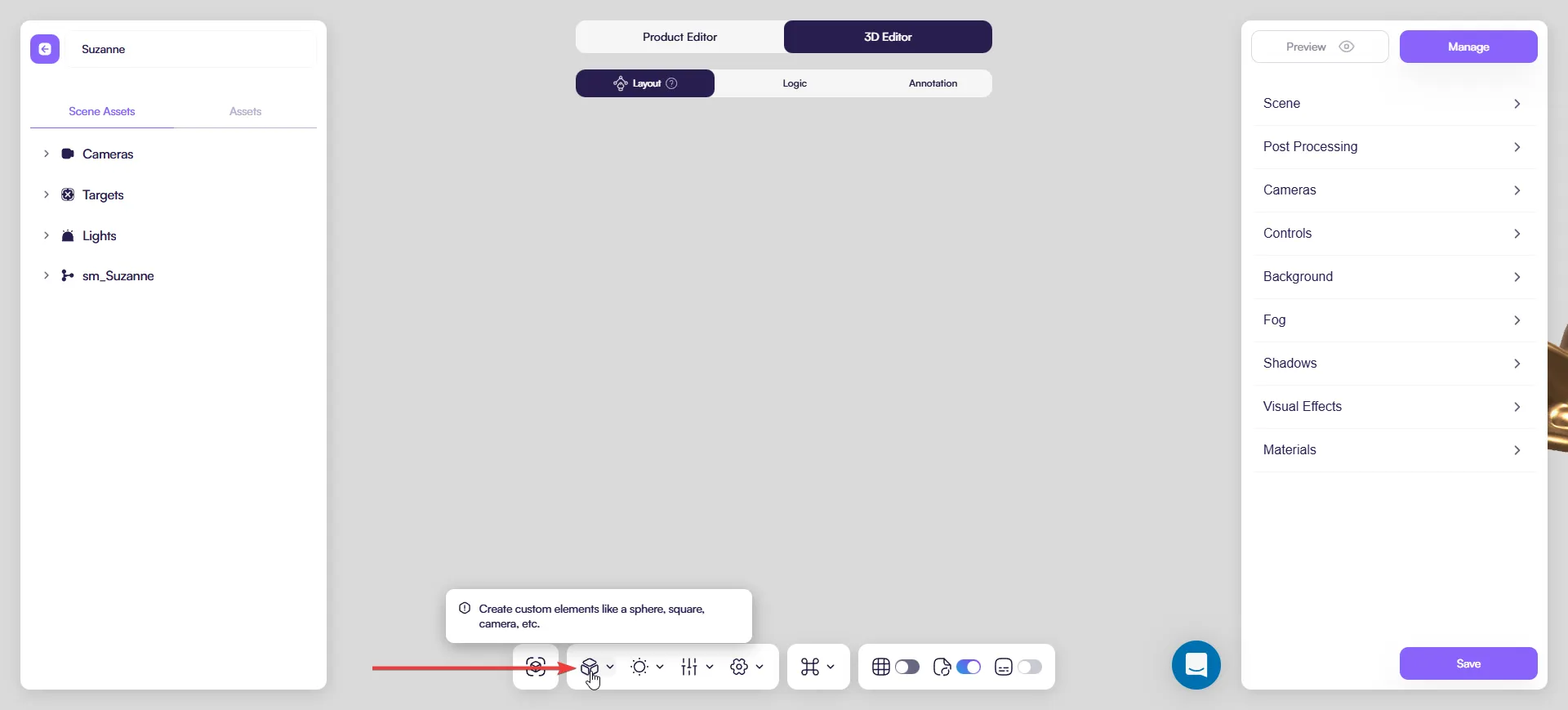
2) Custom Objects
Creates simple helper elements directly in the scene.
Options:
- Box
- Group
- Target
- Connector
- Sphere
- Plane
- Shadow Plane
- Camera
Use these when you need quick helpers (ground, shadow plane, extra camera angle, targets for lights/cameras).
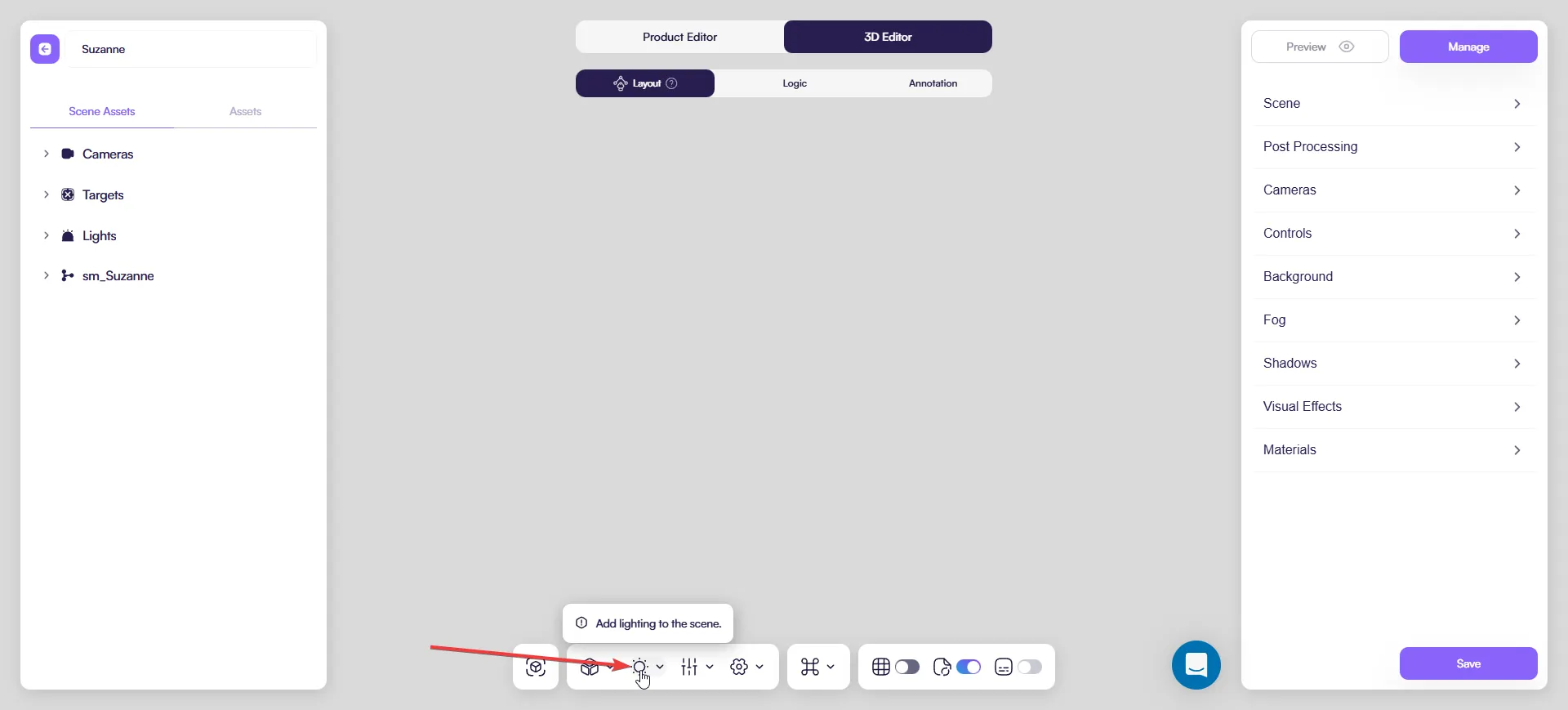
3) Lighting
Adds lights to the scene.
Options:
- Directional Light
- Point Light
- Spot Light
- Hemisphere Light
Use this when the scene needs better readability or a specific mood.
4) Transform mode
Switches the tool you use to manipulate objects.
Options:
- Rotate
- Scale
- Translate
Use this anytime you need to position or adjust a product, light, or helper object.
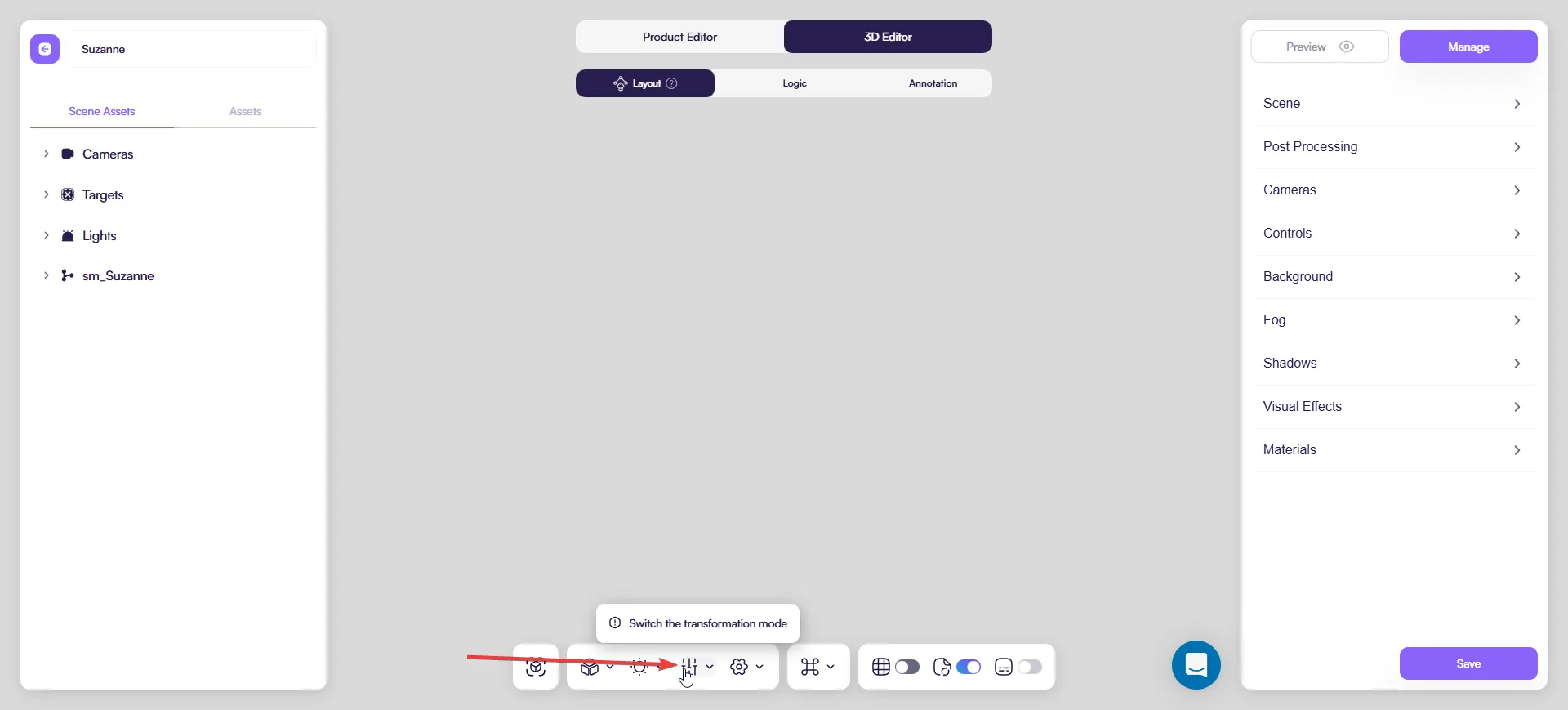
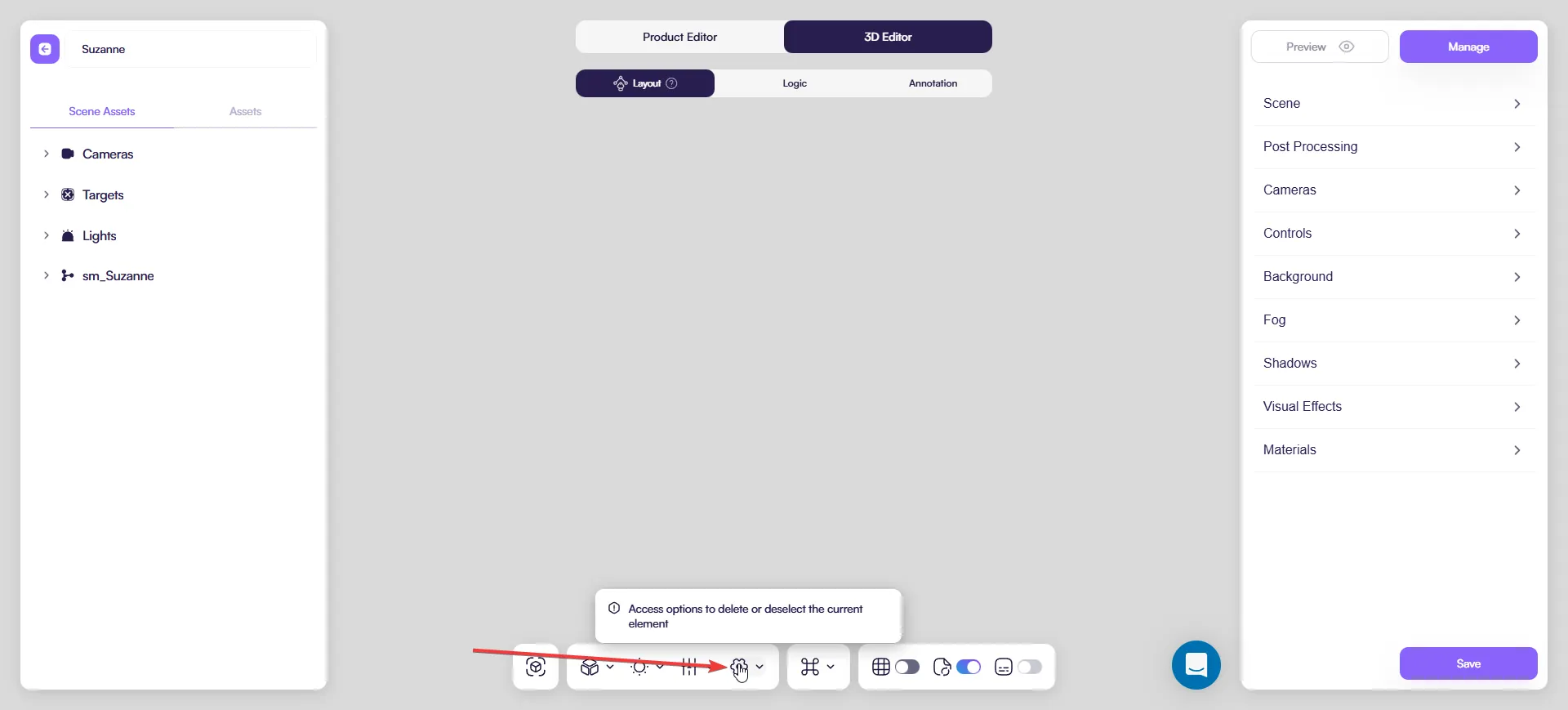
5) Selected item actions
Quick actions for the current selection.
Options:
- Remove Item
- Unselect
Use it when you want to delete a helper quickly or clear the selection.
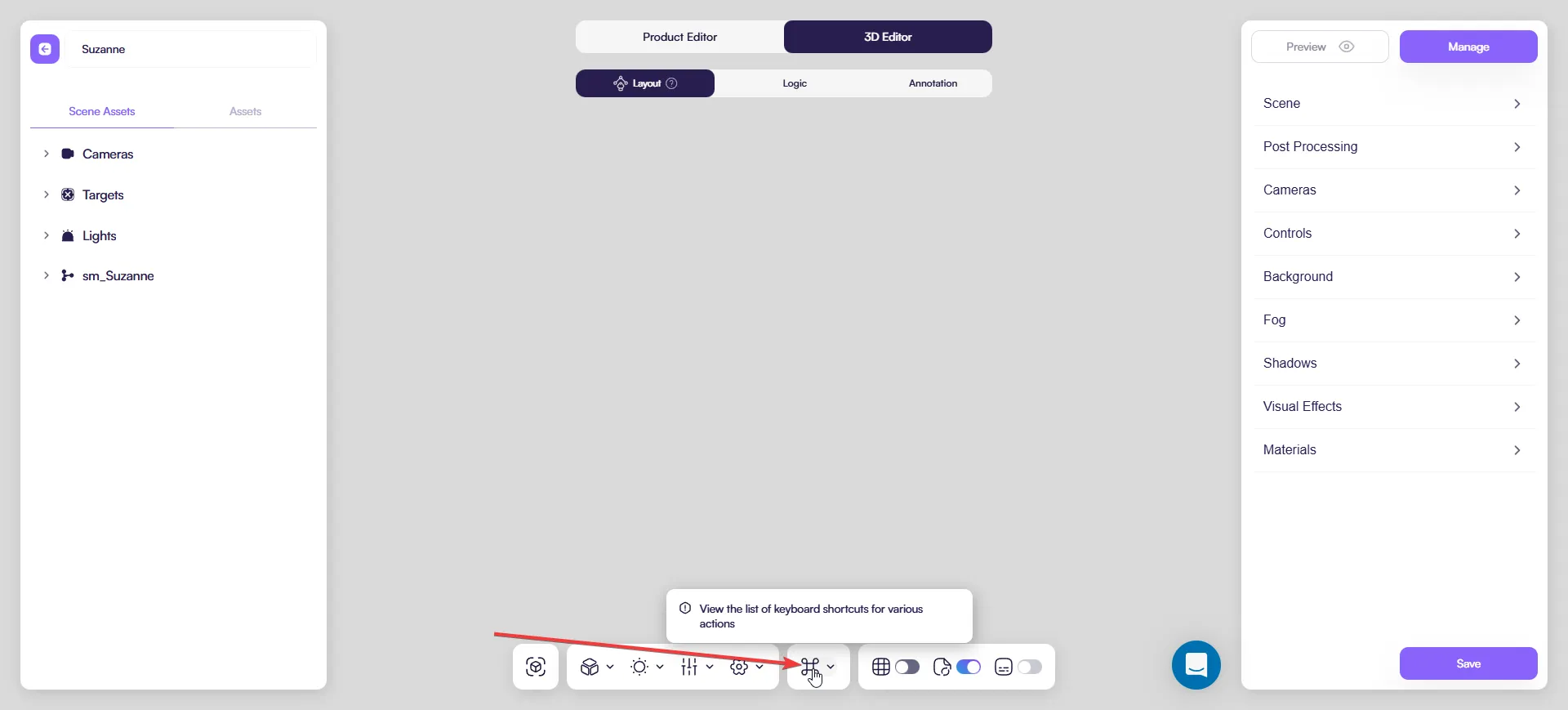
6) Shortcuts
Shows a list of keyboard shortcuts.
Common shortcuts:
- Move (W)
- Rotation (E)
- Scale (R)
- Delete (Del)
- Undo (Ctrl + Z)
- Redo (Ctrl + Shift + Z)
- Unselect (Esc)
- Focus (F)
- Default Camera (D)
- Save (Ctrl + S)
Tip: Start with W / E / R — it speeds up editing a lot.
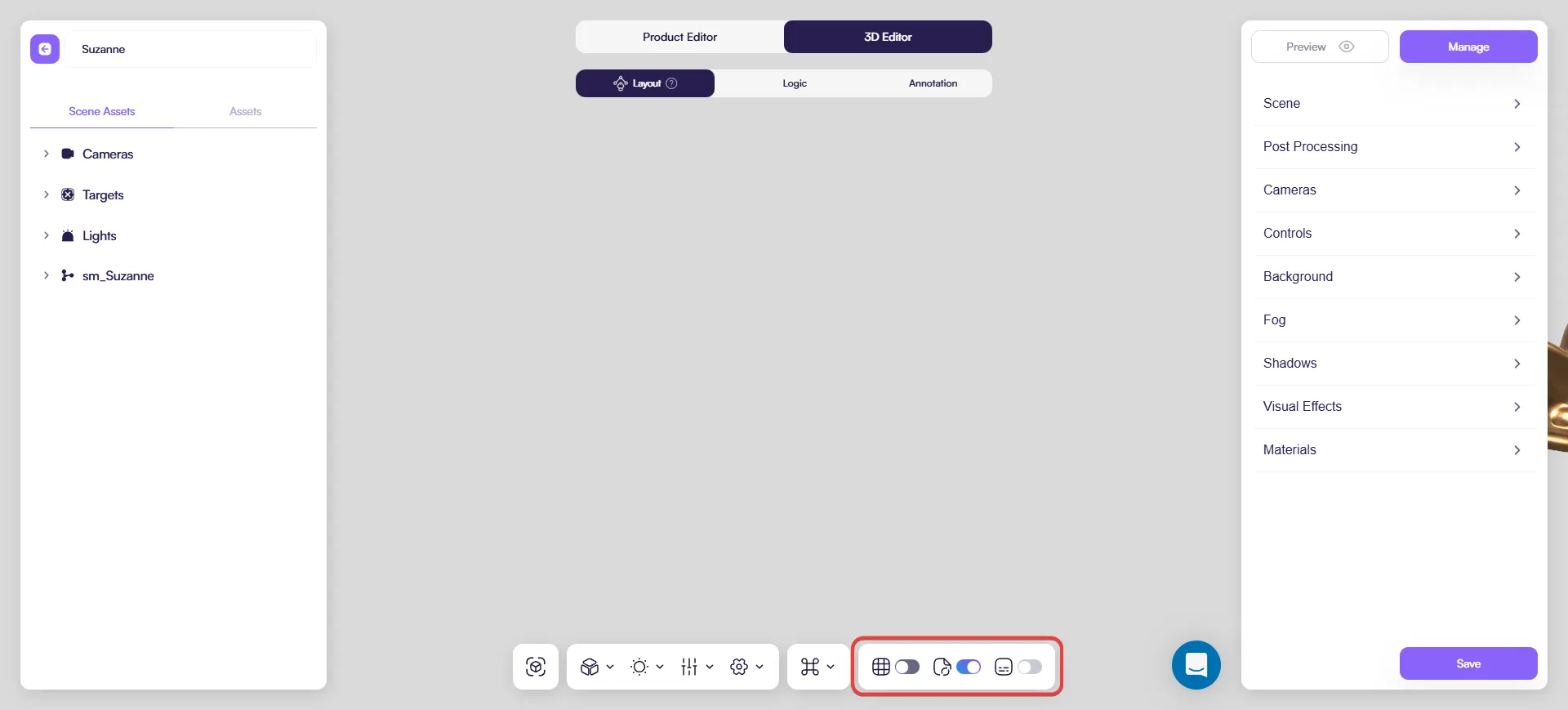
7) View toggles
These switches control editor overlays and helpers while you work:
- Auxiliary lines / guides — toggles helper lines (for example, camera direction guides)
- Auto Save — enables/disables automatic saving
- Annotations — shows/hides annotations in the editor
Use these toggles to keep the view clean when checking the final look, then turn helpers back on when you need alignment.
Practical tips
- If something looks wrong in AR, check Hide from AR scene first.
- Keep helpers (targets, connectors, shadow planes) organized — it saves time later.
- If the view feels cluttered, temporarily disable guides and annotations.