Orders
This section helps you review and manage all customer orders created from your products.
Orders are stored in Amaspace and, when an integration is connected, also created in the external platform.
Use this page to track purchases, explore ordered items, and review detailed pre-compose configurations.
Orders page
All user orders appear on the Orders page:
https://app.amaspace.co/orders
This page collects every order created through active integrations or Kiosk Mode.
When an integration is connected, orders are created both in Amaspace and in the external platform (for example, Shopify or WooCommerce).
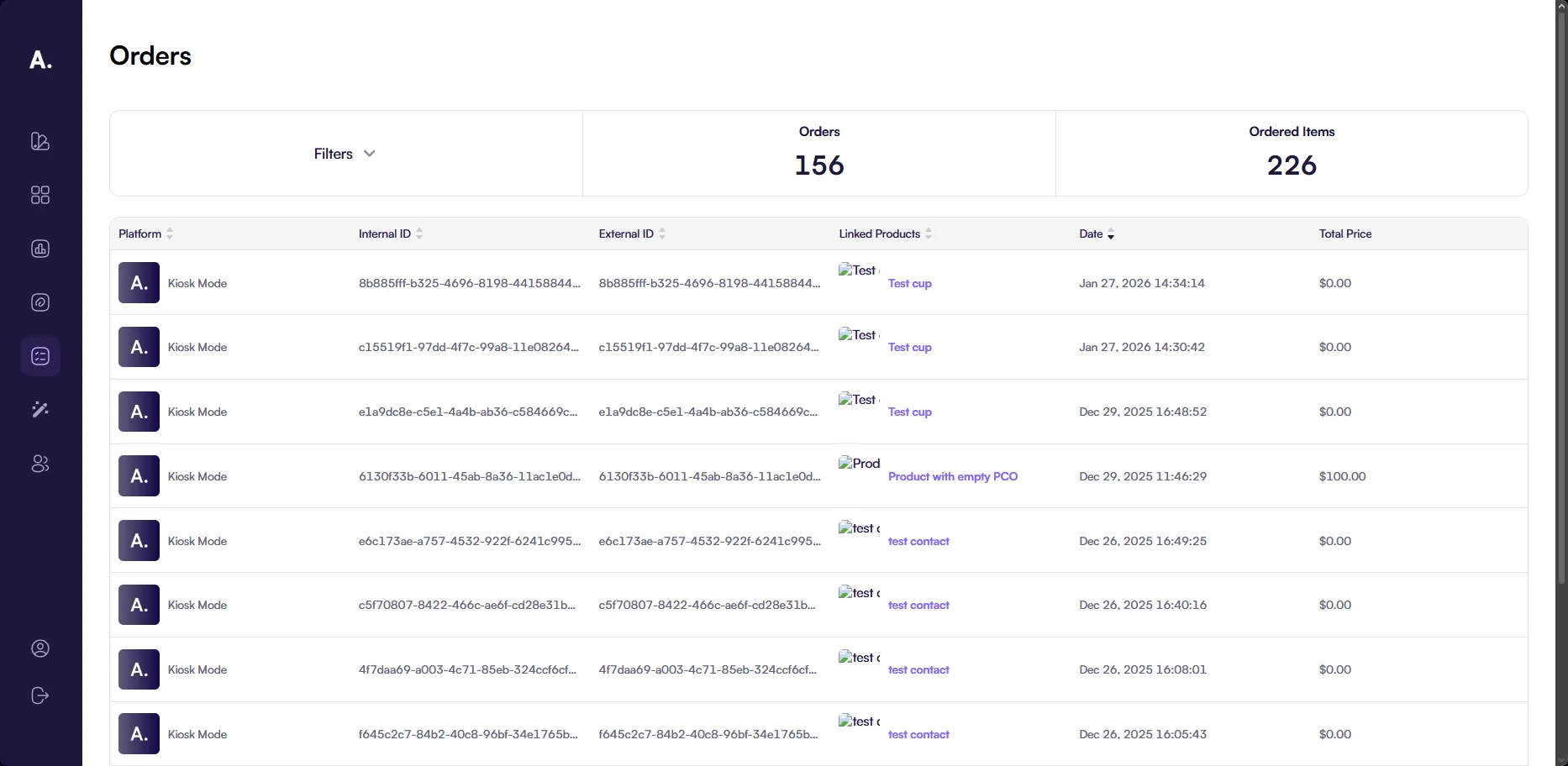
You use the Orders page to:
- Review all created orders in one place
- Access ordered products and their configurations
- Track prices, dates, and order sources
The page includes:
- Orders table with key order data
- Filters for narrowing down results
- Orders and Ordered Items counters that update dynamically
Orders and Ordered Items
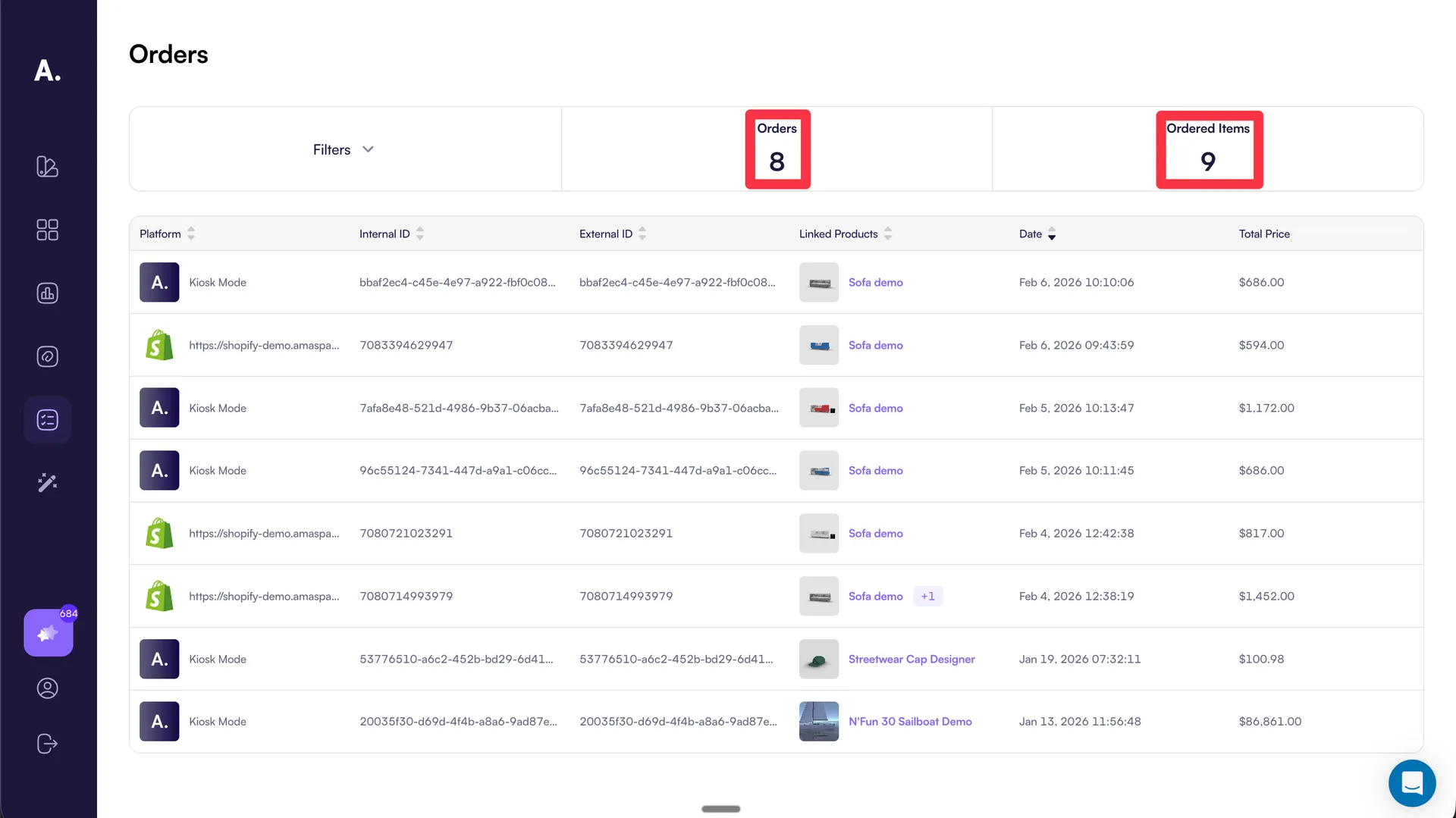
The Orders page always displays two key values: Orders and Ordered Items.
These values help you understand overall order volume and product demand at a glance.
-
Orders Shows the total number of orders that match the current filters.
-
Ordered Items Shows the total number of ordered products across all matching orders.
Both values update automatically when you apply filters or change filter conditions.
Orders table
The Orders table displays all orders that match the current filters.
Each row represents a single order and provides quick access to related products and pricing details.
Table columns
- Platform Shows where the order is created.
Possible values:
-
Shopify
-
WooCommerce
-
Webhook If no active integration exists, the order is created in Kiosk Mode.
-
Internal ID The internal product ID used inside Amaspace.
-
External ID The product ID received from the external integration.
If no integration is active, this value matches the Internal ID.
- Linked Products Displays the products included in the order.
Clicking this cell opens a drawer with detailed order items.
-
Date The order creation date.
-
Total Price The full price of the order.
Filters
Use filters to narrow down orders and ordered items displayed on the page.
Filters apply to both Orders and Ordered Items counters and update results instantly.
Click Filters to open a popup with the following options:
-
Date of Creation Select a start and end date to filter orders by creation time.
-
Product Filter orders by a specific pre-compose.
-
External ID Enter one or more external product IDs.
Press Enter to add each value as a tag.
- Internal ID Enter one or more internal Amaspace product IDs.
Values are added as tags after pressing Enter.
You can combine multiple filters to refine results further.
Linked Products drawer
Click Linked Products in the Orders table to open a drawer with all products included in the selected order.
This drawer helps you quickly review ordered items without leaving the Orders page.
Products table
Each row represents a single product from the order and includes the following fields:
-
Name The product name.
-
Price The price of a single product unit.
-
Quantity The number of units ordered.
-
Total Price The full price for the product, calculated as quantity multiplied by price.
Click a product row to open its pre-compose details.
Product pre-compose drawer
The product pre-compose drawer displays the full configuration of an ordered product.
You use it to review how the product is assembled, priced, and presented at the time of purchase.
Pre-compose header
The header shows key information and available actions:
- Total price of the ordered product
- Quantity ordered
- Preview / 3D model toggle to switch between the product preview and the 3D model
- Download PDF invoice button
By default, the preview is shown.
You can switch to the 3D model view at any time.
Pre-compose details
Below the preview or 3D model, the drawer displays all selected options and their prices.
This section reflects the exact pre-compose configuration used when the order is created.