Attributes: Control how your product behaves and looks
Article Brief
What this article covers:
- What attributes are and why you use them
- How attributes affect the UI and 3D scene
- How different attribute types fit into one system
Overview
Use Attributes to define how a product can be configured.
Attributes control what appears in the UI, how the 3D scene changes, and which options are available to the end user.
Each attribute represents one configurable rule, such as enabling a part, changing a value, switching a color, or repeating elements.
How to create
Location: Product editor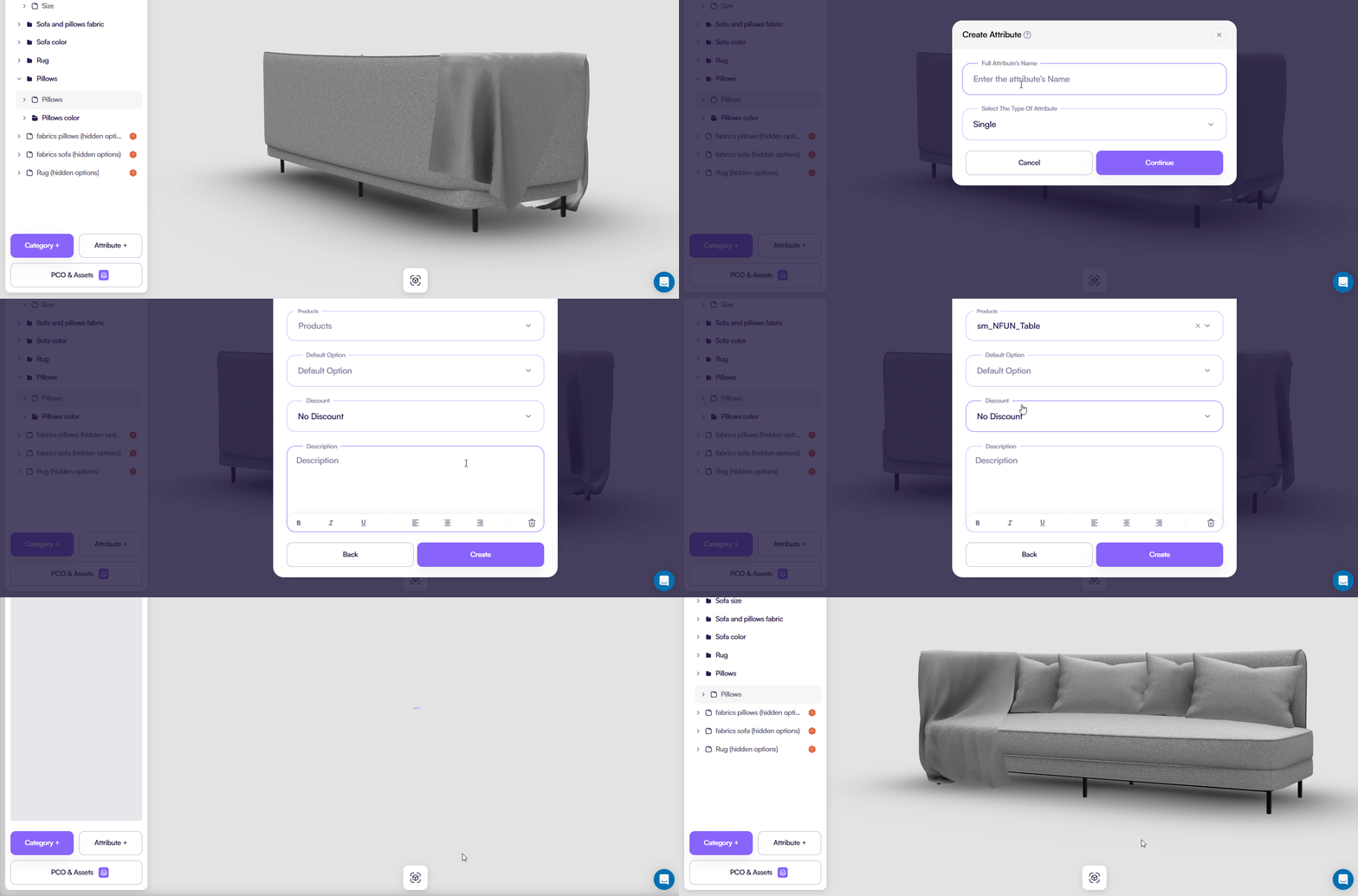
Configure
Use the configuration fields to define how the attribute behaves.
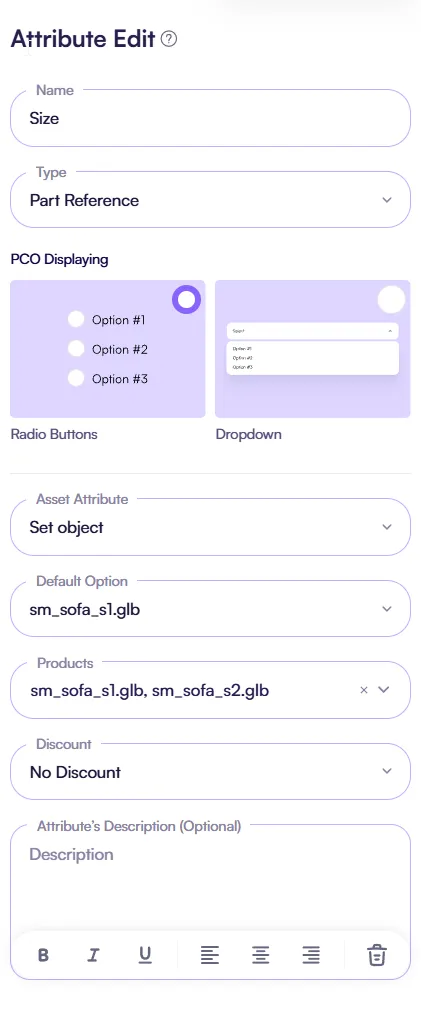
Name
- Defines the **display name **of the attribute in the UI.
- You use this name to describe what area or part of the product the 2D Editor controls.

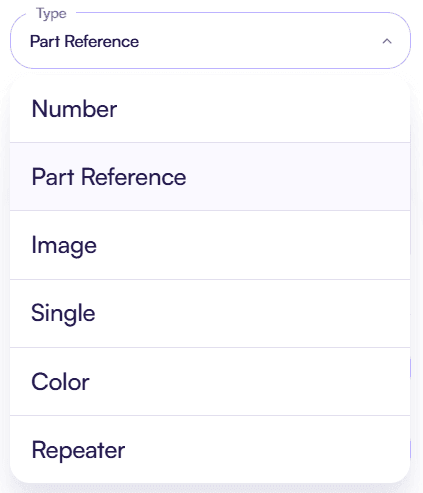
Type
Defines the attribute type.
You use this field to select how the attribute behaves and what kind of interaction it provides.
-
Single Add or remove one specific model from the scene.
-
Number Control quantity or count-based configuration.
-
Color Change material color or visual appearance.
-
Part Reference Select one model from a list of variants.
-
Image Apply image-based customization.
-
Repeater Duplicate elements based on a rule.
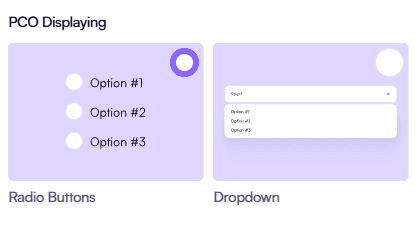
PCO Displaying
This field is available only for specific attribute types and does not appear for every attribute.
- Defines how PCO options are visually represented.
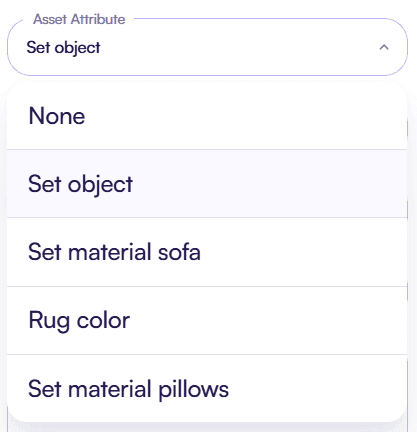
Asset attribute
- Creates a connection between this attribute and the 3D scene
- This field links the Image attribute to a specific asset context so changes apply to the correct object in the scene.
Materials
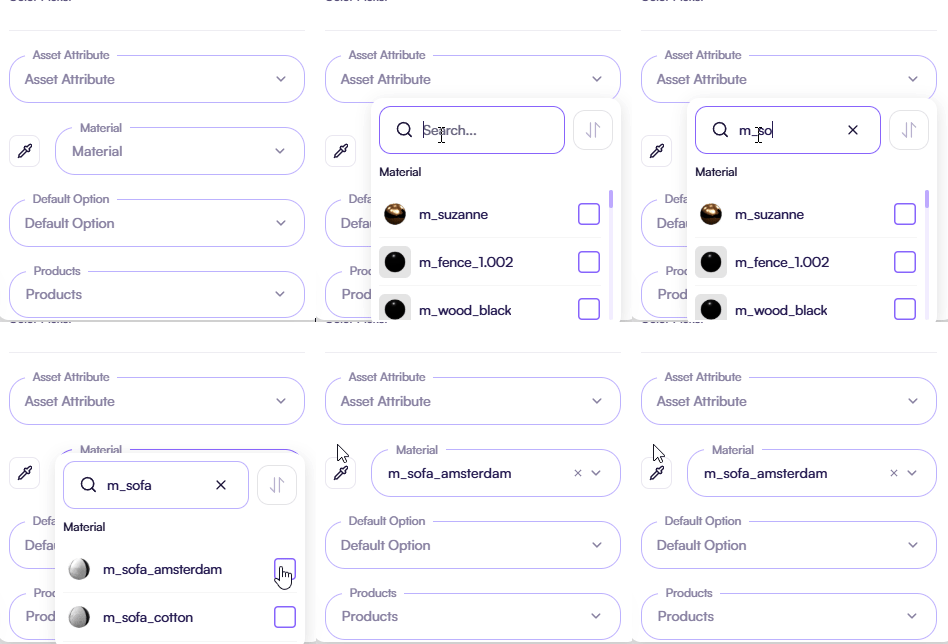
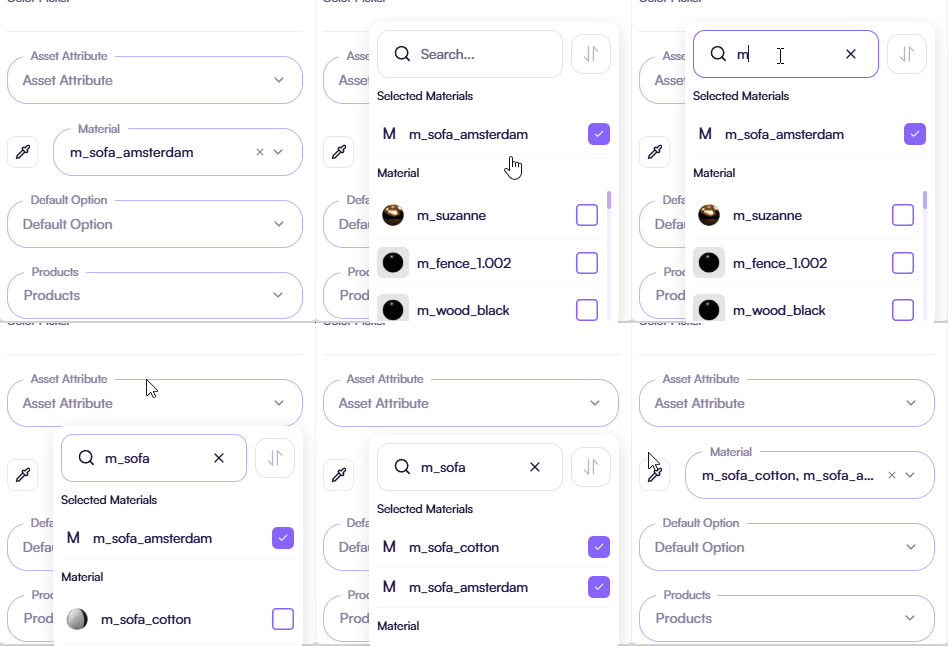
Use the Materials field to define which materials change when you select a color option.
This field is available only for specific attribute types and does not appear for every attribute.
You can:
-
Select one material
-
Select multiple materials
-
You can use the Material Picker to select a material directly on the model.
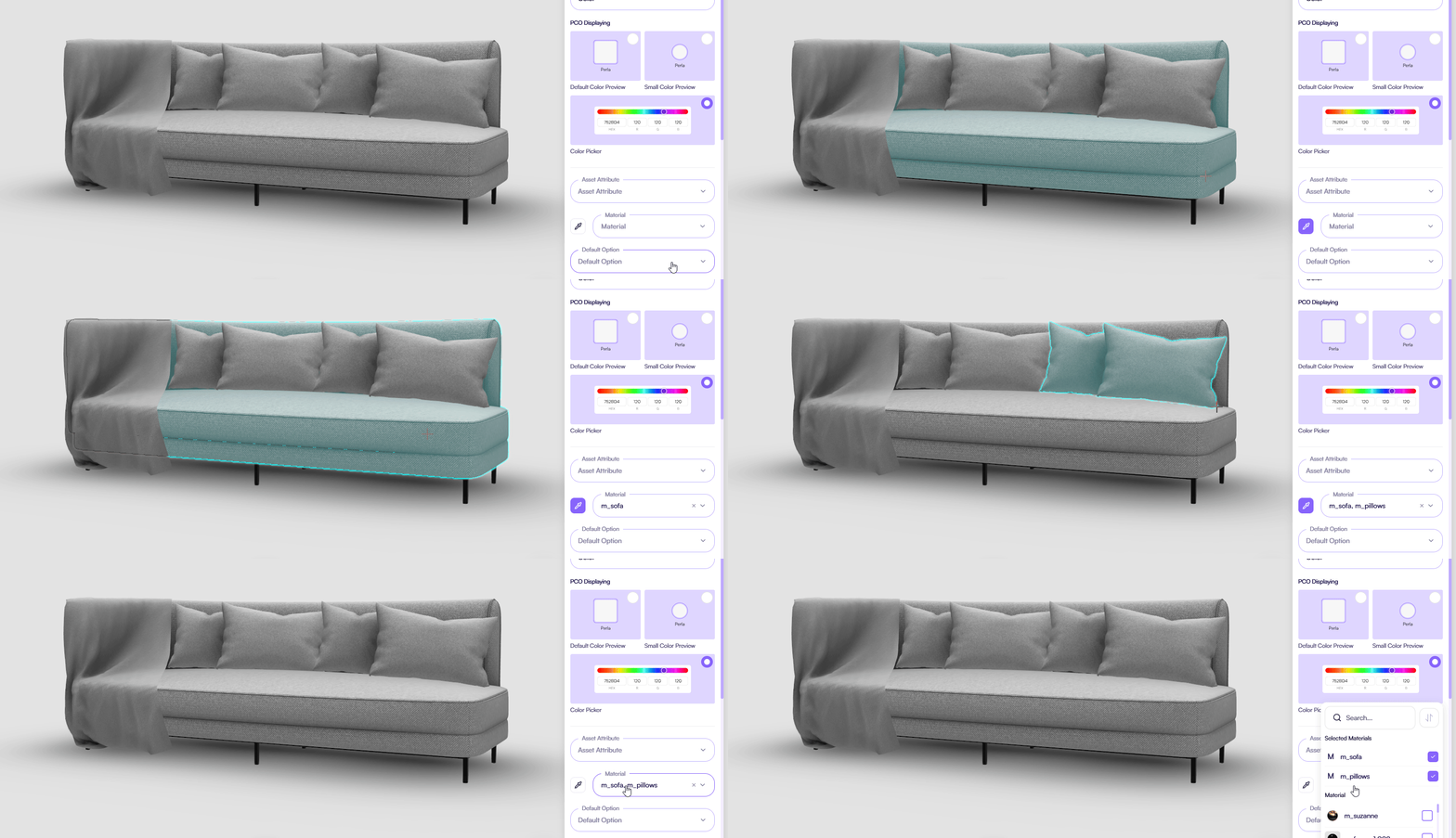
The Color attribute applies the selected option to all assigned materials.
Default Option
- Defines which option from the Products field is selected by default.
- You use this field to set the initial state of the configurator.
- The selected option applies automatically when the configurator starts.
- This field is not available for the Image attribute.
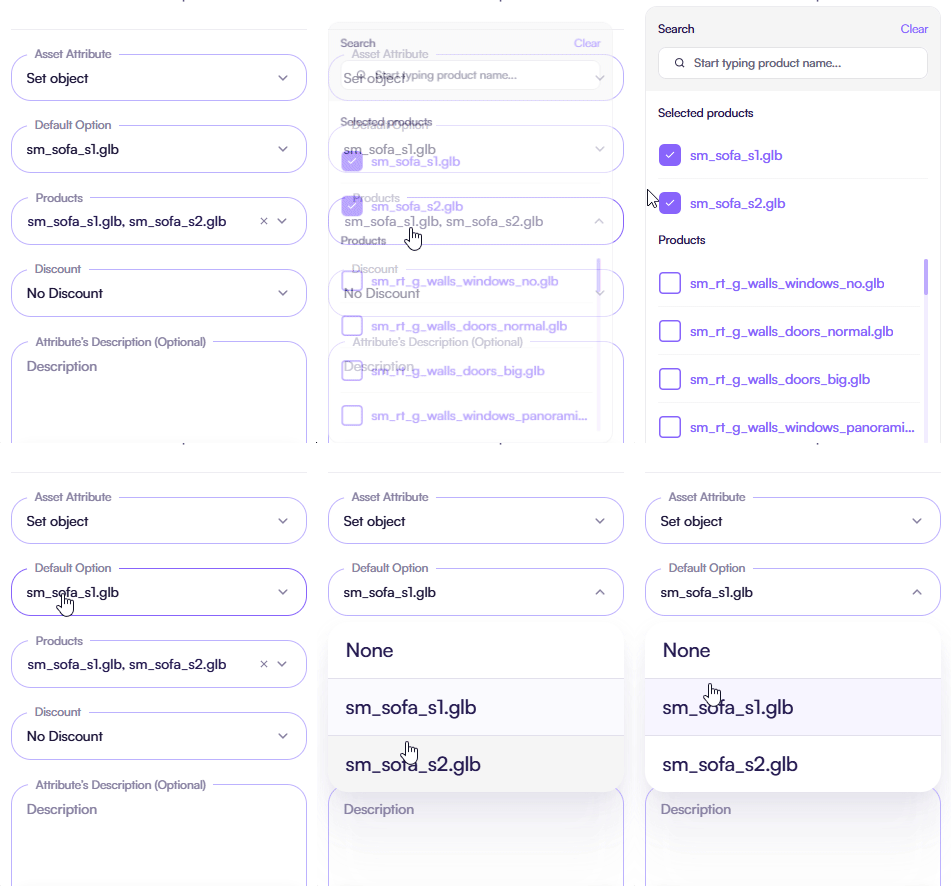
Products
- Defines which products (PCOs) this attribute controls or exposes in the UI.
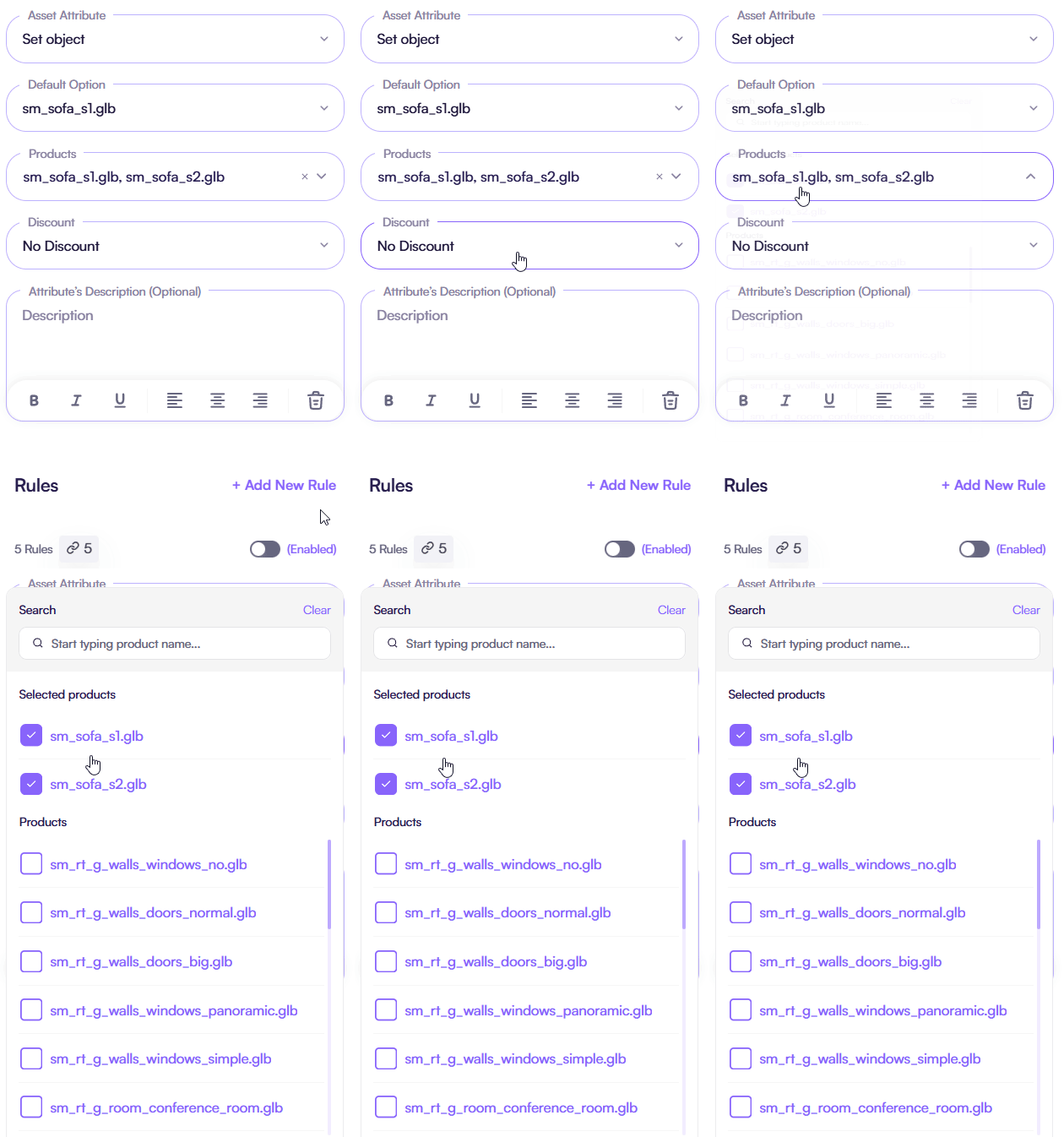
Discount
- Defines a **discount rule **for this attribute.
- The selected discount applies to the product when this attribute is used.
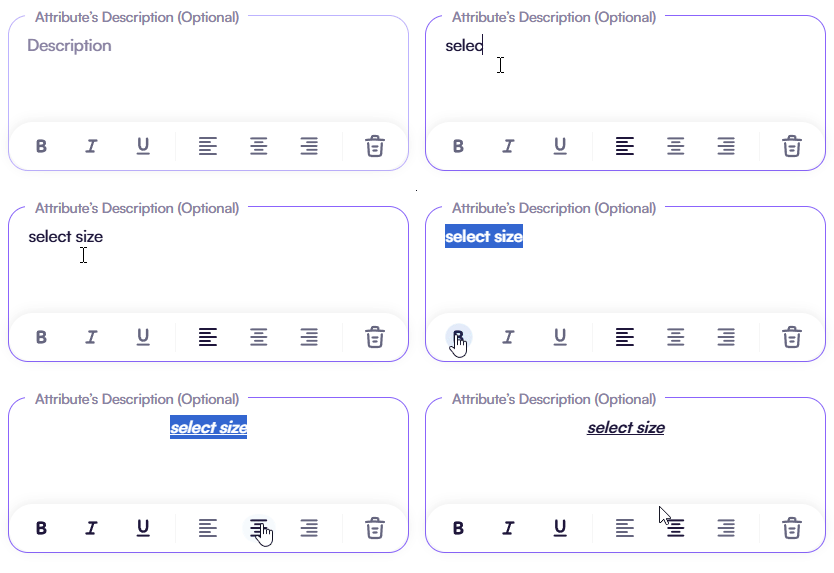
Description
- Adds a text description for the attribute.
- You use this field to explain what the Image attribute customizes or how the 2D Editor affects the product.
UI behavior
Attributes appear in the UI only when they are valid and complete.
Each attribute renders:
- A control in the UI (button, slider, picker, etc.)
- A corresponding change in the 3D scene
The exact UI control depends on the attribute type
Global rules
These rules define how attributes are configured and validated in the system.
1. Products field is required (except Image)
For most attribute types, you must link at least one Product.
When the Products field is empty:
- The attribute is skipped by the system
- The attribute does not participate in configuration logic
- The attribute does not apply any changes
This rule applies to all attribute types except Image.
Image attribute exception
The Image attribute does not require the Products field.
It applies changes based on the Material field instead.
2. Attribute must belong to a category
Every attribute must be assigned to a category.
Categories define how attributes are structured and organized inside the system.
Attributes without a category will not be displayed in the UI.
When to use attributes
You use attributes when:
- A part of the product is optional
- A value needs to be adjustable
- A visual option should be selectable
- The product requires structured configuration logic
Attributes keep configuration predictable, scalable, and easy to extend.
Tips & Best Practices
- Define one clear purpose per attribute
- Choose the simplest attribute type that solves the task
- Always link products before testing
- Remove unused attributes instead of leaving them unconfigured
Common Issues
- An attribute does not appear Check whether the Products field is empty. Check whether the attribute is assigned to a category.
Single
Control the presence of one specific model in the 3D scene with the Single attribute.
Number
Control the quantity and visibility of models using the Number attribute.
Color
Customize product appearance using the Color attribute for enhanced visual options.
Part Reference
Select one model from a predefined list of variants using the Part Reference attribute.
Image
Customize materials in 3D scenes using the Image attribute with a 2D editor.
Repeater
Start the repeater order process with a status of not started.