Image Attribute: Customize materials with a 2D editor
Article Brief
What this article covers:
- What the Image attribute does
- How the 2D Editor works
- How the Material field controls changes in the scene
- How Image attributes behave in the UI
Overview
Use the Image attribute to customize materials using a built-in 2D editor.
This attribute lets you edit textures visually and apply the result directly to selected materials in the 3D scene.
You use the Image attribute when a product needs advanced visual customization such as patterns, prints, text, or uploaded graphics.
How the Image attribute works
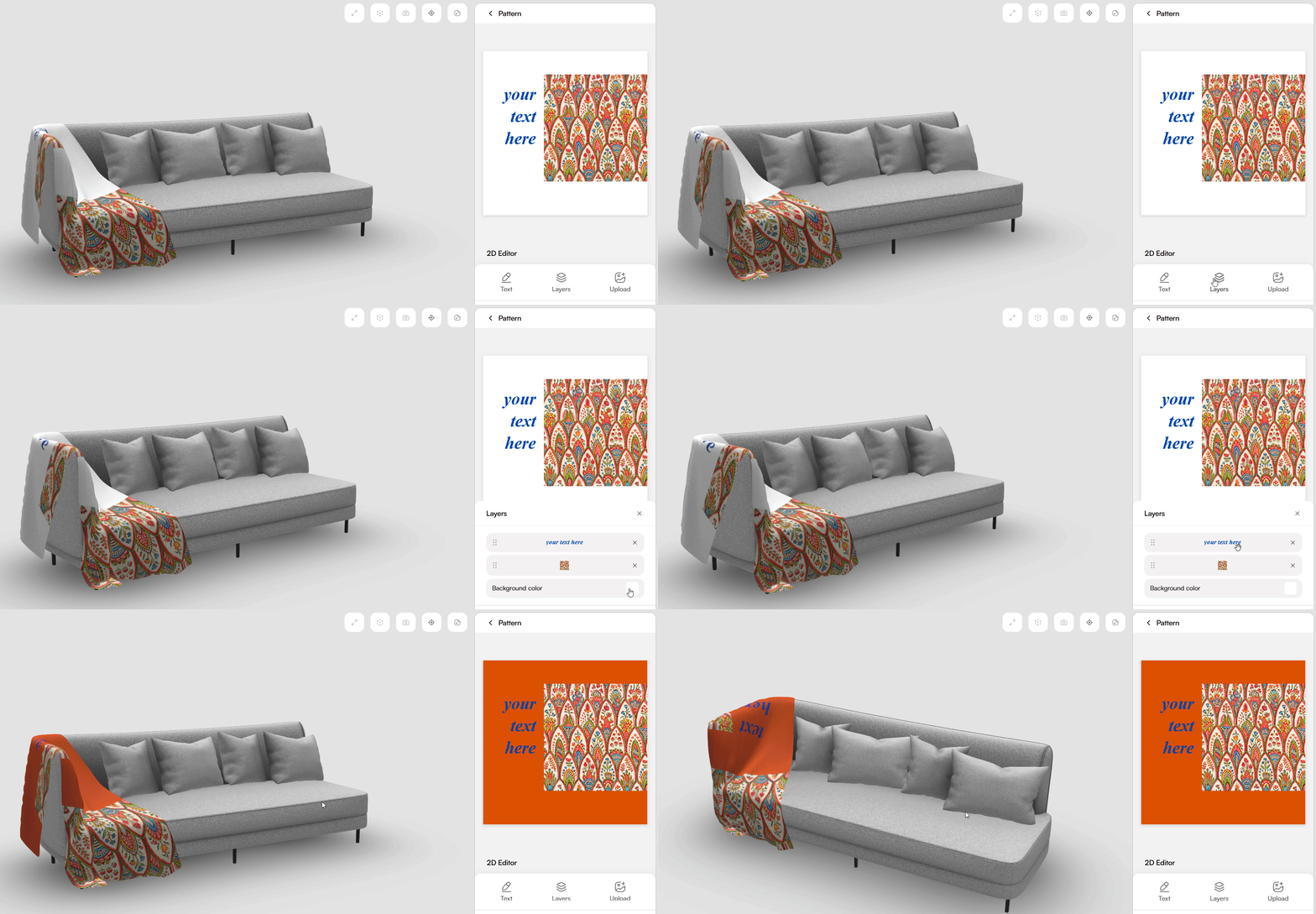
The Image attribute opens a 2D Editor inside the configurator UI.
You create or modify visual content, and the system applies it to the selected materials.
When you edit content in the 2D Editor:
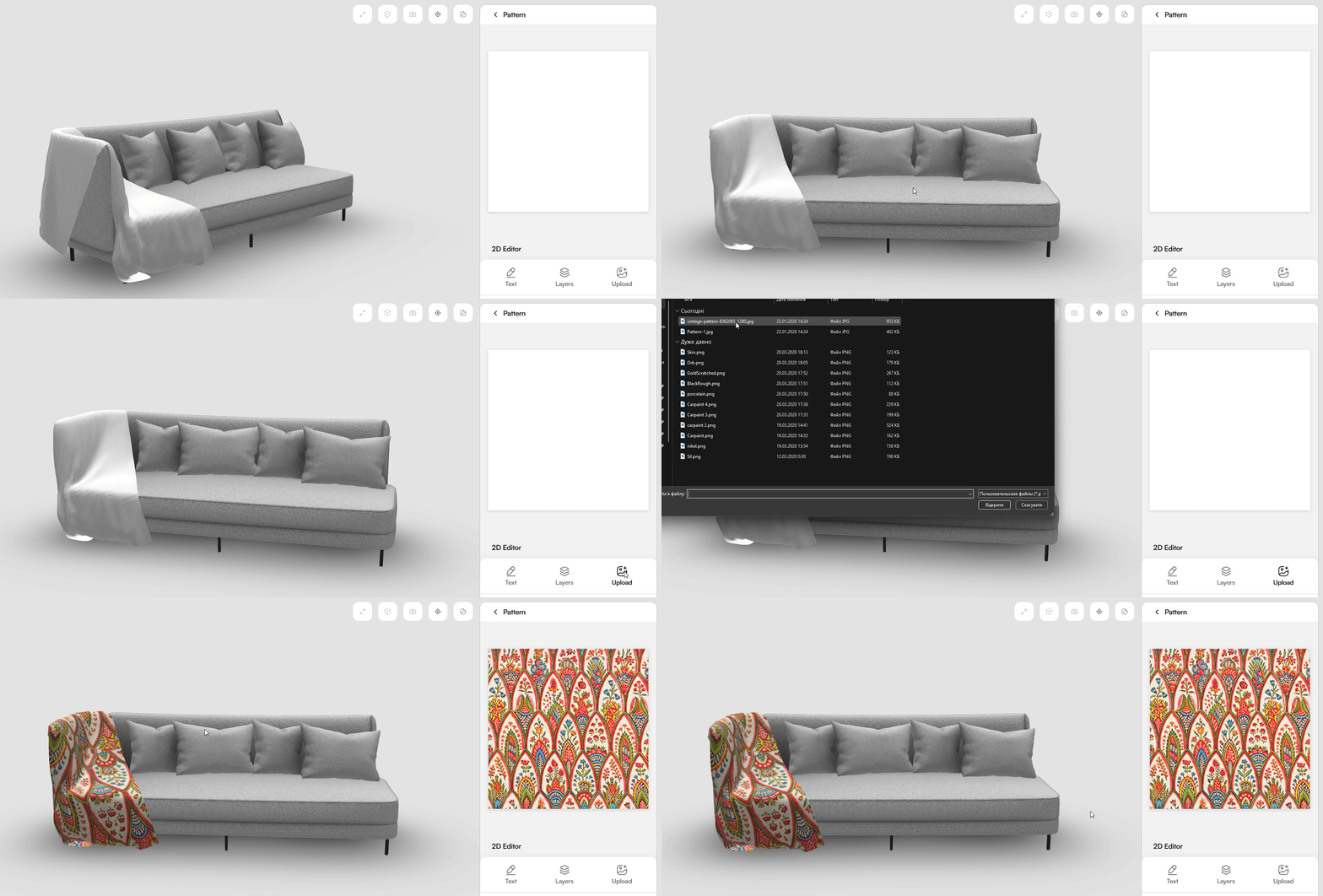
- The material updates in real time
- The result appears instantly in the 3D scene
- The visual state stays synced with the editor
2D Editor capabilities
The 2D Editor gives you full control over visual content.
You can:
-
Add and edit text
-
Upload images
-
Manage layers
-
Position and scale elements
-
Change background color
-
Duplicate and remove You can use keyboard shortcuts to quickly remove duplicated elements.
Each change updates the connected materials immediately.
Configure
Use the configuration fields to define how the attribute behaves.
Materials
Use the Material field to define which materials receive the 2D Editor output.
When you select one or more materials:
- The edited image applies to those materials
- The visual result appears in the 3D scene
You can:
- Assign one material
- Assign multiple materials
- Change materials at any time
If no material is selected, the editor output has no visible effect.
UI behavior
The Image attribute does not use the Products field.
It appears in the UI by default and does not depend on product linking.
In the UI, the Image attribute:
- Renders as an editor entry
- Opens the 2D Editor when selected
- Keeps the editor state active while editing
This behavior makes Image different from other attribute types.
Configurator UI showing the Image attribute entry
Pricing behavior
The Image attribute focuses on visual customization only.
When you use the Image attribute:
- The material updates visually
- The product price remains unchanged
This behavior keeps creative customization separate from pricing logic.
Tips & Best Practices
- Use Image for patterns, prints, and graphics
- Keep material UVs prepared for 2D editing
- Assign only relevant materials to avoid unexpected results
Common Issues
-
The material does not change Check whether materials are selected in the Material field.
-
Edits appear distorted Review the material UV layout.
-
The editor opens but nothing updates Verify material assignment.