Color Attribute: Customize appearance with materials and textures
Article Brief
What this article covers:
- How the Color attribute works
- How Materials and Products interact
- How color options appear in the UI
- How color selection affects product price
Overview
Use the Color attribute to customize the visual appearance of a product.
You define a set of visual options, and each selection updates materials in the 3D scene and recalculates the product price.
You use the Color attribute when you want to offer finish, color, or surface variations.
How the Color attribute works
The Color attribute applies visual options to selected materials.
Each option represents a specific appearance that you can select in the UI.
When you choose an option:
- The linked materials update instantly
- The selected appearance applies to the product
- The product price recalculates if the option has a price
UI behavior
Use PCO Displaying to control how color options are presented.
Available display options
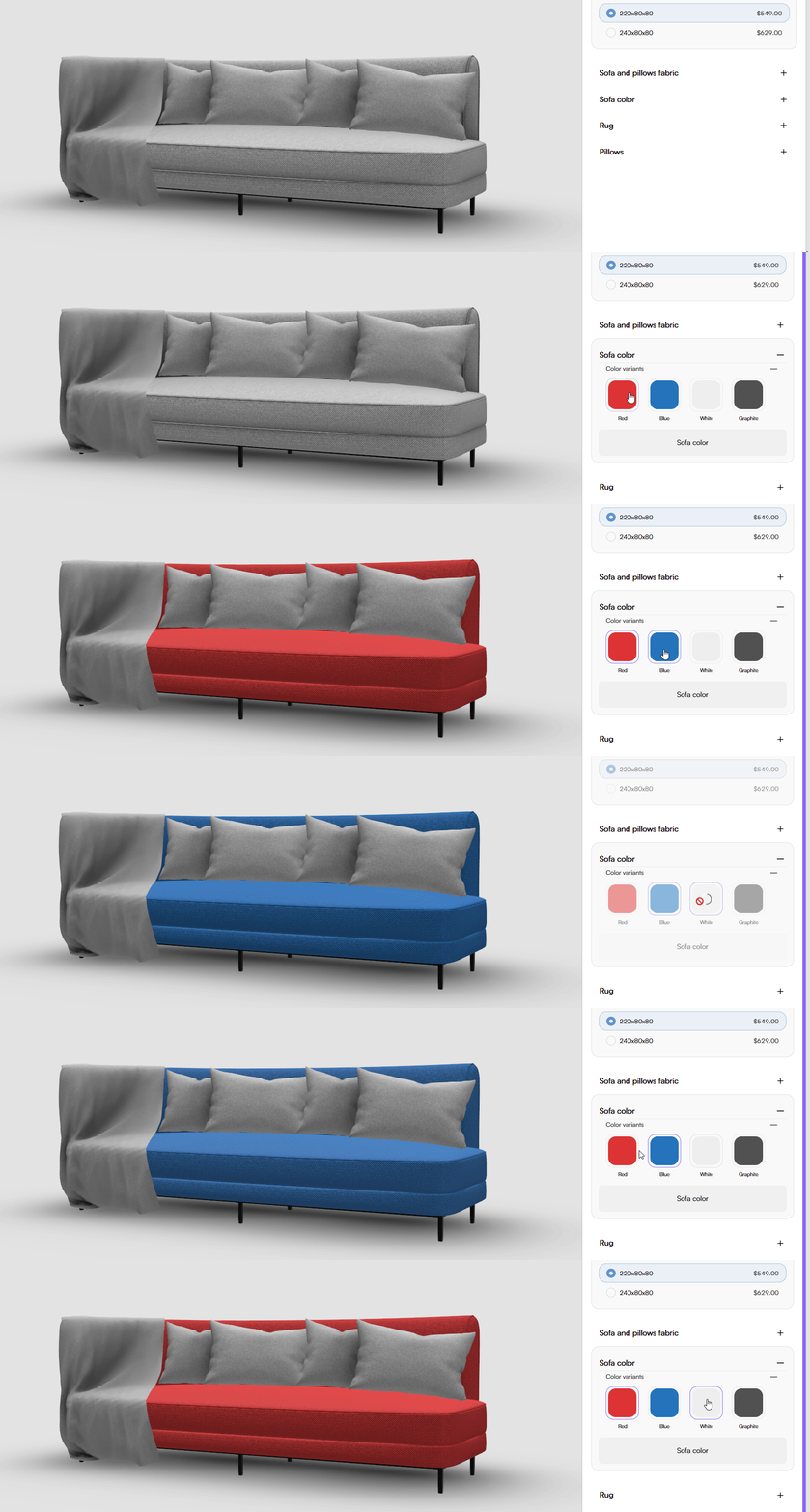
- Default Color Preview Displays each option as a large color tile.
You use this view when color recognition is important and options need strong visual emphasis.
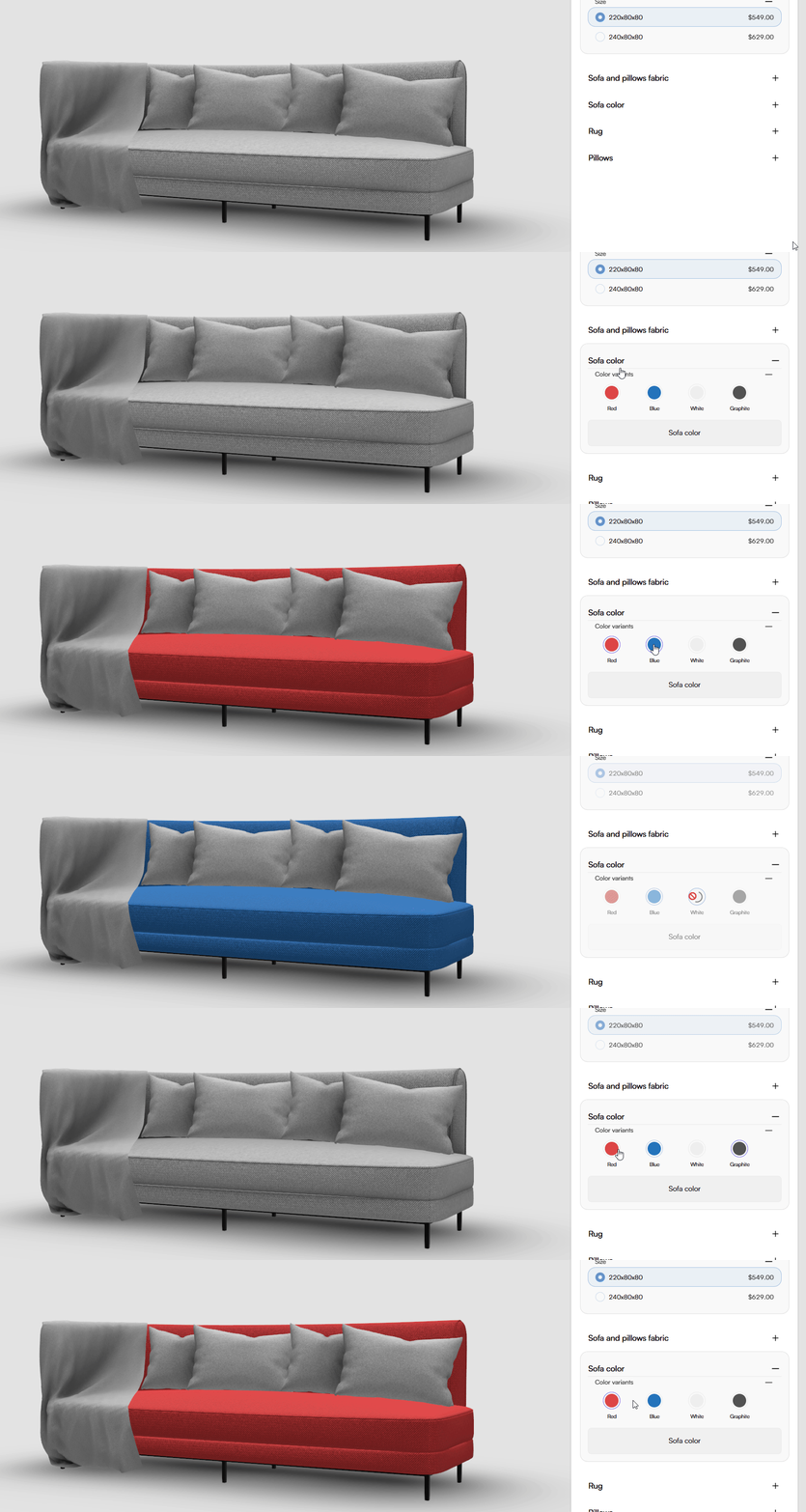
- Small Color Preview Displays each option as a compact color indicator.
You use this view when space is limited or when showing many color options at once.
- Color Picker Displays a full color picker with visual controls and numeric inputs.
You use this option to allow free color selection using:
- Color spectrum
- HEX value
- RGB values
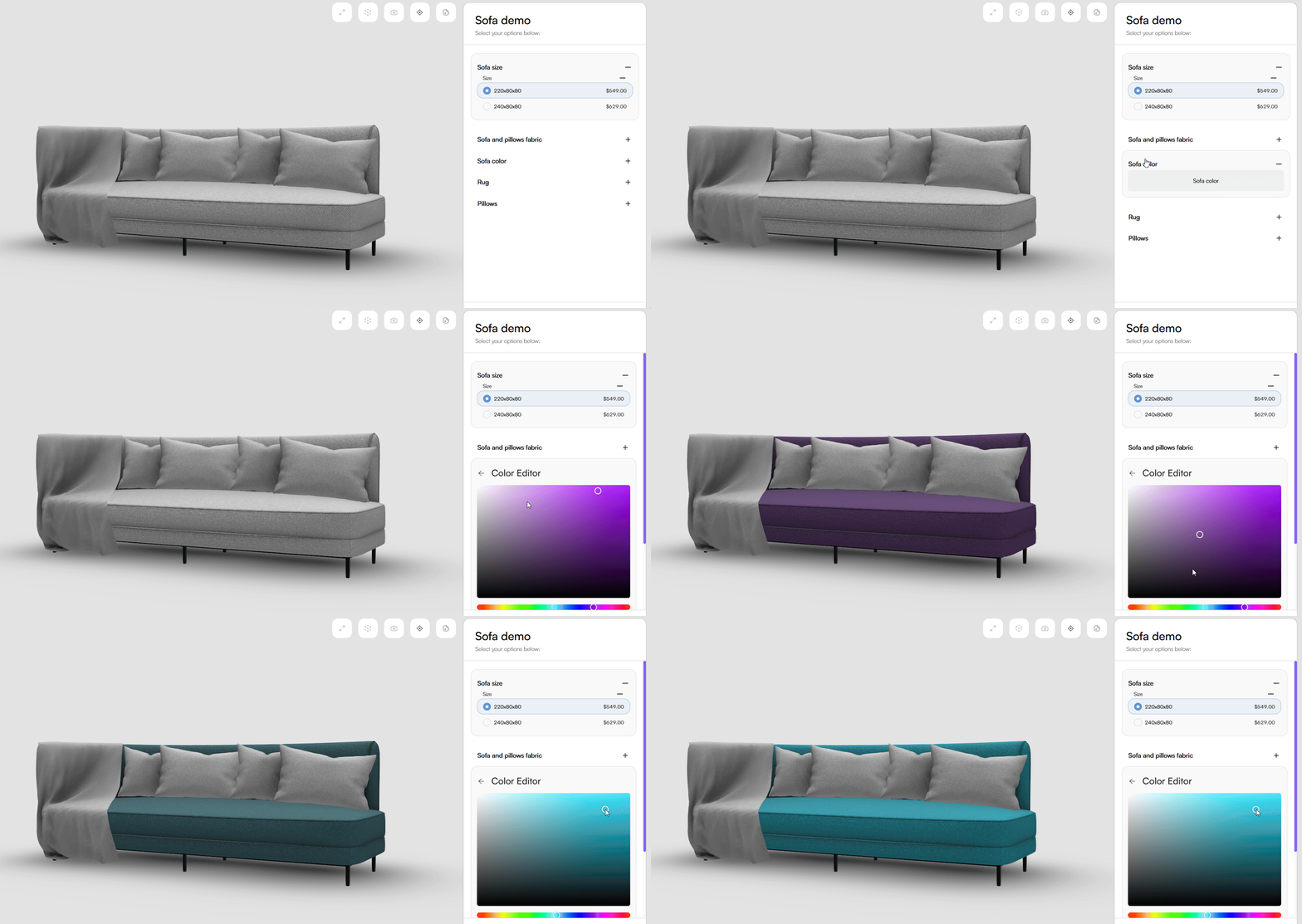
Color Picker behavior
When Color Picker is selected:
- The attribute does not require the Products field
- The system uses the Material field to determine which materials change
- Color values apply directly to the selected materials
This mode focuses on direct color input rather than predefined options.
Tips & Best Practices
- Use clear visual previews to help distinguish similar colors
- Group related materials under one Color attribute to keep configuration simple
- Choose the appropriate PCO Displaying mode based on the number of options
- Set a meaningful Default Option to define the initial appearance
Common Issues
- The Color attribute is skipped by the system Check whether the Products field is empty.
(For Color Picker mode, Products is optional and materials are sufficient.)
-
The color applies to an unexpected area Verify that the correct materials are selected in the Material field.
-
The product price does not change after selection Check whether the selected PCO has a price greater than zero.