Your account
This article explains how to manage your Amaspace account settings, including personal information, security options, and company details. It covers the Personal info and Company data tabs in your profile.
Overview
Your account gives you full control over your personal profile and company information.
You manage all account-related settings on the profile page:
https://app.amaspace.co/profile
Here you update your avatar, name, email address, language preferences, and security settings such as two-factor authentication. You also manage company details, including company name, industry, and contact information.
Use this page to keep your profile accurate, secure, and aligned with how you work in Amaspace.
Personal Info
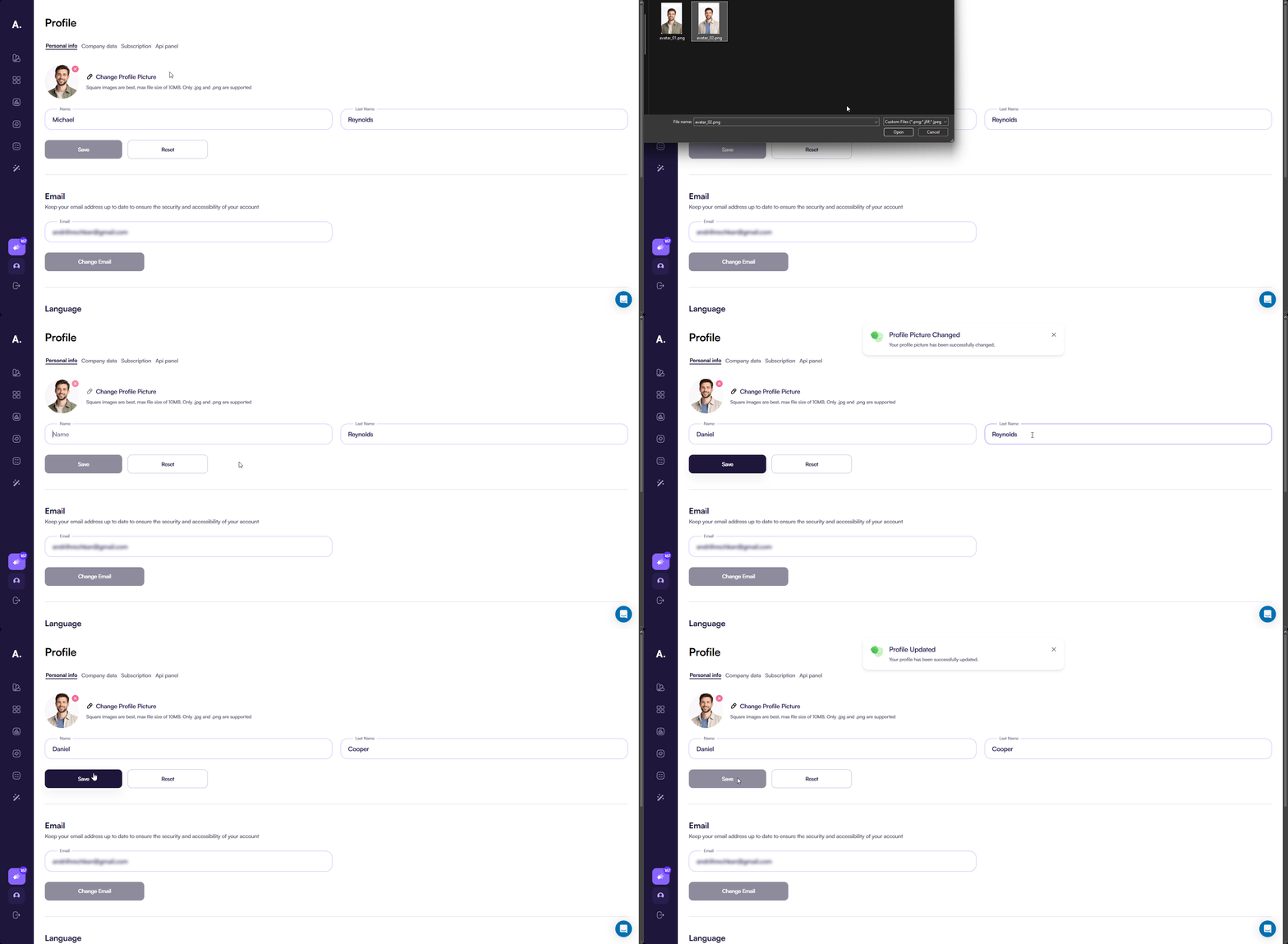
Update your name and avatar
Use this section to keep your profile identity up to date.
You can change your first name, last name, and profile avatar directly on the Personal info tab. These details appear across Amaspace and help your team recognize you.
What you can update:
- Profile avatar
- First name
- Last name
Steps:
- Open your profile page at https://app.amaspace.co/profile
- Select the Personal info tab
- Click the edit icon on your avatar and upload a new image
- The avatar updates automatically after upload
- Update your First name and Last name fields
- Save your changes
Change your email address
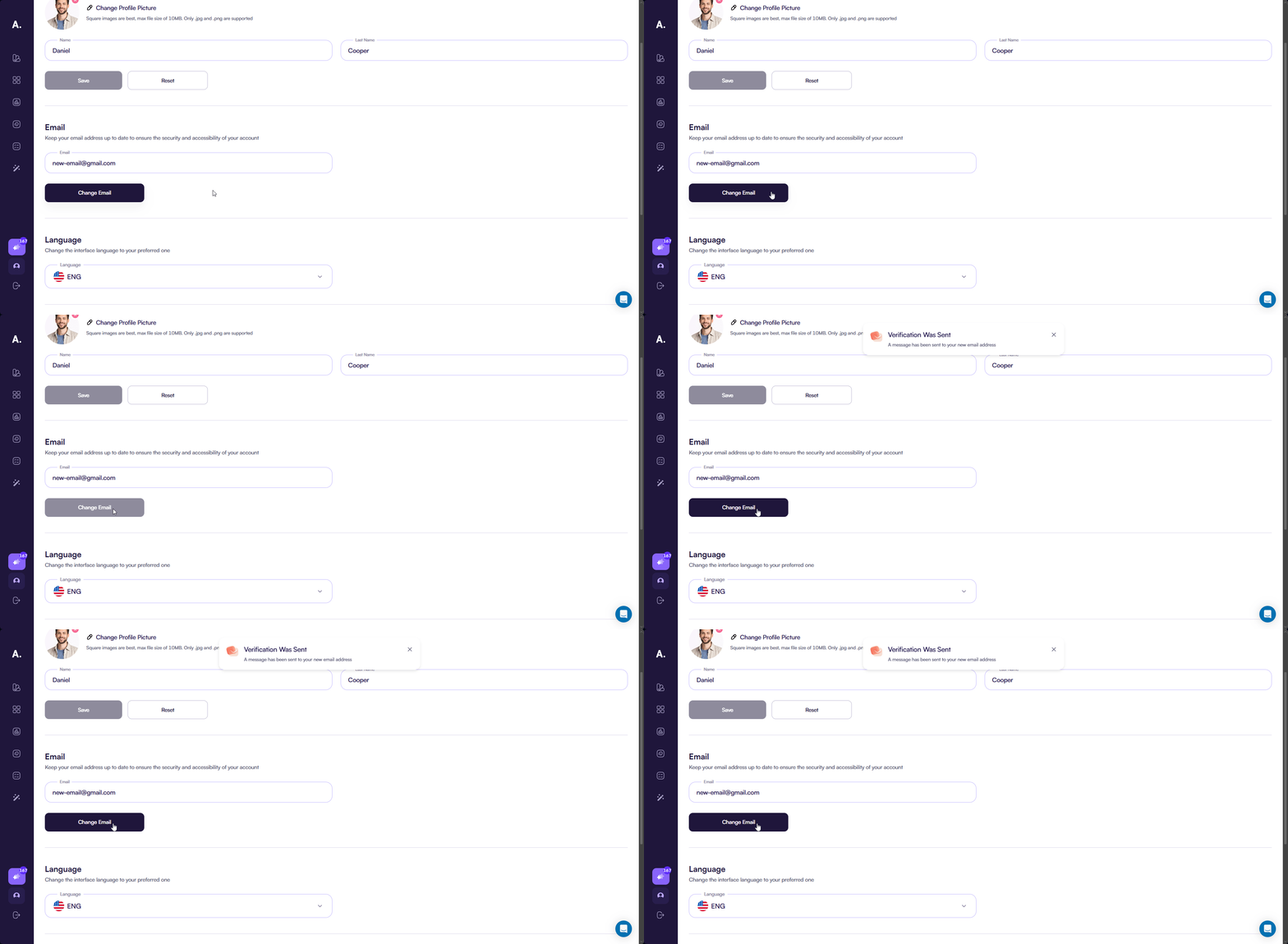
Use this option when you need to update the email linked to your Amaspace account. The change requires confirmation in both your current and new inbox.
Steps:
-
In the Email field, enter your new email address, then click Change email
-
Open the confirmation email sent to your new email address and click the verification link to finish the change
Change your language
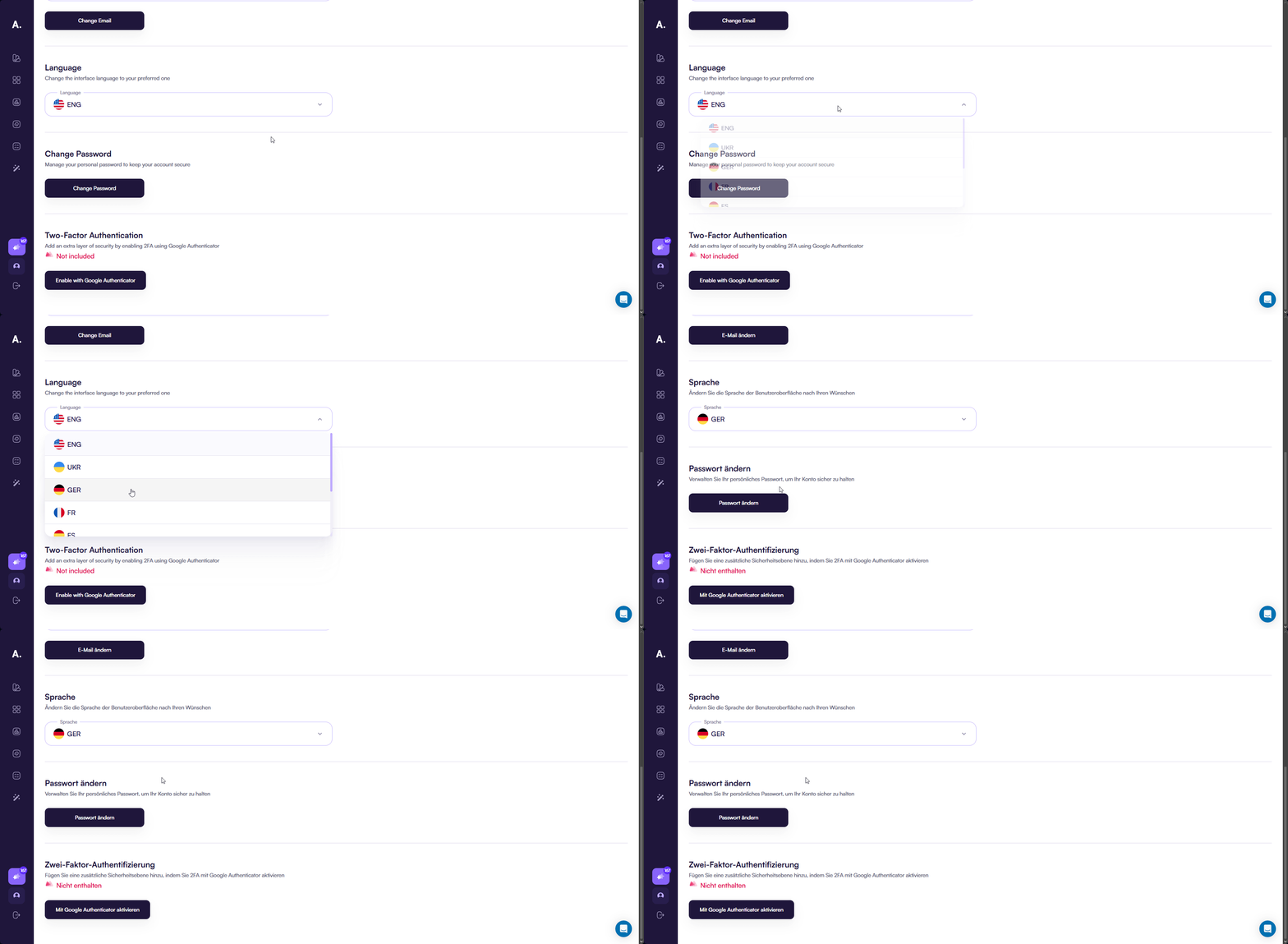
Use this option to set the interface language for your Amaspace account.
Steps:
- Open the Language selector on the Personal info tab
- Select the language you want to use
- The interface updates immediately after selection
Change your password
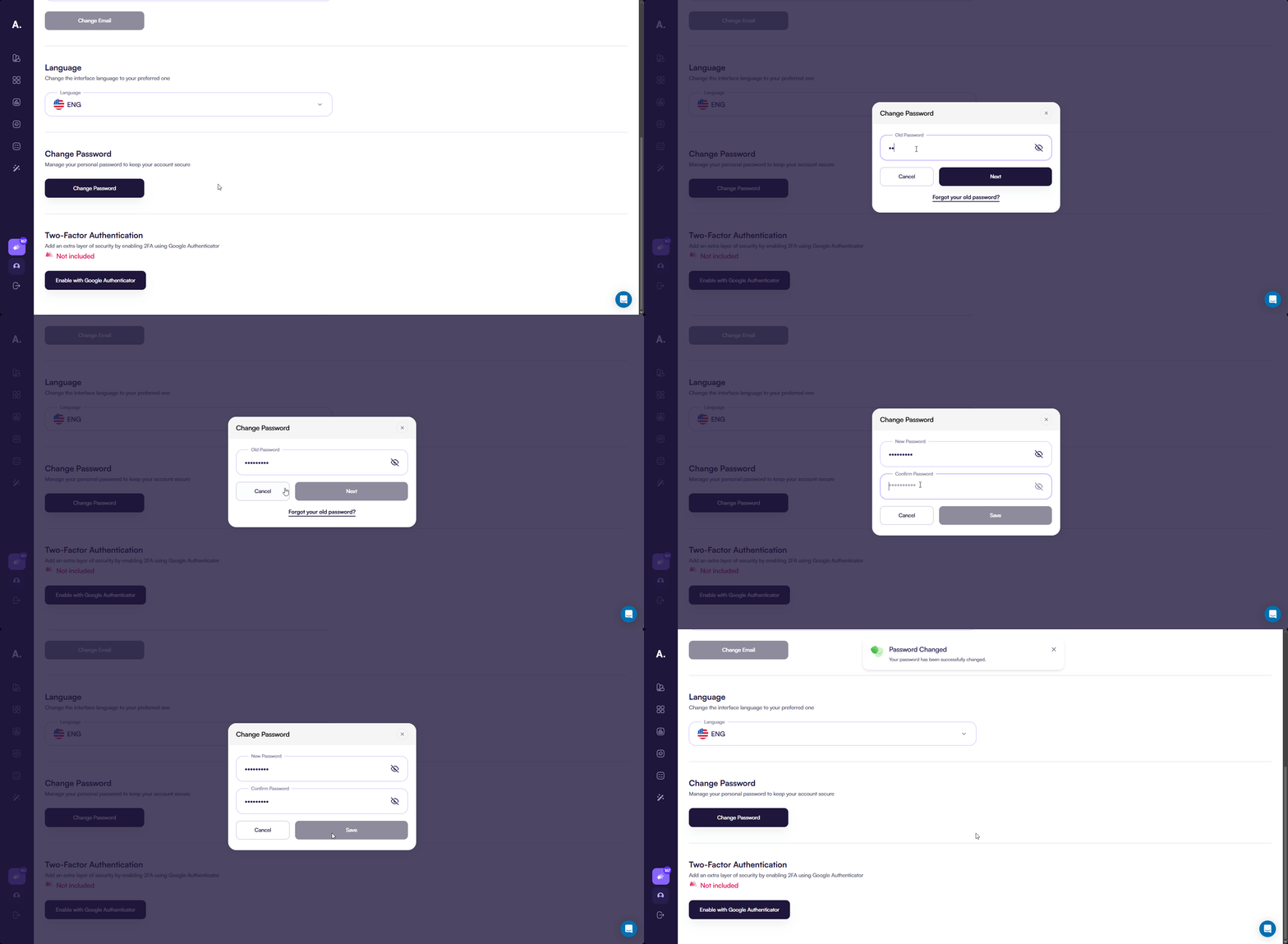
Use this option to update your account password and keep your account secure.
Change your password using your current password
Steps:
- Click Change password to open the password update modal
- Enter your current password and click Next
- Enter your new password and confirm it in the second field
- Click Save to apply the new password
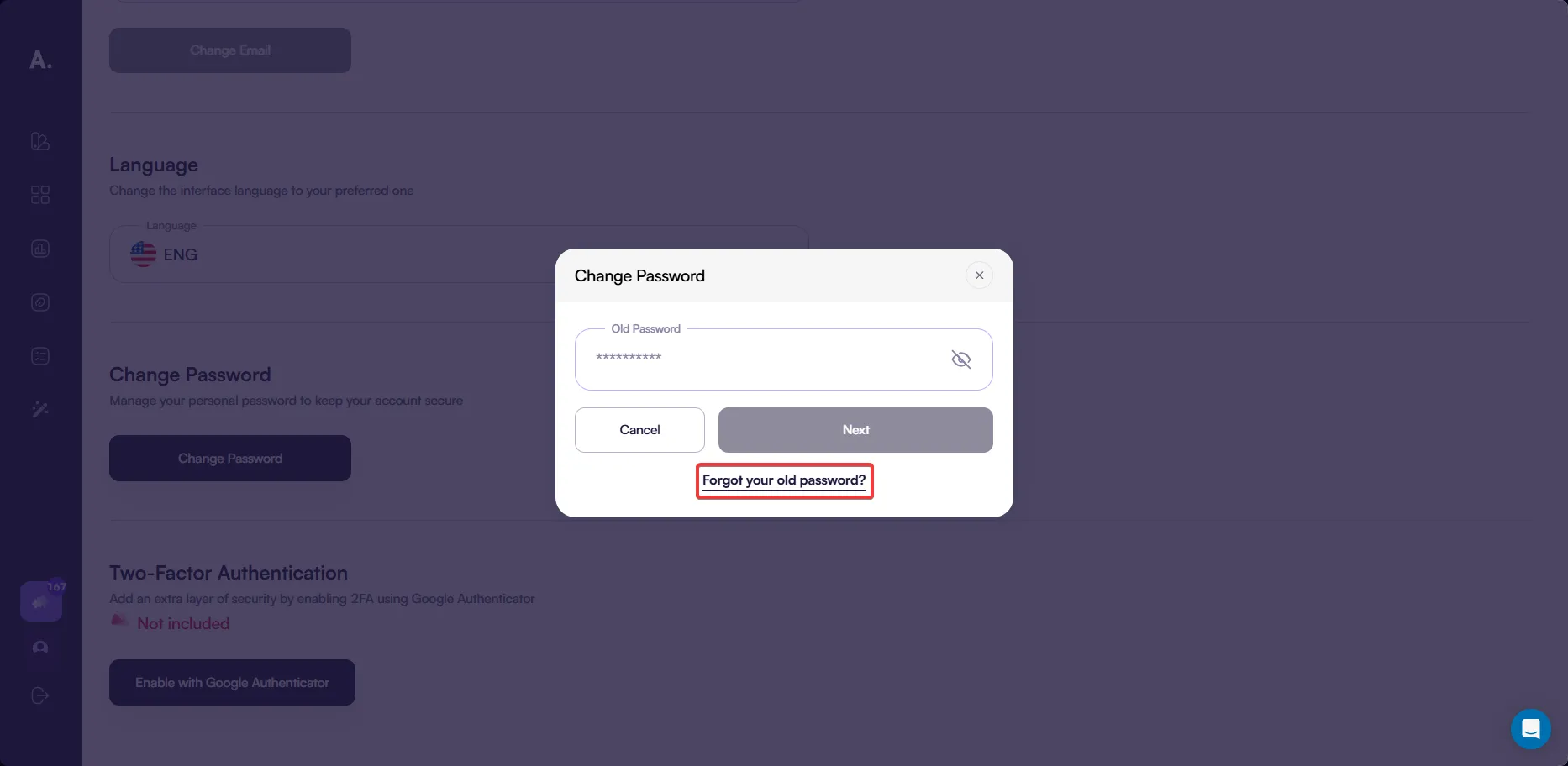
Reset your password if you forgot the current one
If you do not remember your current password, you can create a new one from the password modal.
Steps:
-
In the password modal, click Forgot your old password?
-
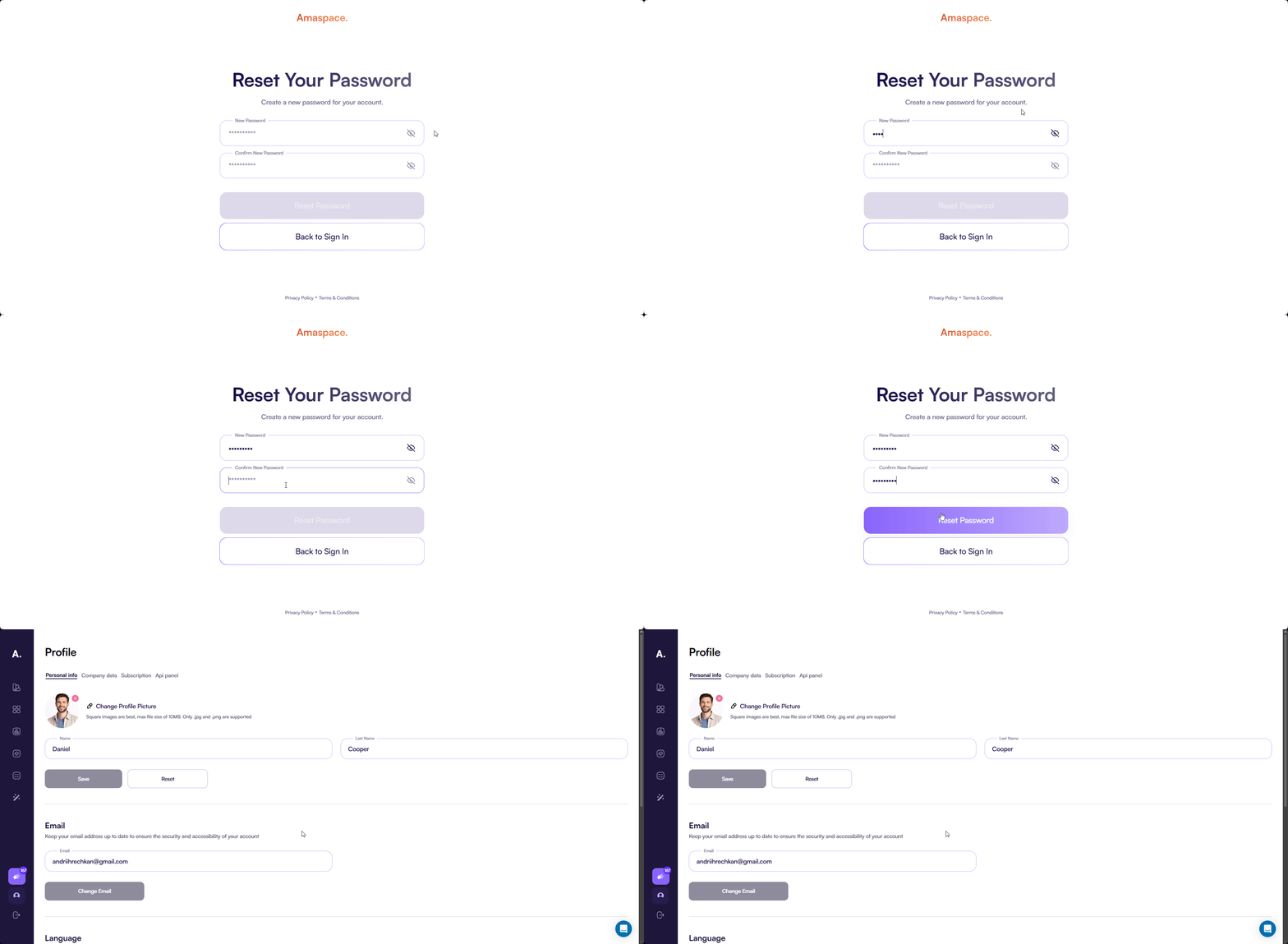
Open the email sent to your inbox and click the password reset link
-
Enter your new password and confirm it
-
Click Reset password to apply the new password
Enable two-factor authentication (2FA)
Two-factor authentication adds an extra security step to your account.
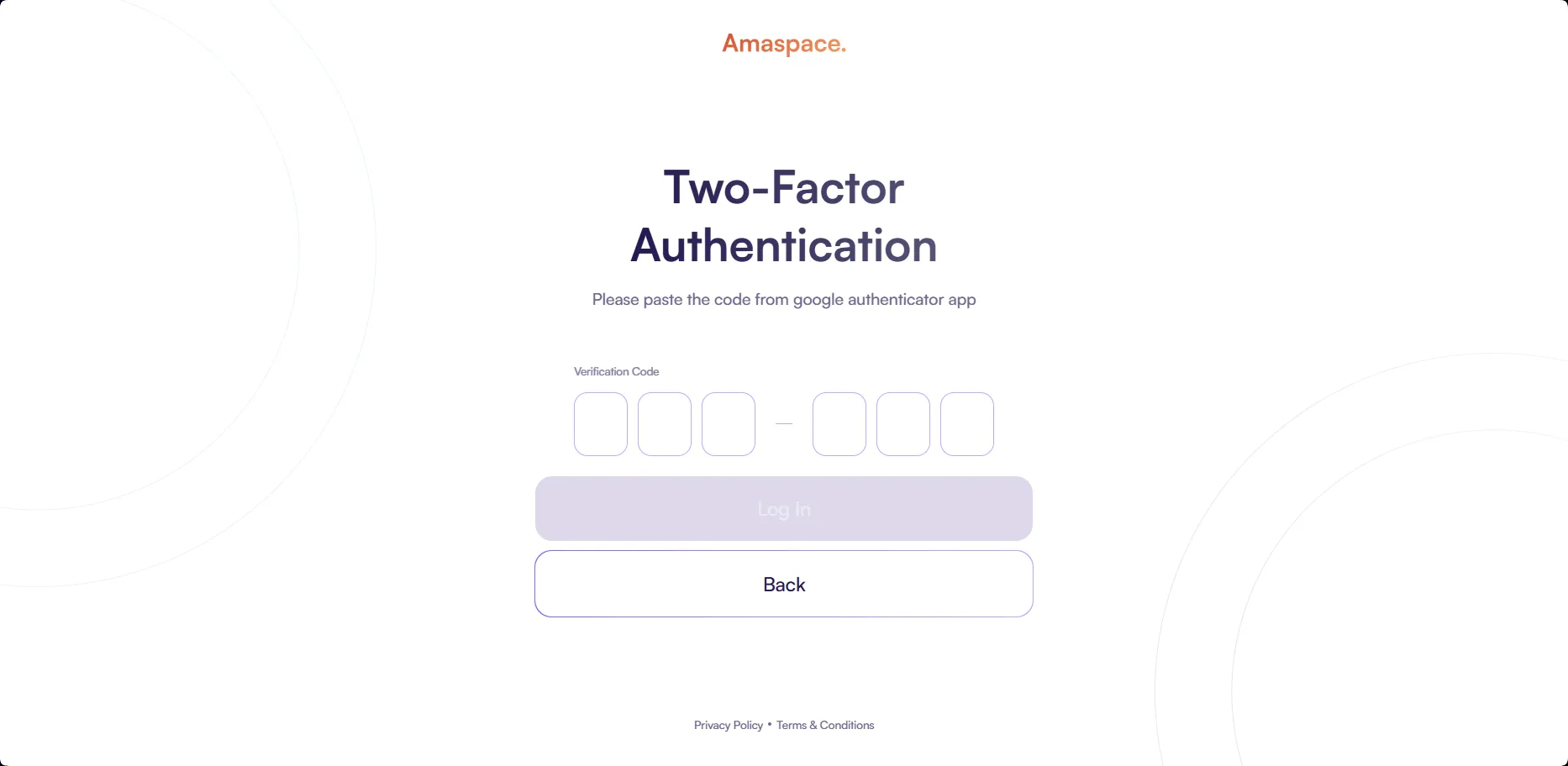
After you enable 2FA, you enter a one-time code from Google Authenticator after completing the usual sign-in process. This applies whether you sign in with your email and password or use Google sign-in.
Each time you log in to the admin panel, the verification code is required to complete authentication.
Steps:
-
On the Personal info tab, click Enable with Google Authenticator
-
In the setup popup, follow the instructions:
-
Download Google Authenticator on your device
-
In the app, tap the add button and scan the QR code
-
If you cannot scan the QR code, enter the secret key manually
-
Click Confirm to activate 2FA for your account
-
Click Next step to open the OTP code field
-
Enter the OTP code from Google Authenticator and click Confirm
[Гіфка з флоу підключання 2FA]
Company data
Use this section to manage your company information. All changes apply automatically as you update each field.
Update company information
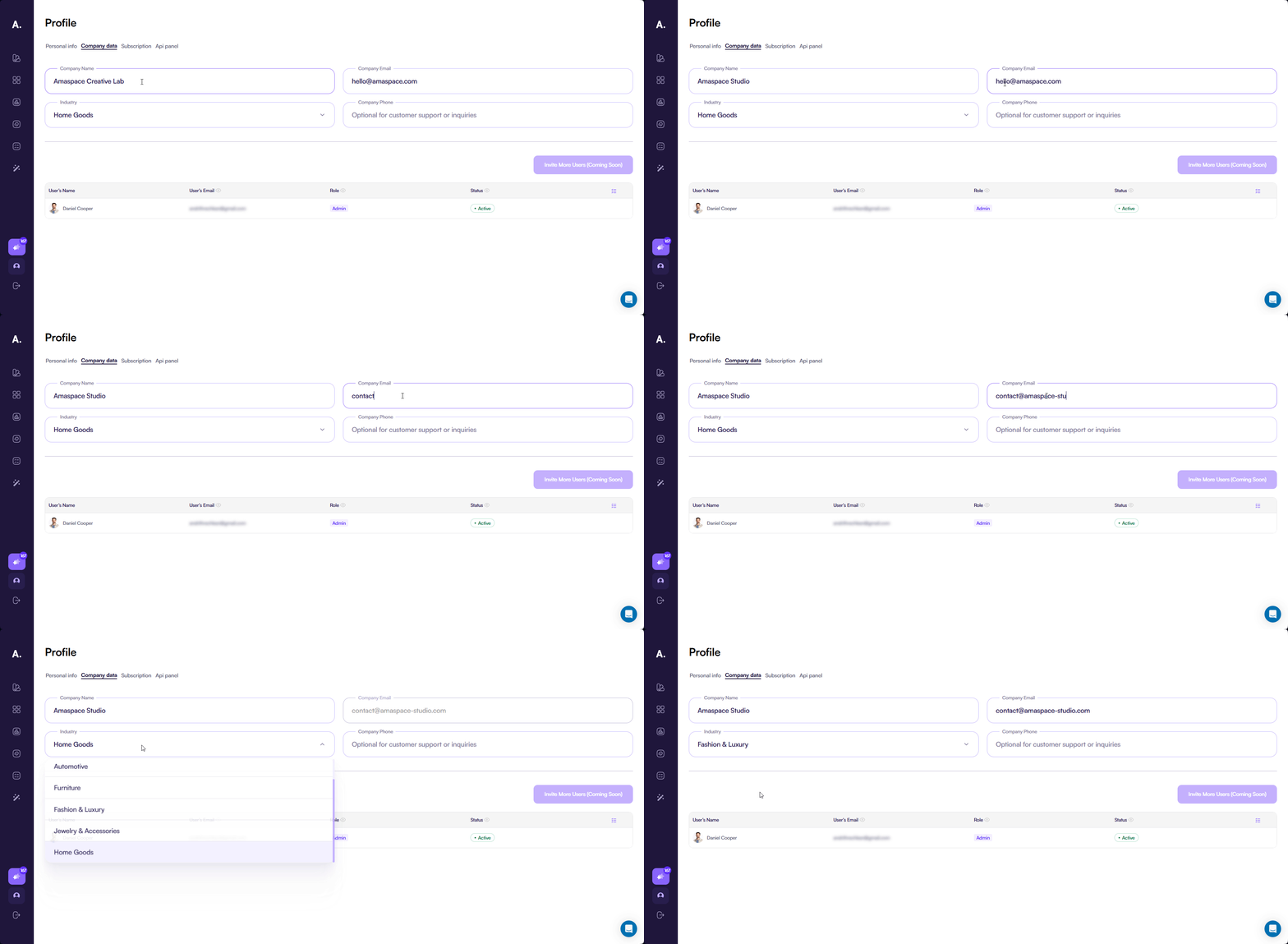
You can edit all company-related fields directly on the Company data tab. Each field updates immediately after you make a change.
What you can update:
- Company name
- Company email
- Industry
- Company phone
Steps:
- Open your profile page at https://app.amaspace.co/profile
- Select the Company data tab
- Update any company field you want to change
- Changes save automatically after editing
Invite team members
You can invite additional users to join your company workspace and collaborate in Amaspace.
This option appears in the Company data tab but is currently marked as coming soon and cannot be used yet.