Asset basics
Overview
Assets are reusable building blocks for your products in Amaspace. When you upload a model, texture, or material as an asset, you can reuse it across products and keep your configurator projects organized.
Location: Amaspace admin dashboard → Assets
When to use assets
Every product in Amaspace uses assets.
Even a basic setup includes at least one of these:
- A base model (GLB/GLTF)
- PCOs (option models / parts)
- Materials and textures
Use the Assets panel to:
- Upload and store files once
- Reuse the same materials, textures, or models across multiple products
- Organize assets by configurator using folders
- Keep one up-to-date version of shared content
1) Understand asset types
Amaspace supports three main asset types:
- Models — 3D geometry files used in your product (for example, a GLB/GLTF model).
- Textures — image maps that drive surface detail (Base Color, Normal, Roughness, Metalness, etc.).
- Materials — surface setups that reference textures and define how the model reacts to light.
Tip: Think of it as Model = shape, Textures = images, Material = the full surface recipe.
2) Organize assets with folders
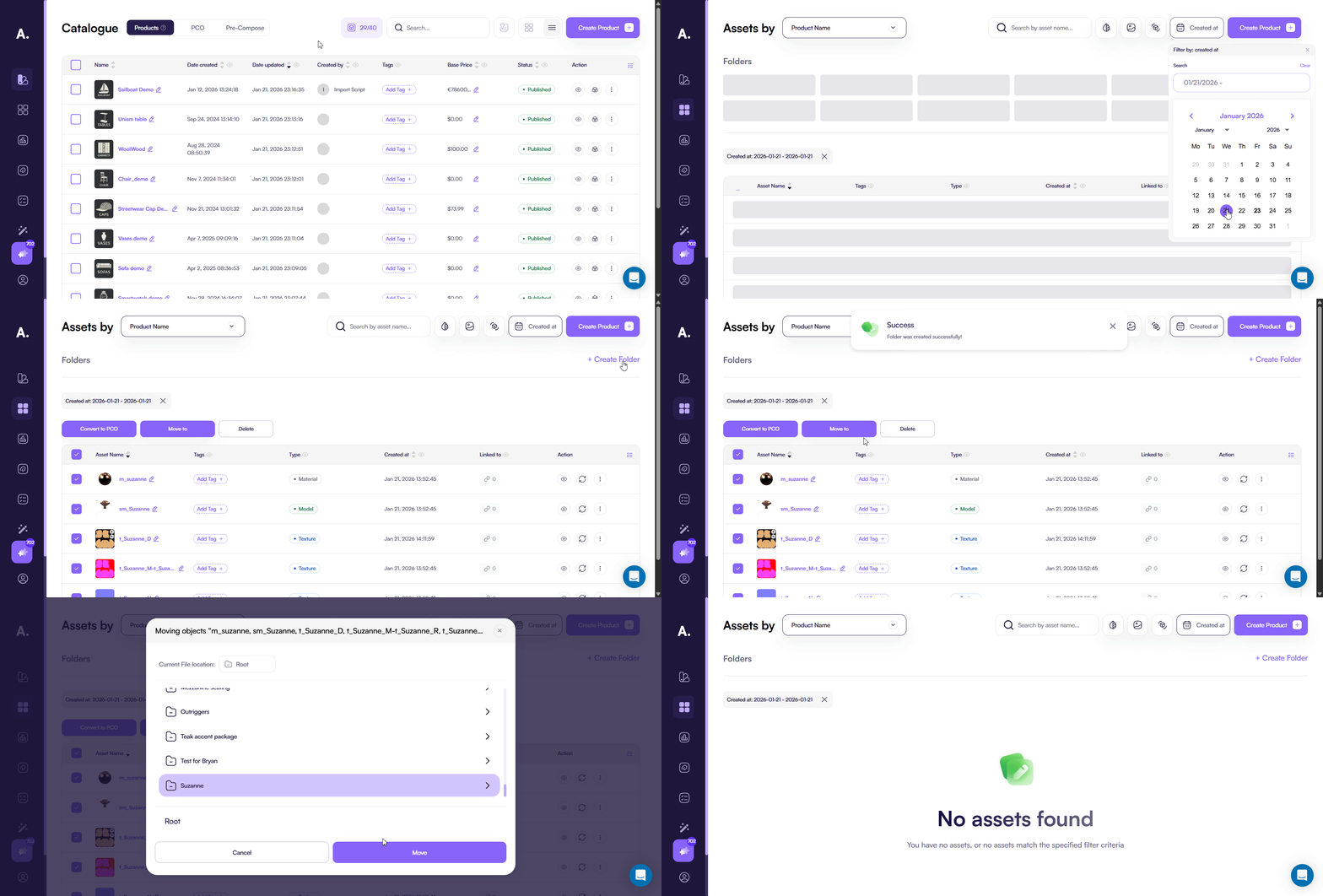
Folders help you separate content between configurators and avoid mixing files from different projects.
- Open Assets in the admin dashboard.
- Create folders for your configurator (for example: by client, product line, or project).
- Move assets into the correct folder to keep your library clean.
3) Use consistent naming
Good naming makes search and reuse faster, especially in teams.
Use clear prefixes and descriptive names, for example:
- sm_ for models (example:
sm_ProductPart_Name_v1) - m_ for materials (example:
m_Leather_Black) - t_ for textures (example:
t_Leather_BaseColor,t_Leather_Normal)
Keep names readable:
- Use the same part reference across related files (model ↔ material ↔ textures)
- Avoid “final_final_v2” naming patterns
4) Reuse assets across products
When assets are organized in the Assets library, you can apply them faster during product setup.
- Pick existing materials and textures instead of re-uploading duplicates.
- Update one shared asset to propagate improvements across products (use carefully and test).
If you need a step-by-step upload flow, follow Uploading assets.
5) Track where an asset is used
Use asset usage tracking to understand what a change will affect.
- Click the asset usage (linked chain) icon to see where the asset is referenced.
- Use this before editing or replacing shared assets.
Best practices
- Use folders to separate configurators and clients.
- Keep naming consistent across models, materials, and textures.
- Reuse assets instead of duplicating files.
- Check asset usage before making changes.