Number Attribute: Control quantity and visibility of models
Article Brief
What this article covers:
- What the Number attribute does
- How Min and Max control model visibility
- How the quantity hotspot works
- How the Number attribute appears in the UI
Overview
Use the Number attribute to control how many instances of a model appear in the 3D scene.
This attribute lets you increase or decrease quantity and, depending on configuration, remove the model entirely.
You use the Number attribute when quantity matters and when the scene needs clear visual feedback.
What the Number attribute does
The Number attribute links a numeric value to a model in the scene.
When you change the value, the system adds or removes model instances.
The behavior depends on how you configure Min and Max values.
You typically use Number for:
- Repeated elements
- Adjustable quantities
- Configurable counts with visual feedback
Configure
Use the configuration fields to define how the attribute behaves.
Min and Max define visibility rules
The Min value defines whether the model can be removed from the scene.
Min = 0
When you set Min to 0:
- You can remove the model completely
- The attribute works as optional quantity
- Value
0hides the model from the scene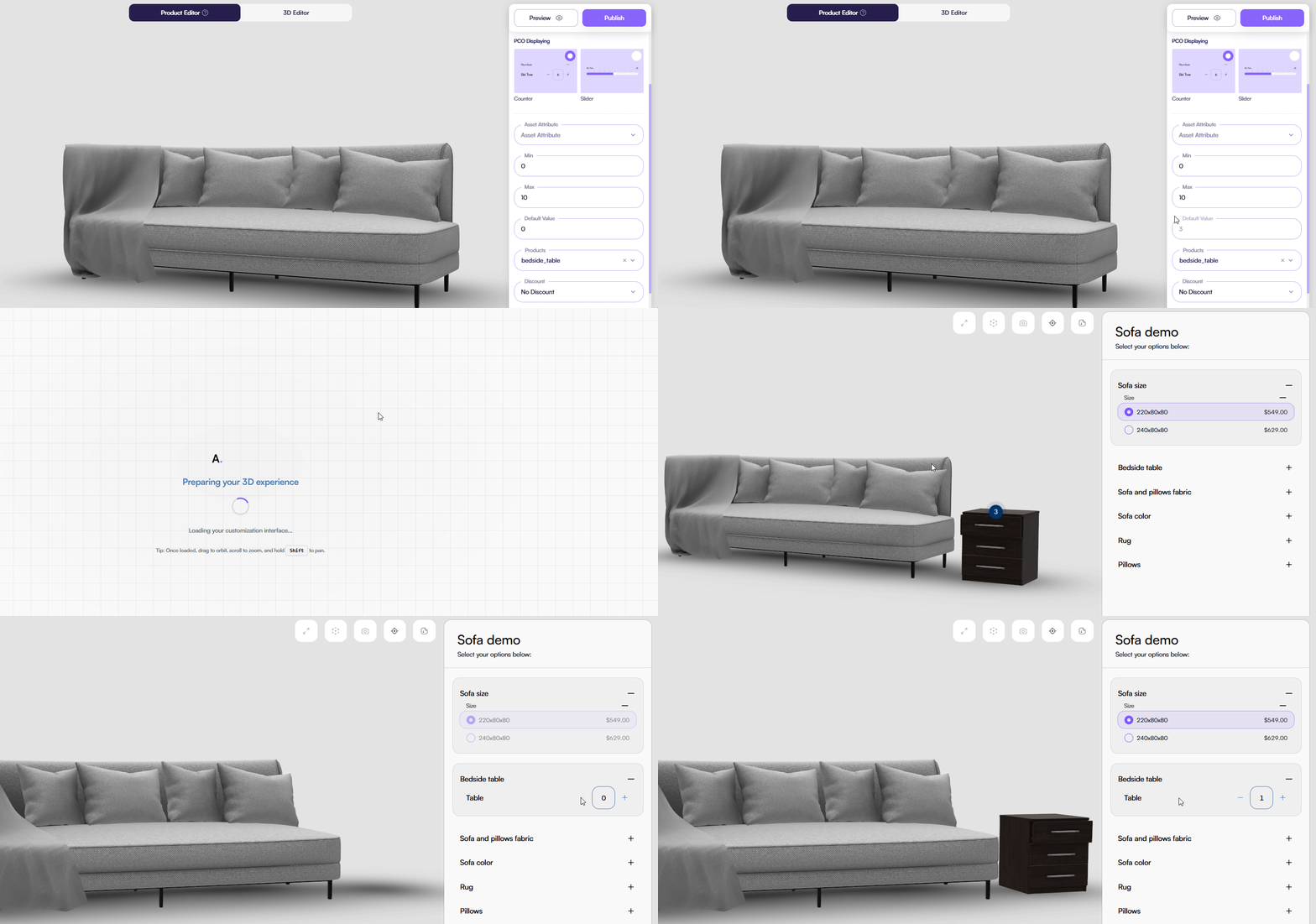
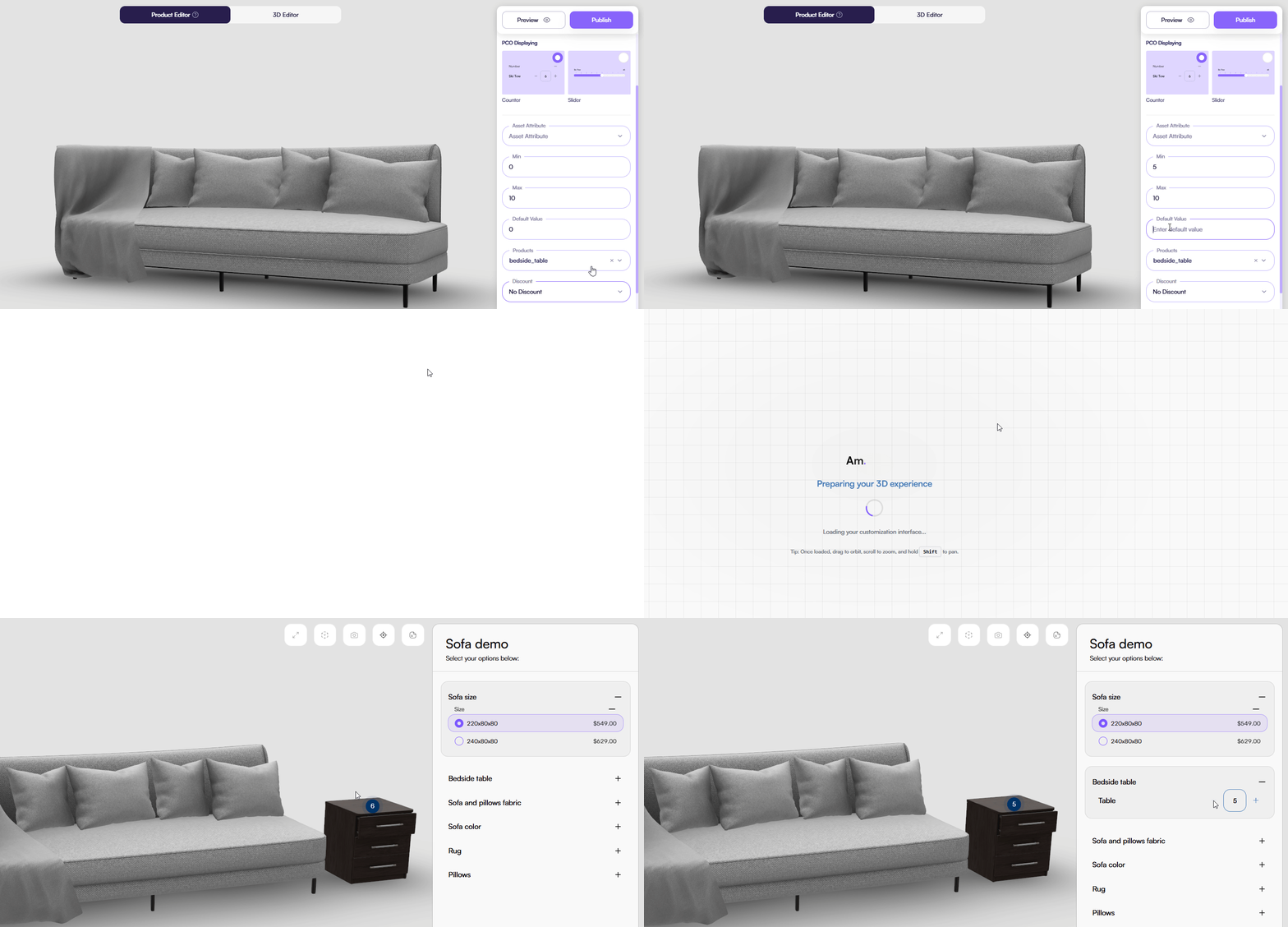
Min > 0
When you set Min greater than 0:
- The model always stays in the scene
- You cannot remove the model completely
- You can only change how many instances appear
This rule guarantees that required elements always remain visible.
Quantity hotspot above the model
The Number attribute adds a hotspot above the model in the 3D scene to display the selected quantity.
The hotspot:
- Updates instantly when you change the value
- Stays visually linked to the model
- Helps you understand the current configuration at a glance
When Slider is selected as the display mode, the hotspot does not appear.
This visual feedback distinguishes the Number attribute from other attribute types.
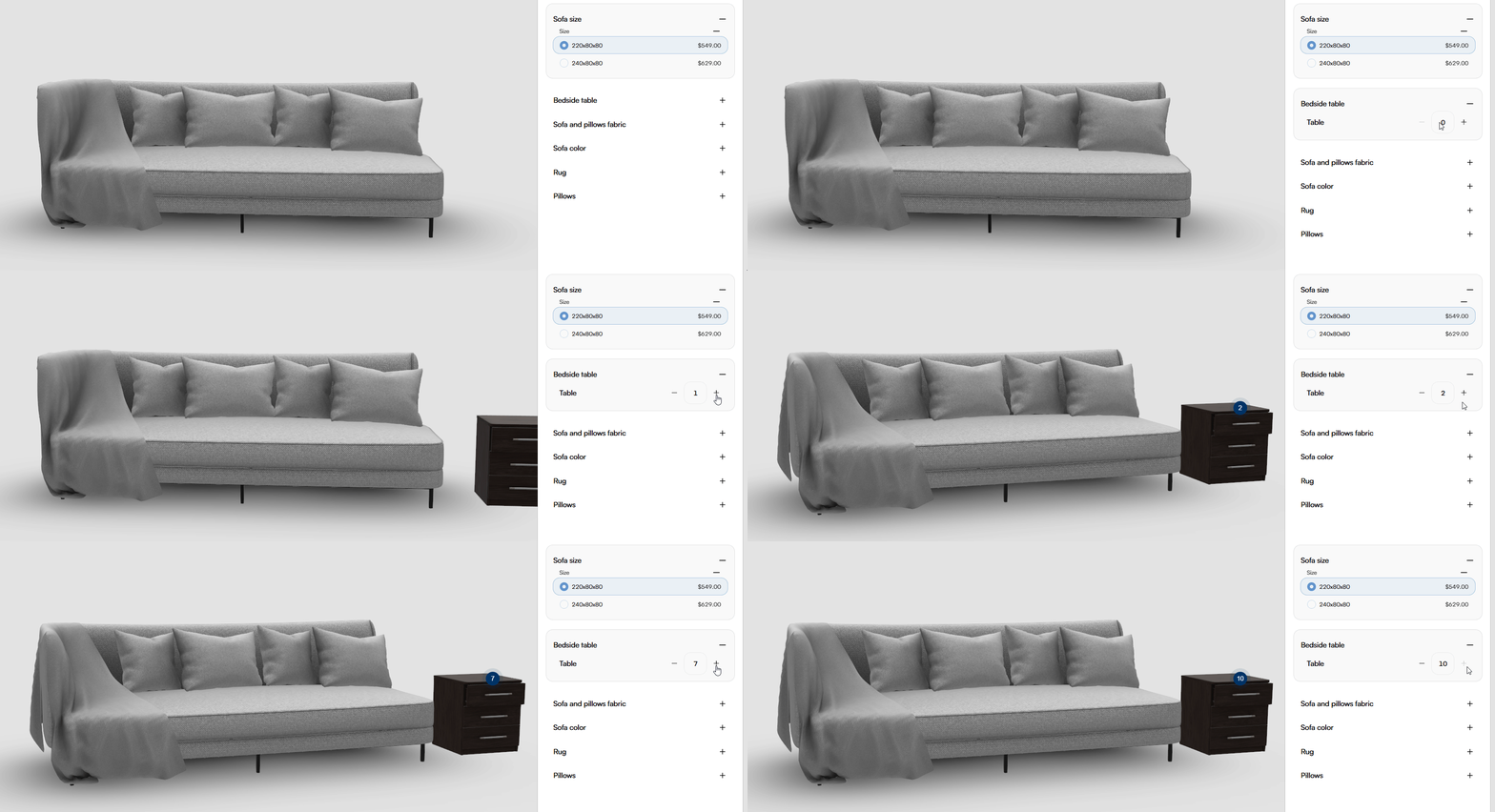
Model in the scene with a quantity hotspot visible
UI behavior
Use PCO Displaying to control how the Number attribute appears.
The Number attribute supports two display modes:
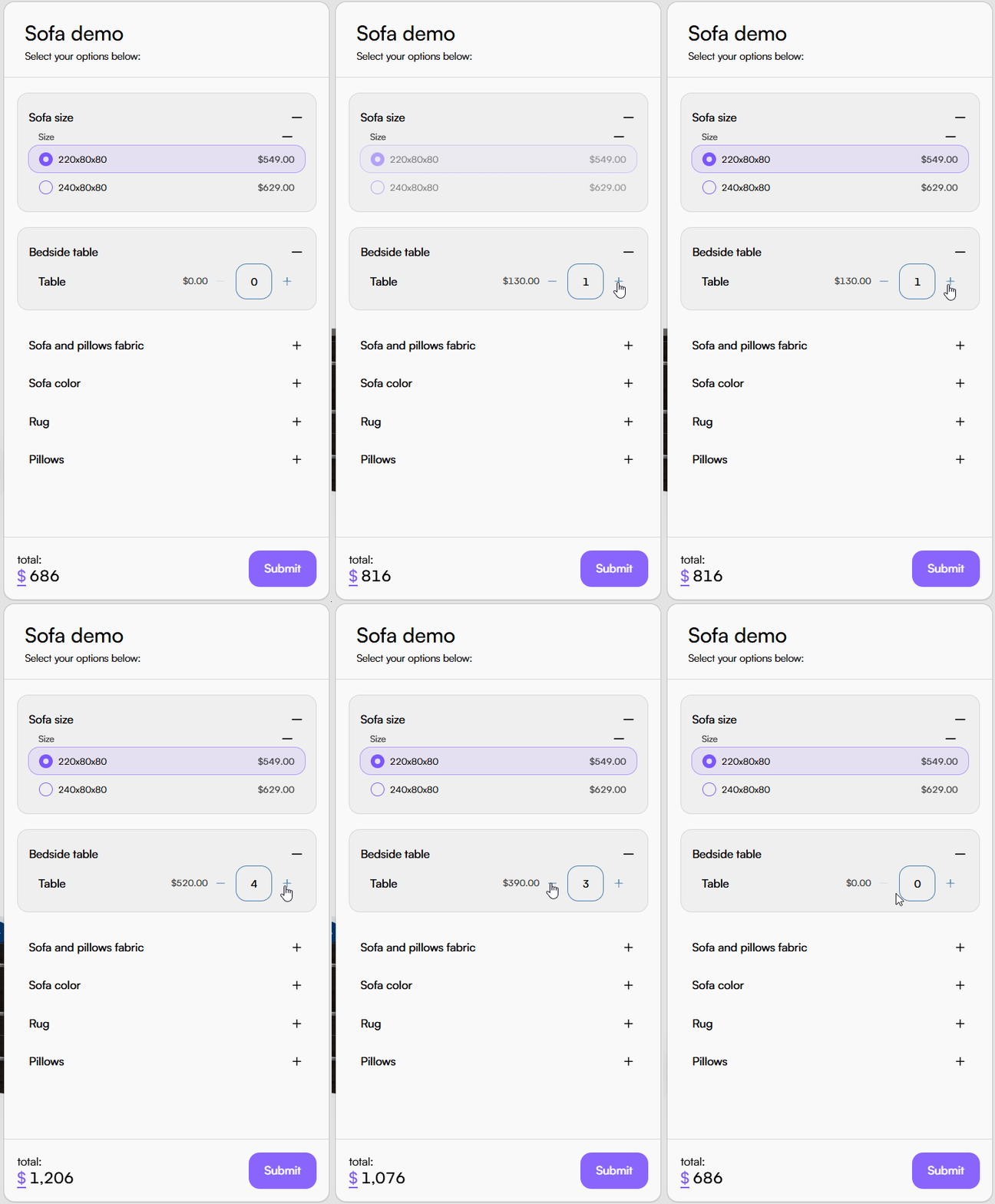
- Counter Displays a numeric value with plus and minus buttons.
You increase or decrease the value step by step.
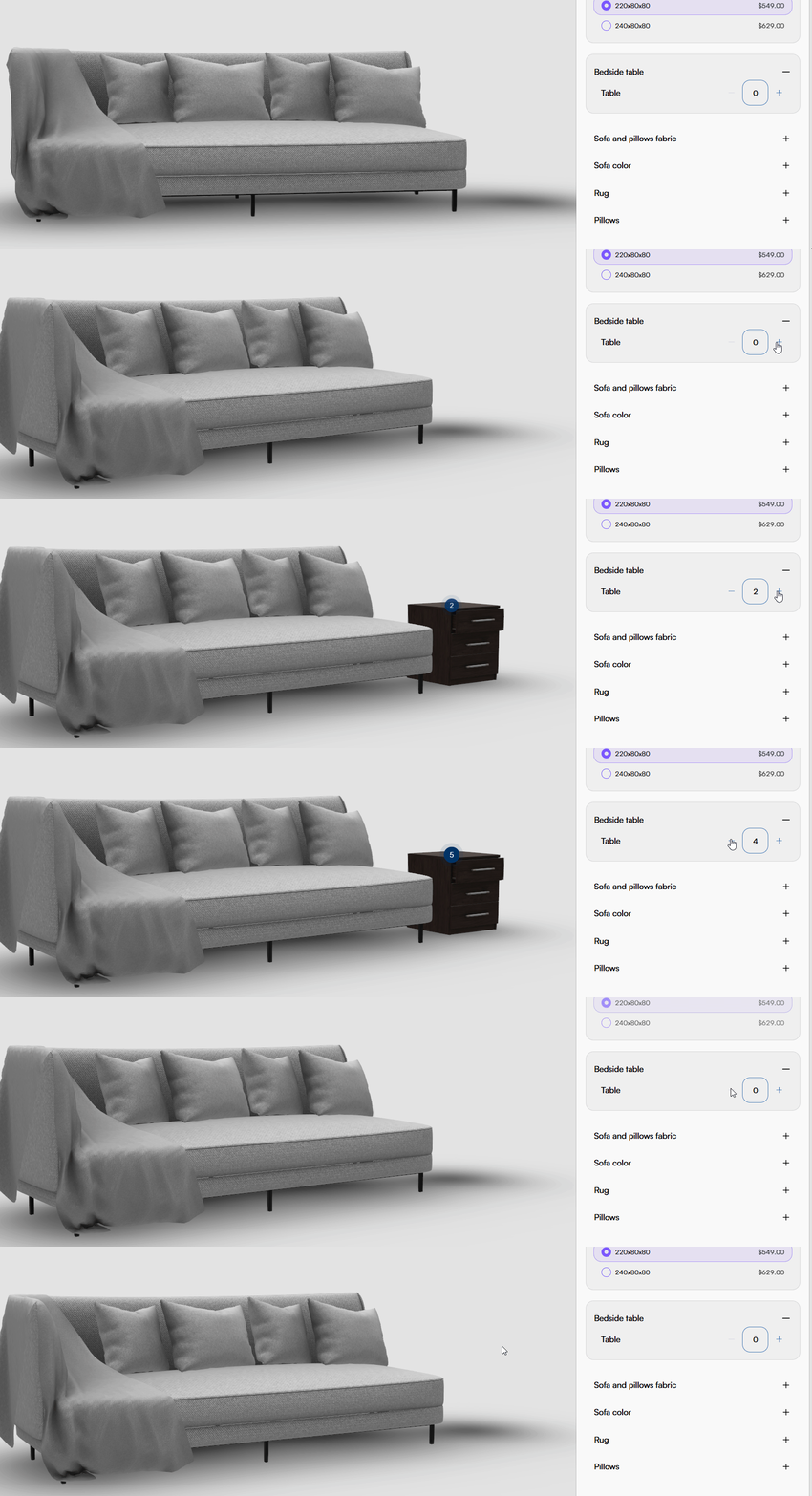
- Slider Displays a slider control within the defined range.
You drag the handle to change the value.
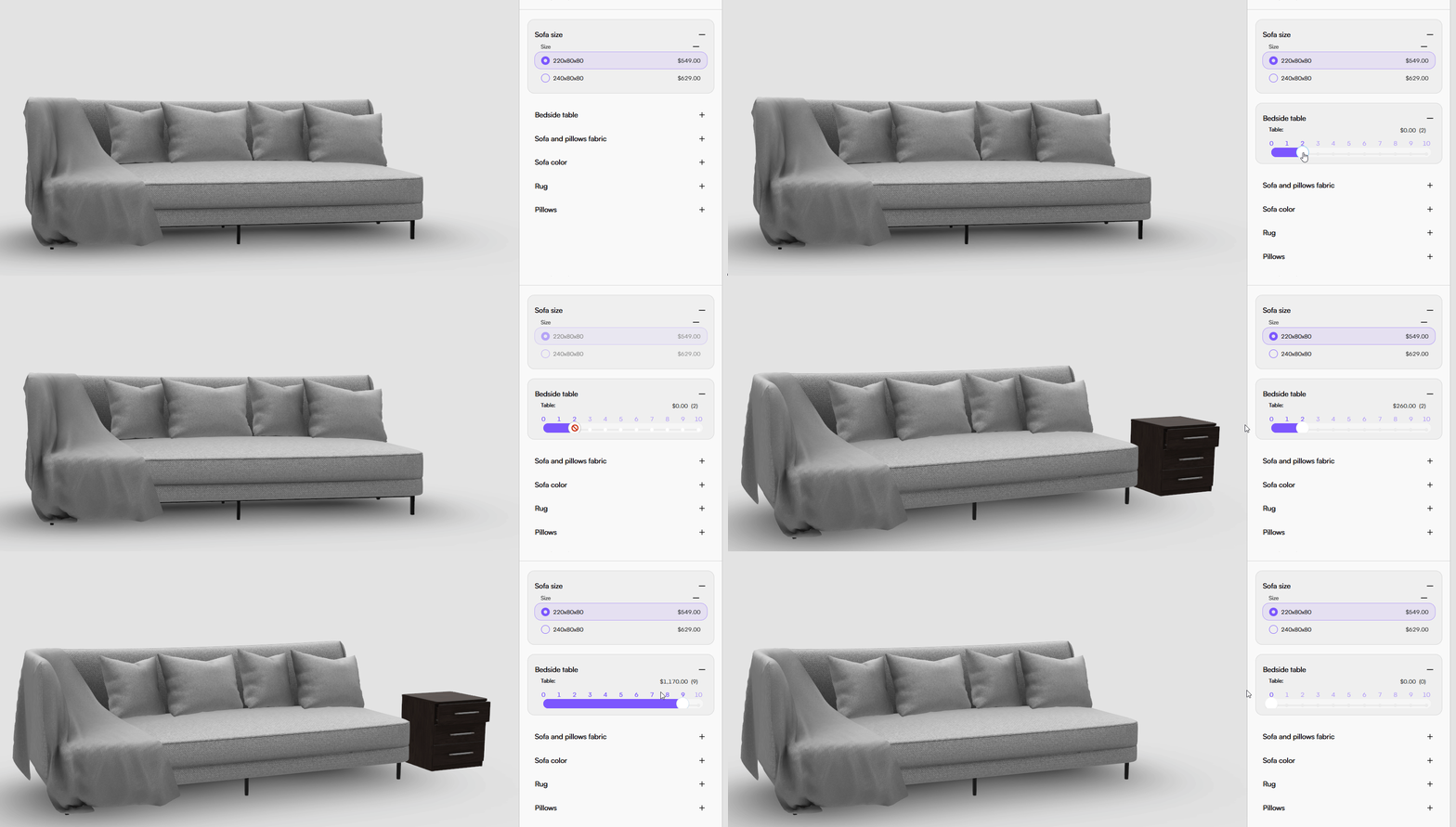
In both modes:
- The selected value updates instantly
- The 3D scene updates in real time
- The quantity hotspot above the model reflects the current value
Pricing behavior
The product price increases based on the selected quantity.
When you change the value:
- Each additional unit applies its price
- The total product price recalculates automatically
- Higher quantities result in a higher final cost
This behavior keeps quantity selection aligned with pricing logic.
Tips & Best Practices
- Use Min > 0 for required components
- Use Min = 0 for optional quantities
- Rely on the hotspot to communicate quantity clearly
Common Issues
-
The attribute does not appear Check whether the Products field is empty.
-
The model cannot be removed Check if Min is greater than
0.