Texture Editor: Configure how textures are applied
Use the Texture Editor to control how a texture is mapped and rendered on a material.
This editor lets you fine-tune texture behavior such as wrapping, scaling, rotation, and filtering.
You use the Texture Editor when a texture is already selected and you need precise control over its visual appearance.
Where the Texture Editor is located
You can access the Texture Editor from multiple entry points in the configuration flow.
The editor opens whenever you select or edit a texture that supports advanced texture settings, regardless of where the texture is configured.
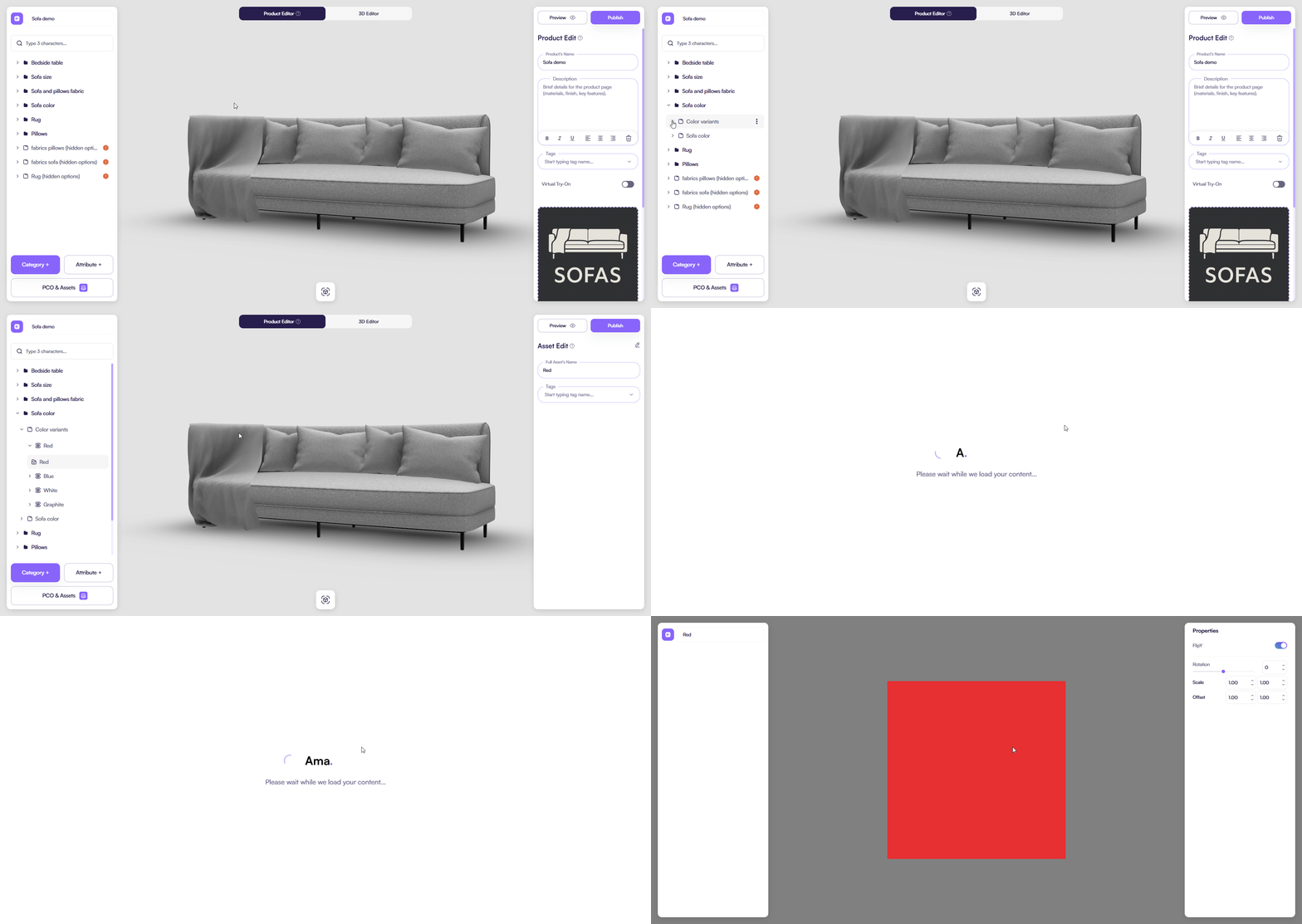
From the Product Editor
You can access the Texture Editor while configuring a product.
How it works:
- Open a product in the Product Editor
- Select an attribute that uses materials or textures (for example, Color or Image)
- Select a texture-related option
- Open the texture settings to edit its properties
This path is commonly used when you adjust textures as part of product configuration logic.
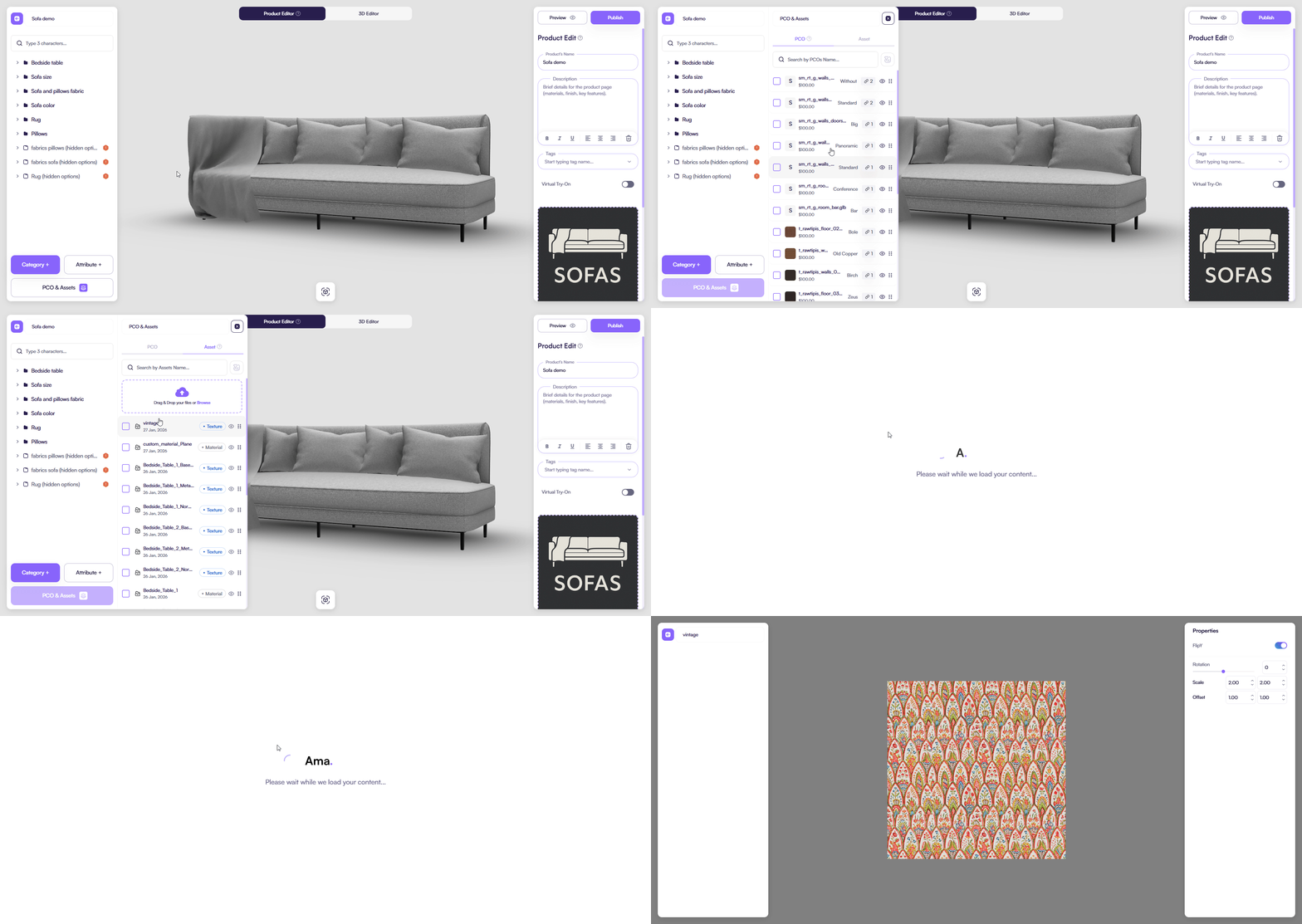
From PCO & Assets
You can access the Texture Editor directly from PCO & Assets.
How it works:
- Open PCO & Assets
- Select a texture asset
- Open the texture configuration
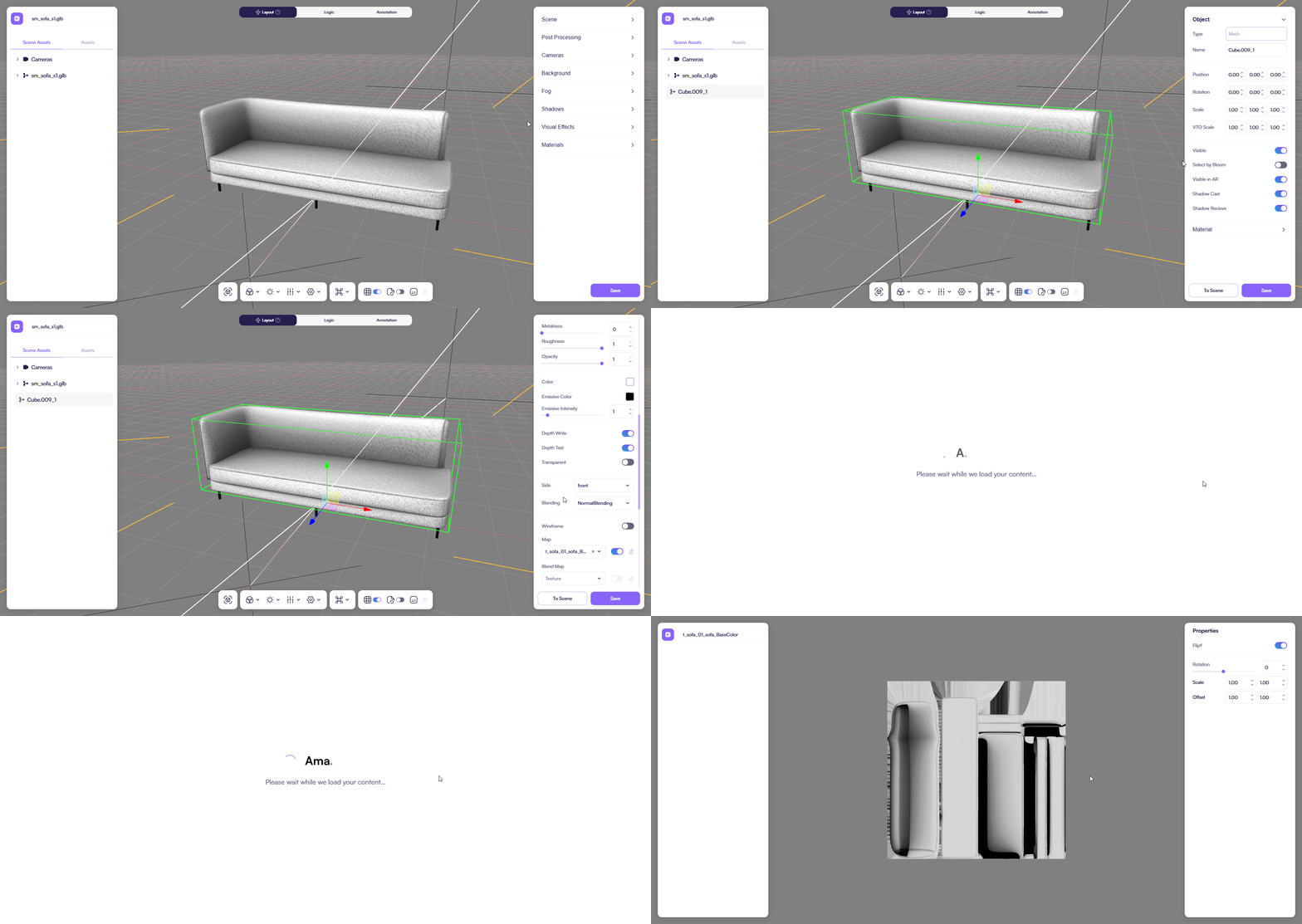
From the 3D Editor
You can access the Texture Editor while working in the 3D Editor.
How it works:
- Open the 3D Editor
- Select a material or object that uses a texture
- Open the texture settings
This path is typically used for visual fine-tuning and real-time inspection in the scene.
Configurate
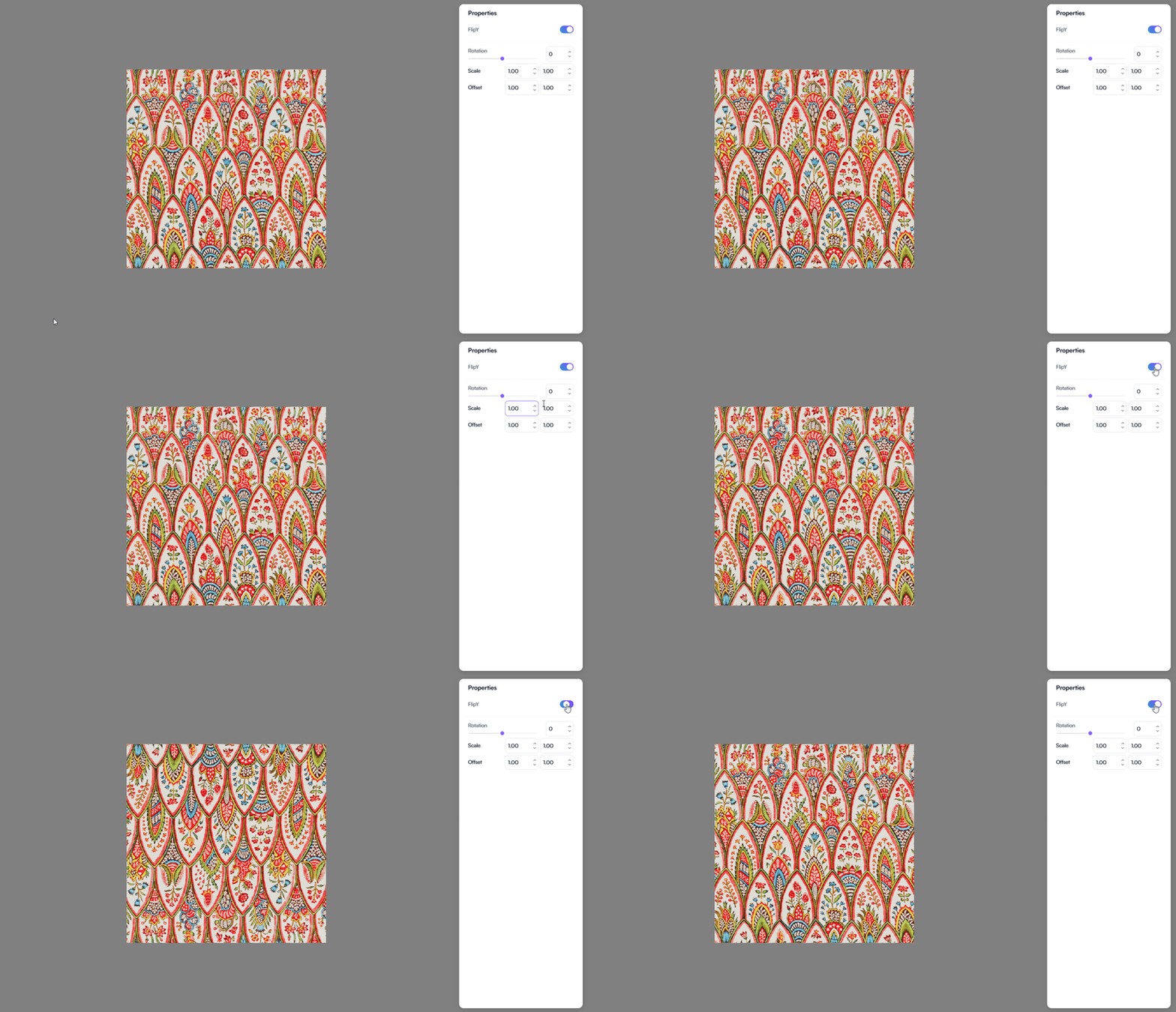
Use the Properties panel to control how the texture behaves.
FlipY
Controls whether the texture is flipped vertically.
You use this option to match texture orientation with the model’s UV layout.
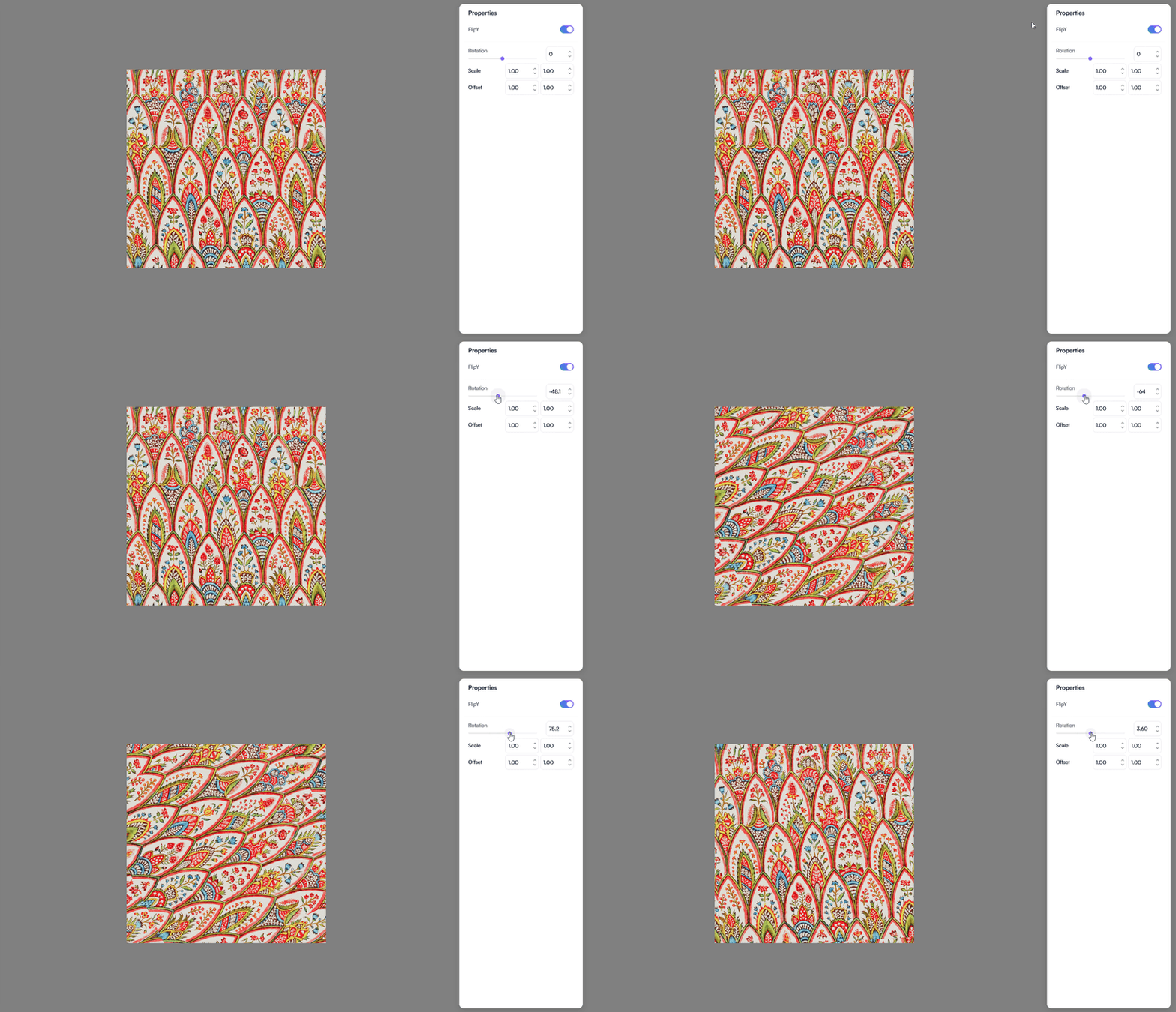
Rotation
Defines the rotation angle of the texture.
You use rotation to align patterns or adjust texture orientation without modifying the source image.
Scale
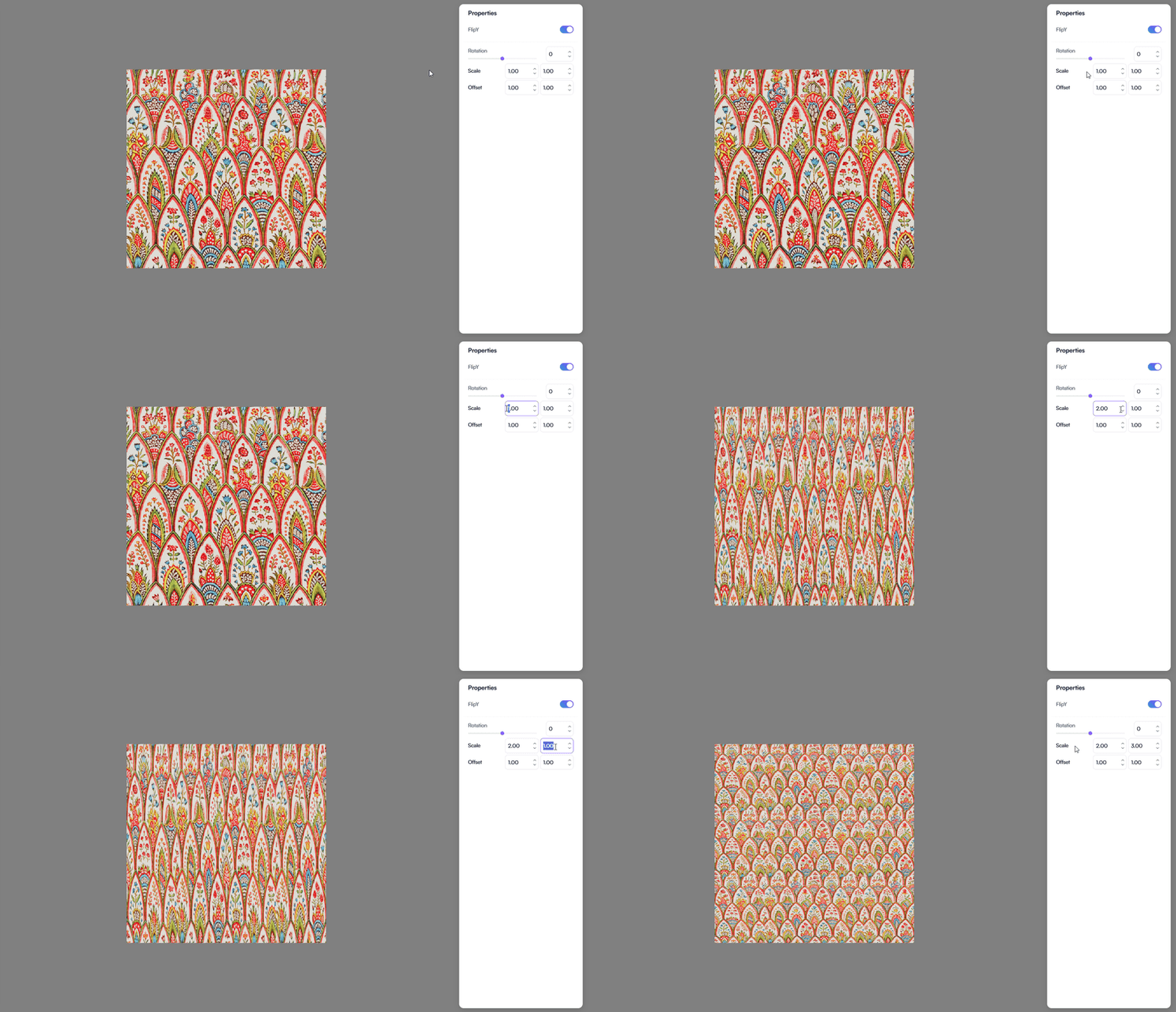
Defines the horizontal and vertical scale of the texture.
You use scale to:
- Increase or decrease texture density
- Control how often the texture repeats
Offset
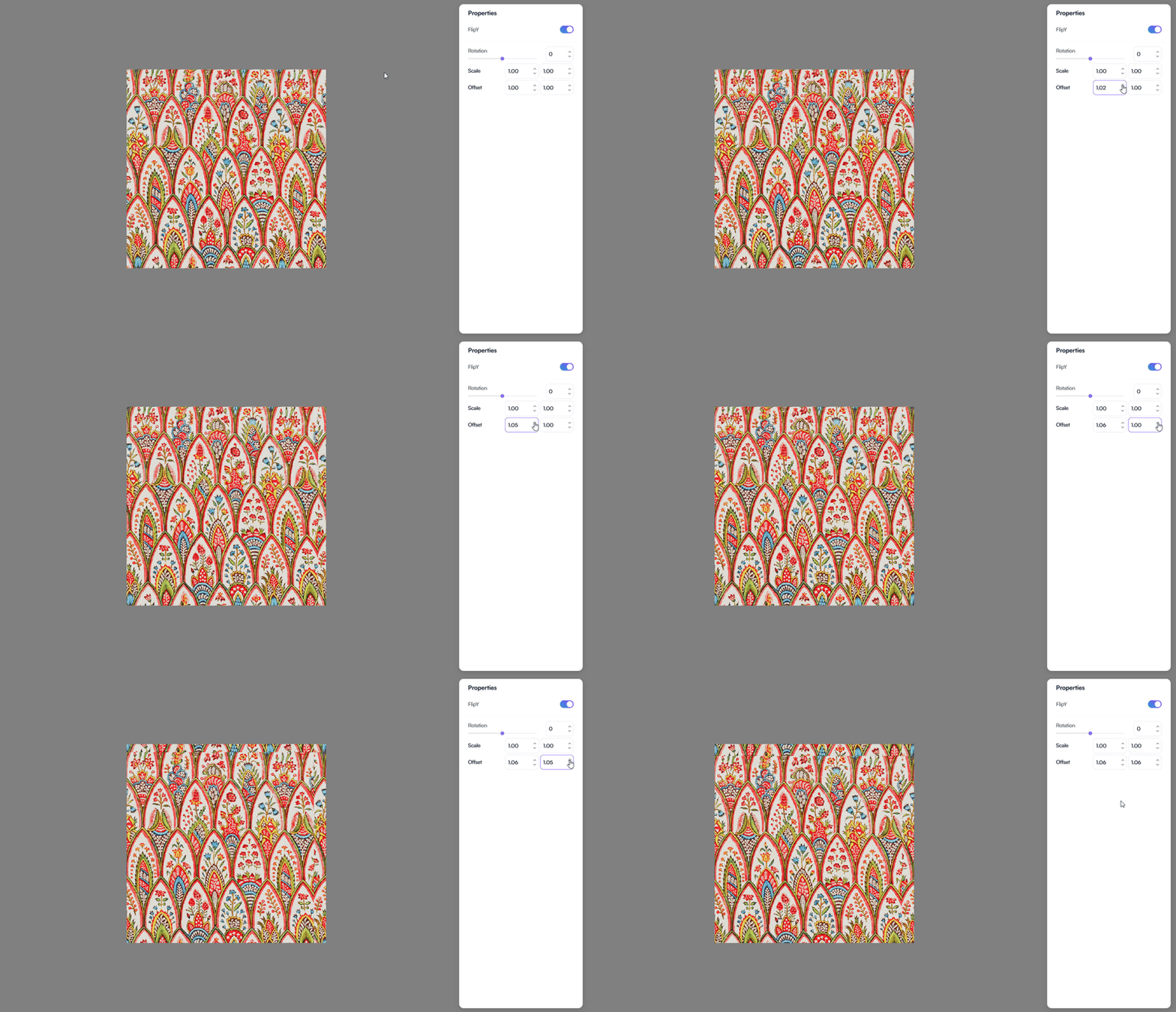
Defines the horizontal and vertical offset of the texture.
You use offset to shift the texture position across the surface.
How changes apply
When you update any texture property:
- The texture preview updates instantly
- The material updates in the 3D scene
- The result stays synchronized with the current configuration
This makes the Texture Editor ideal for precise visual tuning.