Embedding & Custom Implementation
Embed the Amaspace configurator into your website using an iframe, or integrate it directly with our library for a fully custom setup.
This article explains both approaches and helps you choose the right one for your use case.
Overview
You can integrate the Amaspace configurator in two ways:
- Embedding — a quick and simple iframe-based integration
- Custom Implementation — a deeper integration using our JavaScript library
Embedding works best when you want to launch fast with minimal setup.
Custom Implementation gives you more control over logic, UI, and interactions.
Embedding the configurator
Embedding lets you place the configurator on any page using an iframe.
At the moment, iframe embedding is the only available option.
JavaScript-based embedding will be available later (coming soon).
Where to get the embed code
You can generate the embed link and snippet from either the Product page or the Product Editor page.
-
Open a product from the Products page or open it in the Product Editor
-
Click the Manage or Publish button (the button label depends on the product status)
-
A popup opens with product settings and integration options
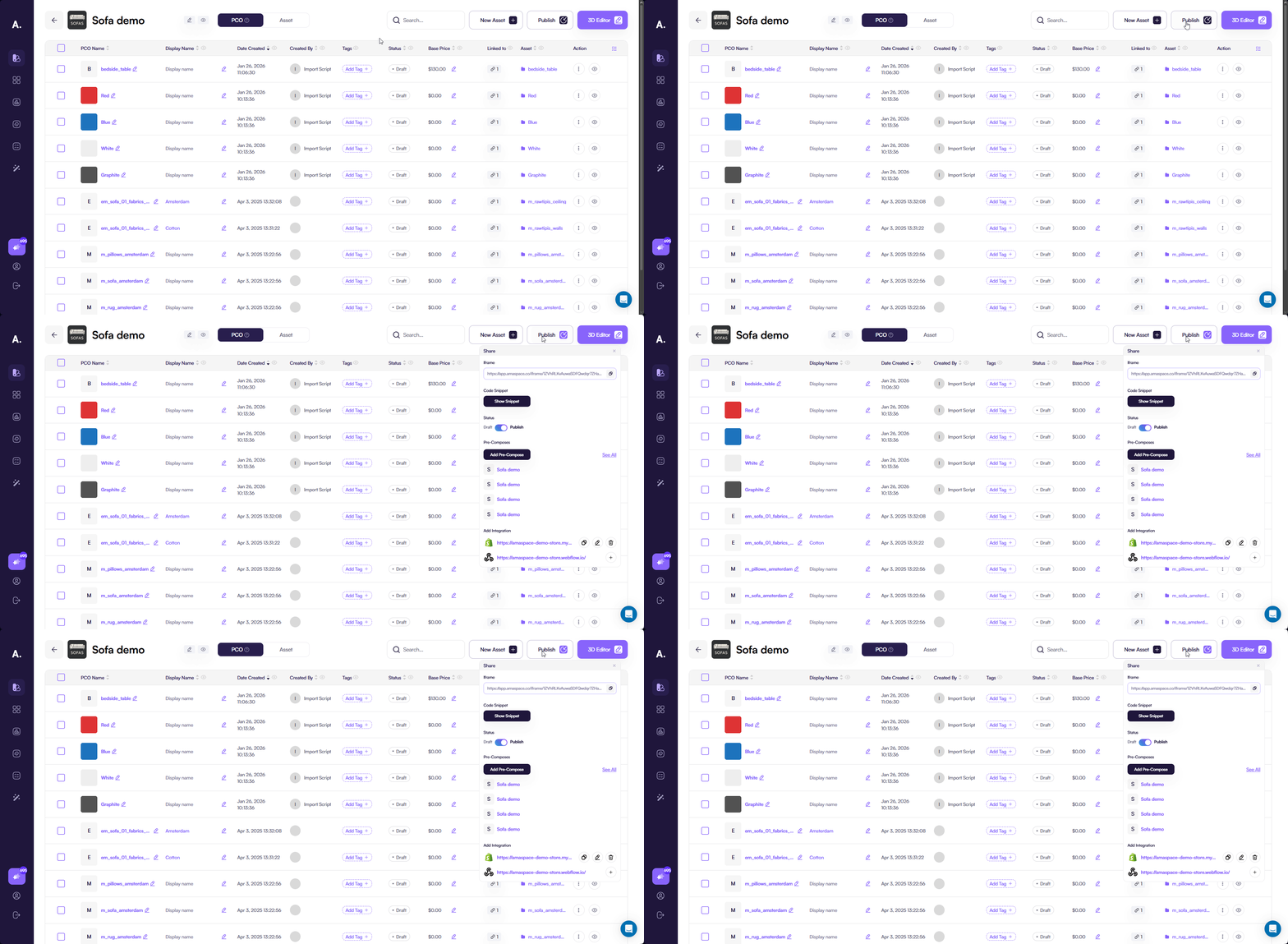
Inside this popup, you can:
- Change the product status
- Copy the iframe link
- Open embed snippets
- Add an integration
- Configure precompose options
From here, you can either copy the iframe link directly or open the embed snippets dialog to get a ready-to-use code snippet.
Opening embed snippets
To get the ready-to-use embed code:
- Click Show snippet
- A dialog window opens
- Select the embed type at the top
- Copy the code using the Copy button
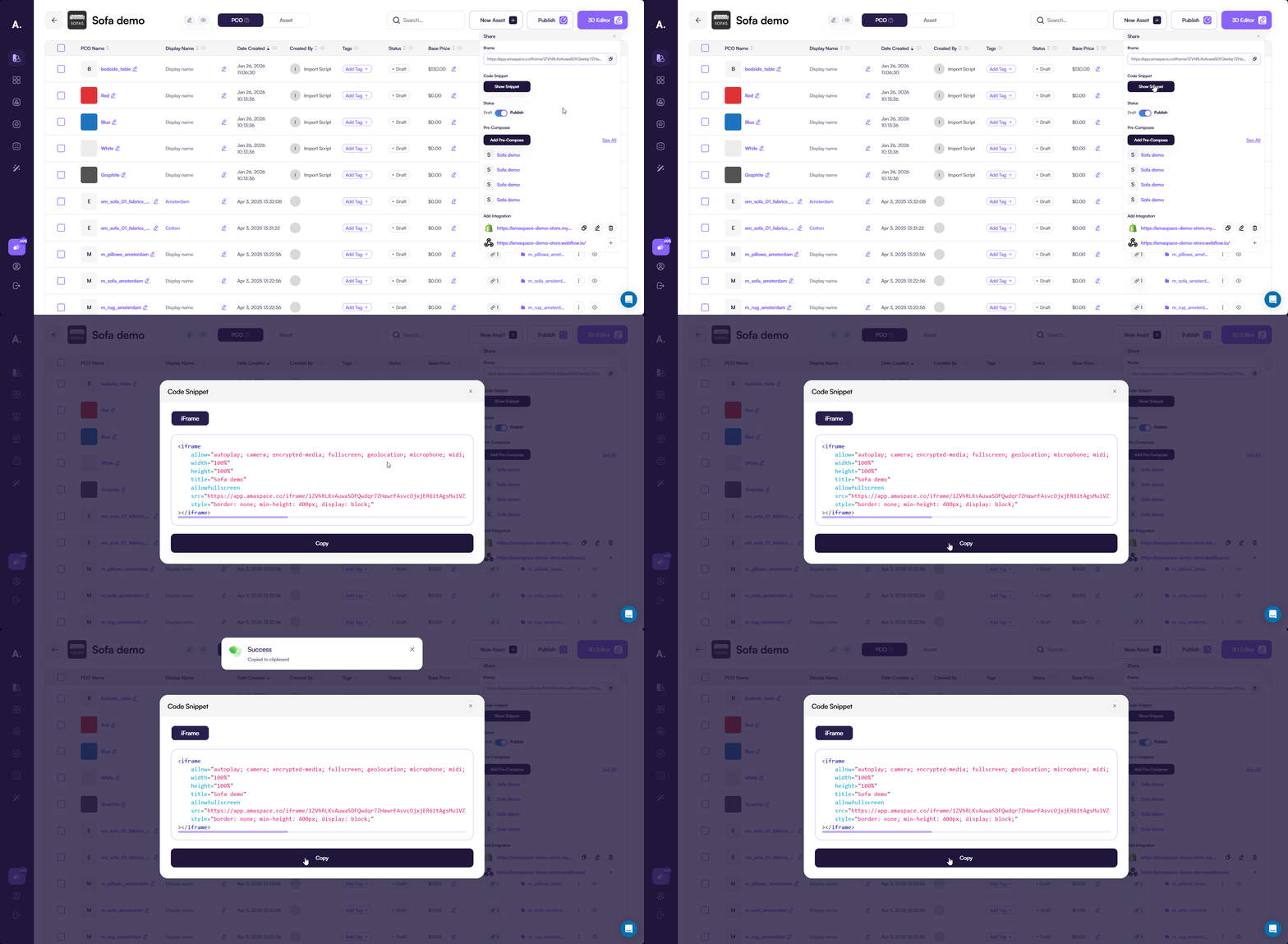
Iframe embed
Example iframe embed
<iframe
    allow="autoplay; camera; encrypted-media; fullscreen; geolocation; microphone; midi; picture-in-picture; payment; clipboard-write; accelerometer; ambient-light-sensor; gyroscope; magnetometer; sync-xhr; usb; xr-spatial-tracking"
    width="100%"
    height="100%"
    title="{{Product Name}}"
    allowfullscreen
    src="{{link}}"
    style="border: none; min-height: 400px;"
></iframe>
How the iframe works
- **title - **Uses the product name automatically and improves accessibility
- **src - **Contains the iframe URL and product-related parameters
- **allow - **Enables required features such as camera access for AR
- **width / height - **Set to
100%to adapt to the parent container
Layout requirements
To display the configurator correctly, always wrap the iframe in a container and control its size there. For better behavior across different screen sizes and devices, it is recommended to use relative dimensions for the container.
<div style="width: 100%; height: 600px;">
    <!-- iframe here -->
</div>
This approach works well when the configurator is embedded as part of a larger page.
If you want to create a dedicated page with the configurator only, you can make the container fill the entire viewport.
<div style="width: 100%; height: 100dvh;">
    <!-- iframe here -->
</div>
Using 100dvh helps ensure correct height handling on mobile devices where the browser UI can change dynamically.
Custom Implementation (Beta)
Custom Implementation lets you integrate the Amaspace configurator directly into your application using our JavaScript SDK instead of an iframe.
This approach gives you programmatic control over the configurator and allows you to interact with the 3D scene through code.
At the core of the integration is the EditorConstructor component. It renders the 3D scene and connects it to your product or asset stored in Amaspace.
How Custom Implementation works
Custom Implementation follows a component-based model.
You embed the configurator by rendering a dedicated component and then control its behavior using configuration options and hooks that become available after the scene is loaded.
A typical flow looks like this:
- Render the configurator component in your application
- Provide the asset or product ID and your API key
- Define the editor mode and behavior
- Wait for the scene to load
- Interact with the scene using hooks and utilities
This structure keeps rendering predictable while allowing controlled interaction with the 3D scene.
What you can control
With Custom Implementation, you can control key aspects of the configurator, including:
- The type of asset being rendered (model, material, scene, texture)
- Editor mode (Viewer, Editor, Try-On)
- Camera behavior and interaction settings
- Application of product rules
- Scene state and loading lifecycle
- Animations, materials, and active objects
- Custom objects, lights, and cameras
All product data, assets, and configuration rules continue to come from the Amaspace platform.
Available connection methods
The Amaspace library supports two connection methods:
- React integration — for React-based applications with direct access to hooks and editor utilities
- Plain JavaScript integration — for custom setups using a CDN
Both methods provide access to the same core functionality.
Developer Documentation
All technical details related to Custom Implementation live in the Developer Documentation.
There you can find:
- Installation guides
- API reference
- Component and hook documentation
- Usage examples and workflows
👉 See Developer Documentation
When to choose Custom Implementation
Choose Custom Implementation when you need deeper integration than iframe embedding allows.
This approach fits well when you want to:
- Control the configurator through code
- React to editor and scene lifecycle events
- Build custom UI around the configurator
- Switch between viewer, editor, and try-on modes
- Extend the scene with custom logic or objects
If you want a fast and simple integration with minimal setup, iframe embedding is the better choice. If you need structured, code-driven control, Custom Implementation is the right approach.