Quick Start
Create your first Amaspace product, add a few configuration options, preview it, then publish and share it on your site.
You’ll do: Product → Assets → Options (Attributes/PCOs) → Scene → Preview → Publish → Embed/Integrate
Before you start
-
You need at least one 3D model for your product (GLB/GLTF recommended). If you don’t have one yet and just want to test Amaspace - feel free to use one of our sample models:
-
If you plan to go live on a store, decide your path:
- Shopify integration
- WooCommerce
- Webhooks
- Embedding & Custom Implementation
-
See our public guides
1) Create a Product
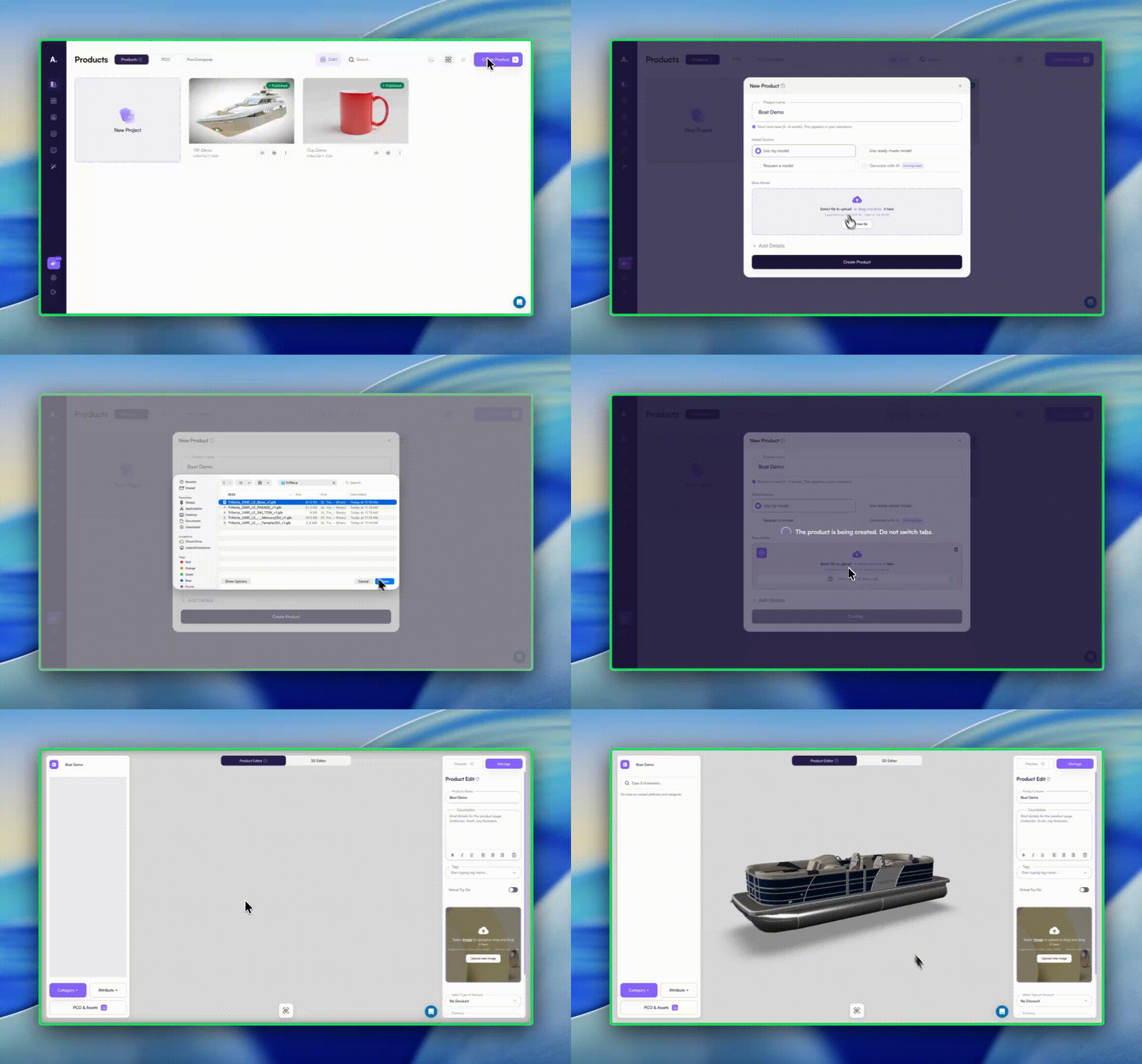
Create a new product and upload your base 3D model. This model becomes the foundation of your configurator.
Tip: Use a clear naming convention: Brand / Model / Version (ex: AquaCraft / 22FT / v1).
Related:
2) Upload supporting Assets (optional but common)
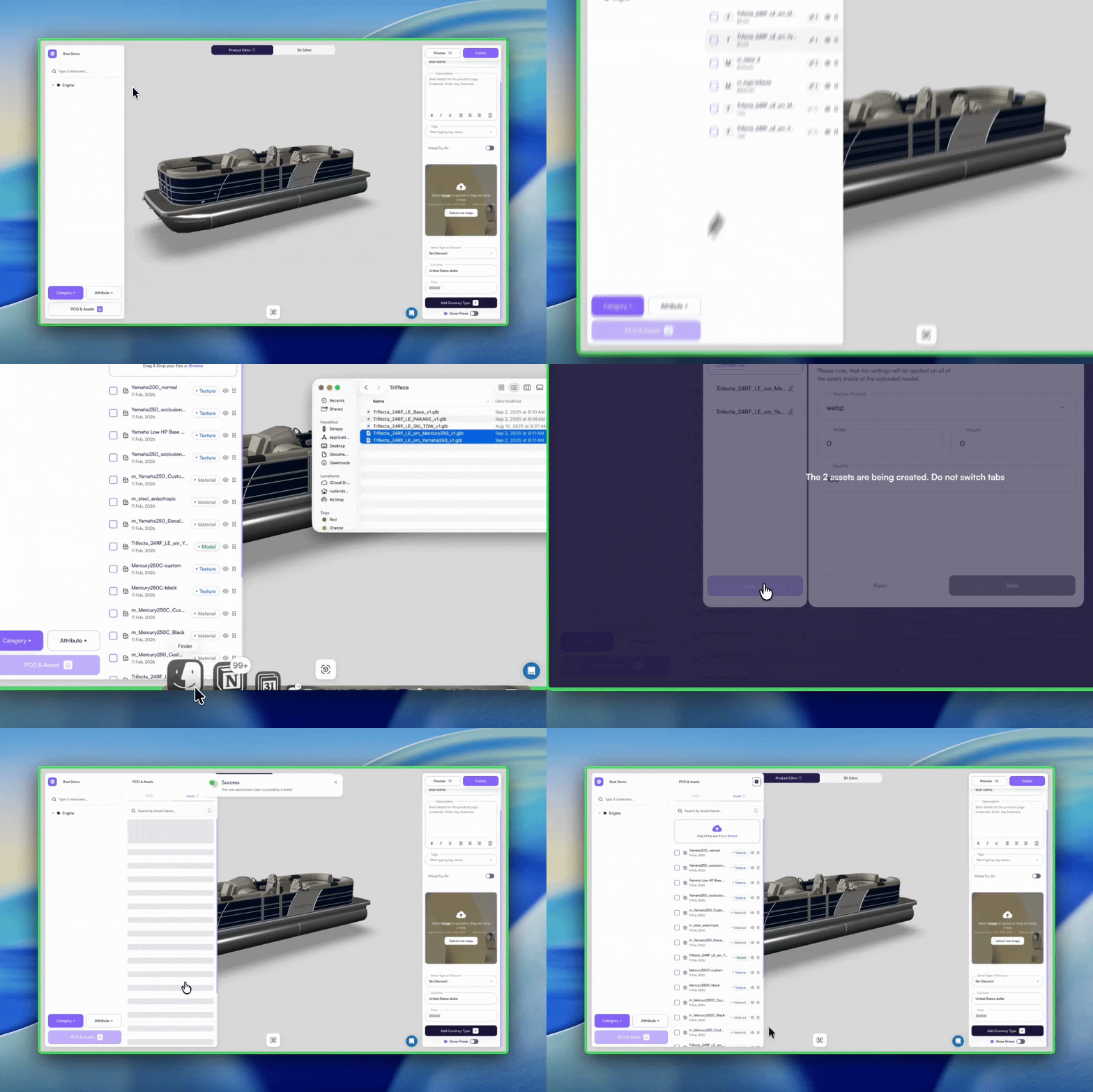
If your configurator needs swappable parts (engines, accessories, materials), upload them in Assets.
Amaspace may prompt for compression/optimization settings to keep web performance fast (including texture optimization).
Related:
- Products (model and preview fields)
- Creating products (texture compression settings)
3) Add configuration options (Categories → Attributes → PCOs)
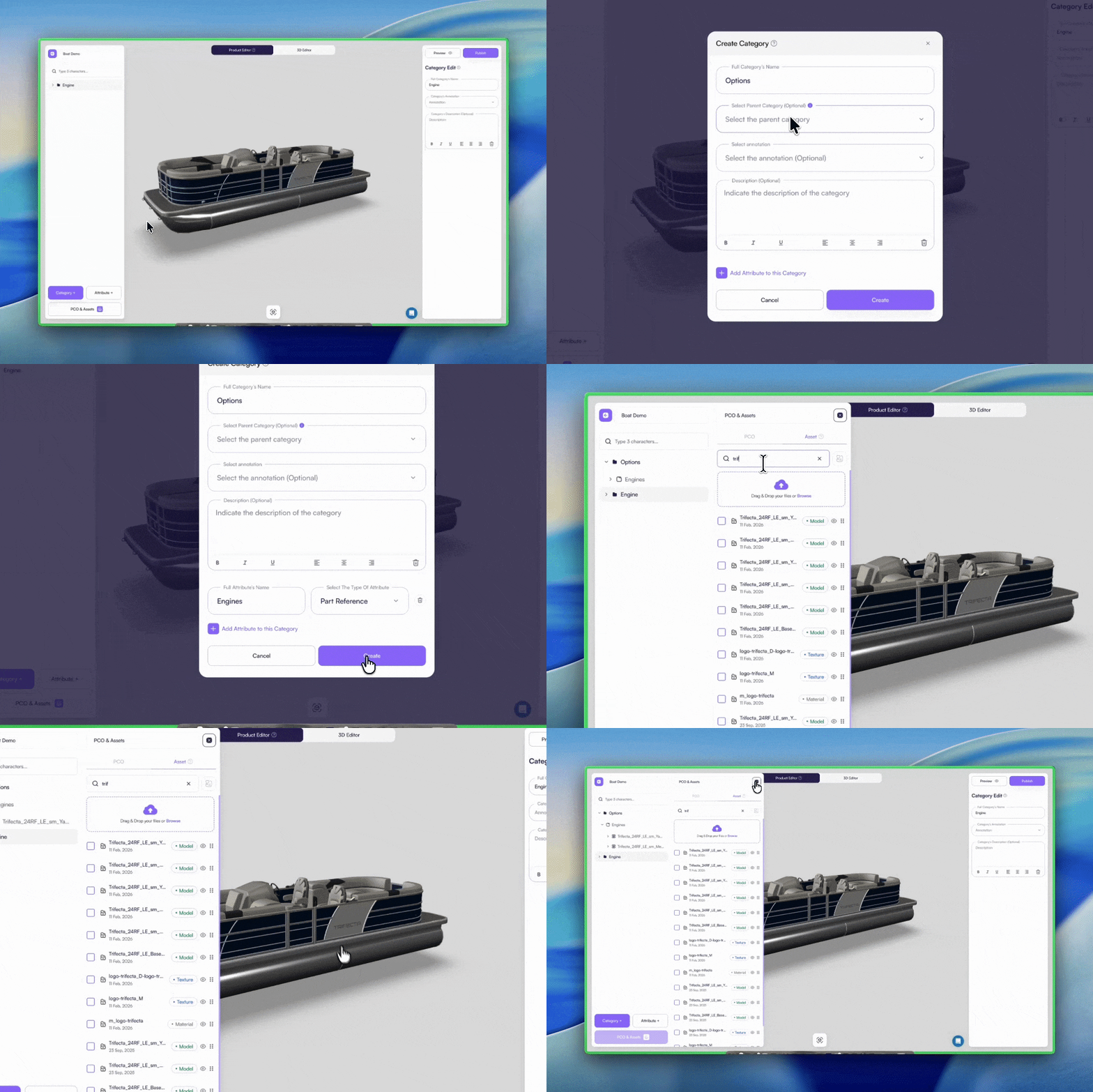
In the Product Editor, structure options like this:
- Categories = folders that group related features
- Attributes = what can be customized (color, engine type, package)
- PCOs (Product Customization Options) = the actual choices customers click
You’ll typically create:
- One category for Core options (ex: Engine / Package)
- One category for Colors / Materials
Amaspace uses a tree structure for options, and a “part picker” style workflow to link options to specific model parts.
Related:
4) Link options to the 3D model
Now make options actually change something:
Swap parts (example: engine/accessory)
If your base model includes a static part that should be controlled by an option, hide that base part in the 3D Editor and let the option control visibility/swapping.
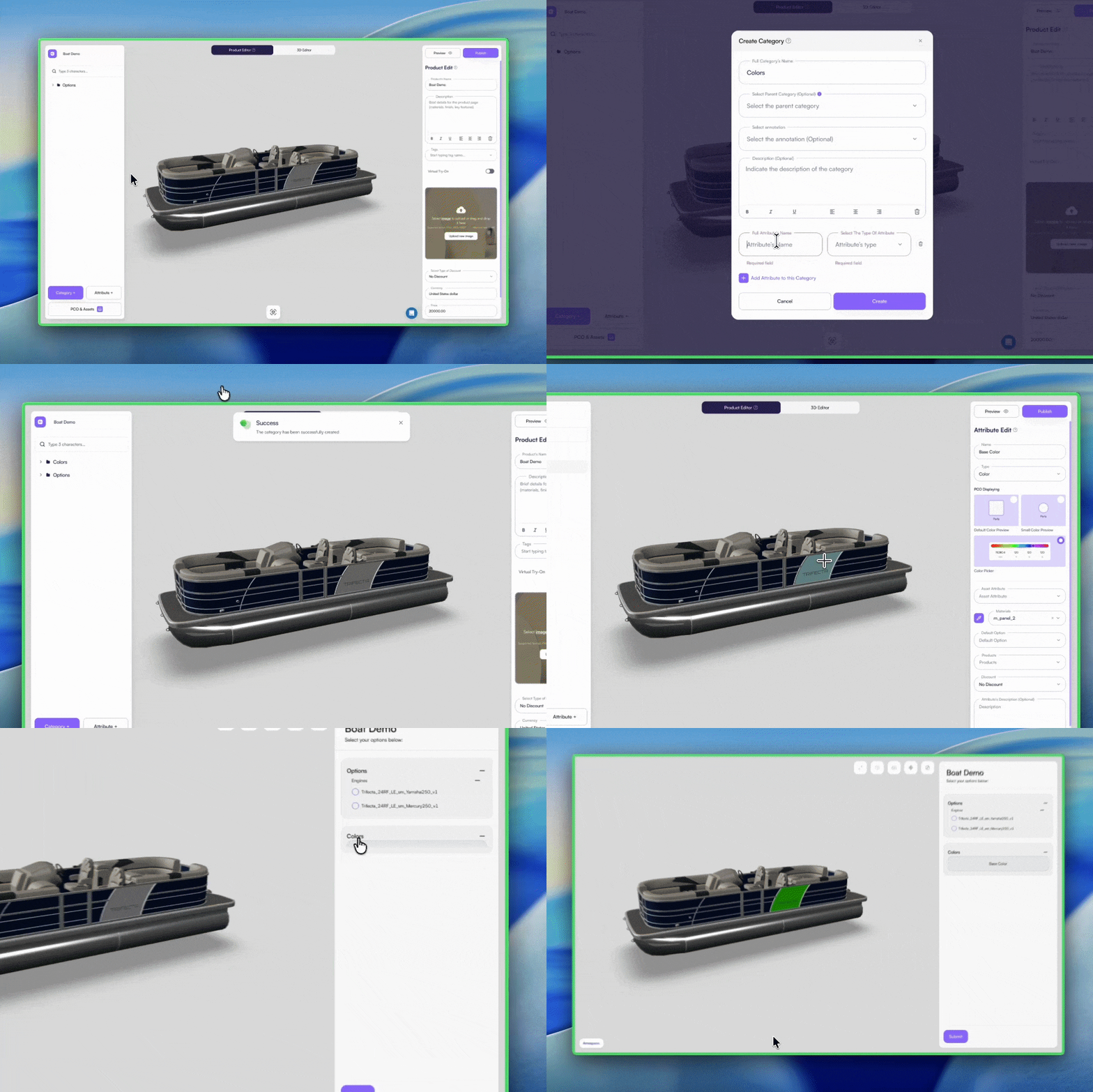
Change colors/materials
Upload/select materials, then link them to the correct mesh/part so users can change color regions independently.
Related:
- Attributes (materials, products, default option)
- Events system (if options should affect other options)
5) Set up the scene (3D Editor)
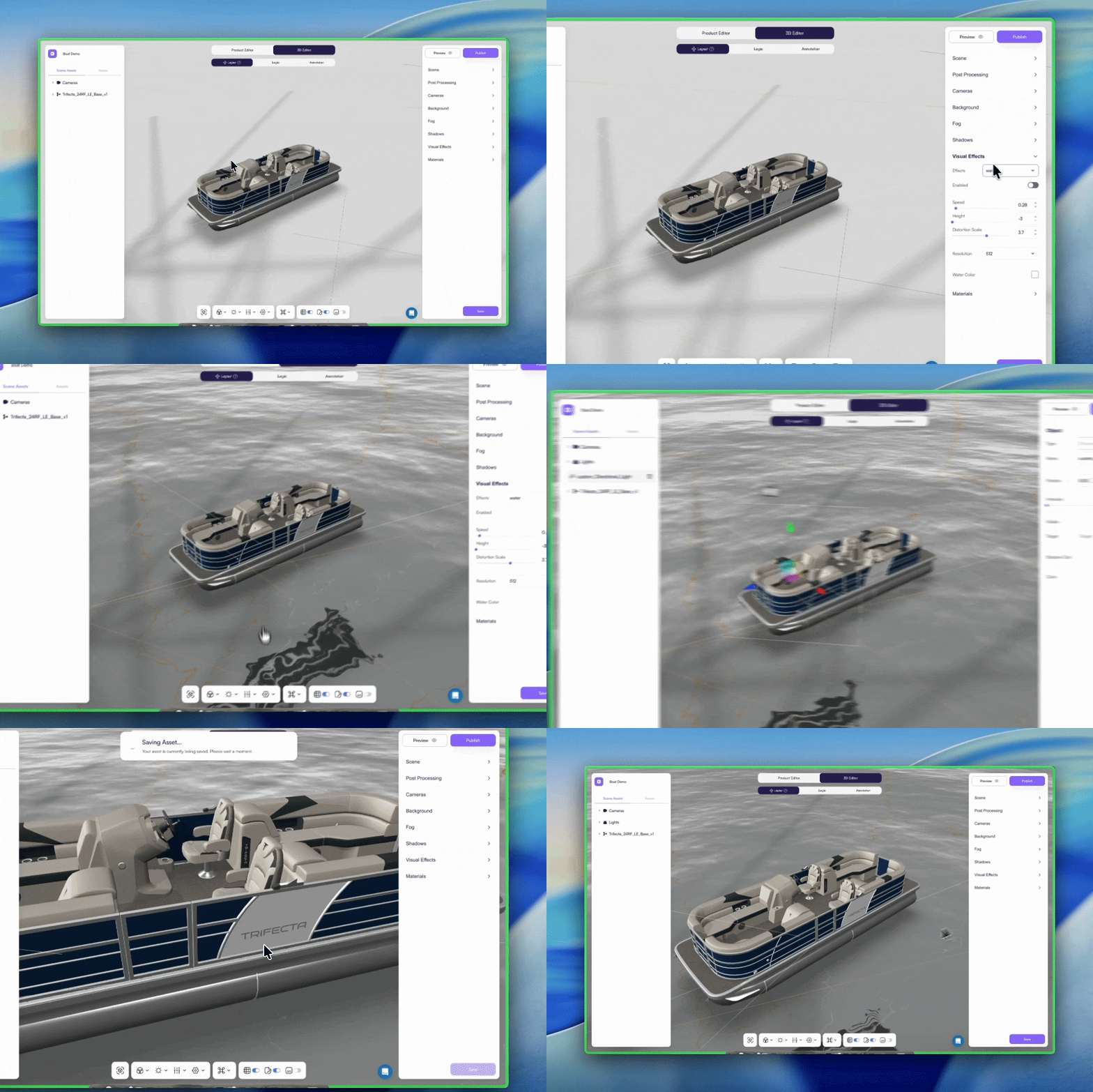
The 3D Editor is where you control the “showroom” experience: initial camera, environment/lighting, and other scene settings.
At minimum, set:
- Configurator camera (the first view users see)
- Environment/lighting (keep it simple for your first publish)
Related:
- Annotations
- Events system (scene-based events)
6) Preview and test
Use Preview to validate:
- Options toggle correctly (single vs multiple selections)
- Swapped parts show/hide as expected
- Colors update consistently
- Defaults look good
If colors/materials behave oddly, confirm your default material settings are clean and consistent.
Related:
- Attributes (default option, materials)
- Events system (logic validation)
7) Publish and share
Once it looks right:
- Publish the product
- Share via your preferred channel:
- Shopify/WooCommerce integration
- Custom embed
- Share link
Related:
Optional: AR + PDF quote (if enabled)
Some experiences benefit from “sales tools”:
- PDF quote/export: users can export a summary of selections and pricing for sharing.
- AR preview: users can view their configured product in real scale on mobile.
See our complete AR Guide here - Augmented Reality: Enable and Customize AR
Common issues
- Option doesn’t change anything — confirm it’s linked to the right part/material in the model.
- Wrong default visible part — hide base parts that conflict with swap options.
- Materials look inconsistent — reset or standardize default material properties.