Material Editor: Configure how materials look and behave
Use the Material Editor to control how a material is rendered in the 3D scene.
This editor lets you adjust visual properties such as color, roughness, metalness, opacity, and rendering behavior.
You use the Material Editor when a material is already assigned and you need to fine-tune its appearance.
Where the Material Editor is located
You can access the Material Editor from multiple entry points in the system.
The editor opens whenever you select or edit a material that supports advanced material settings.
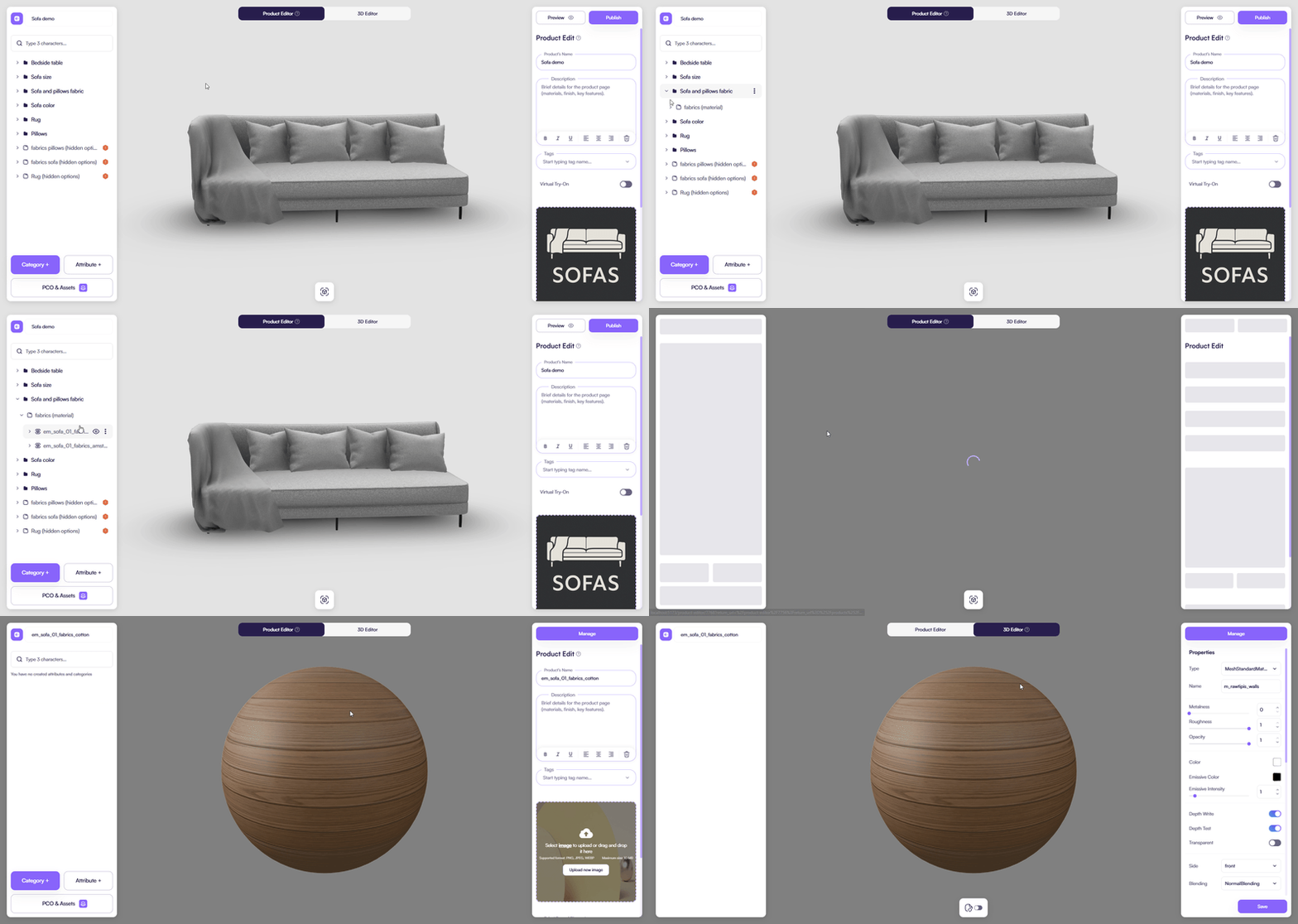
From the Product Editor
You can access the Material Editor while configuring a product.
How it works:
- Open a product in the Product Editor
- Select an attribute that uses materials (for example, Color or Image)
- Select a material
- Open the material settings
This path is commonly used when material changes are part of product configuration logic.
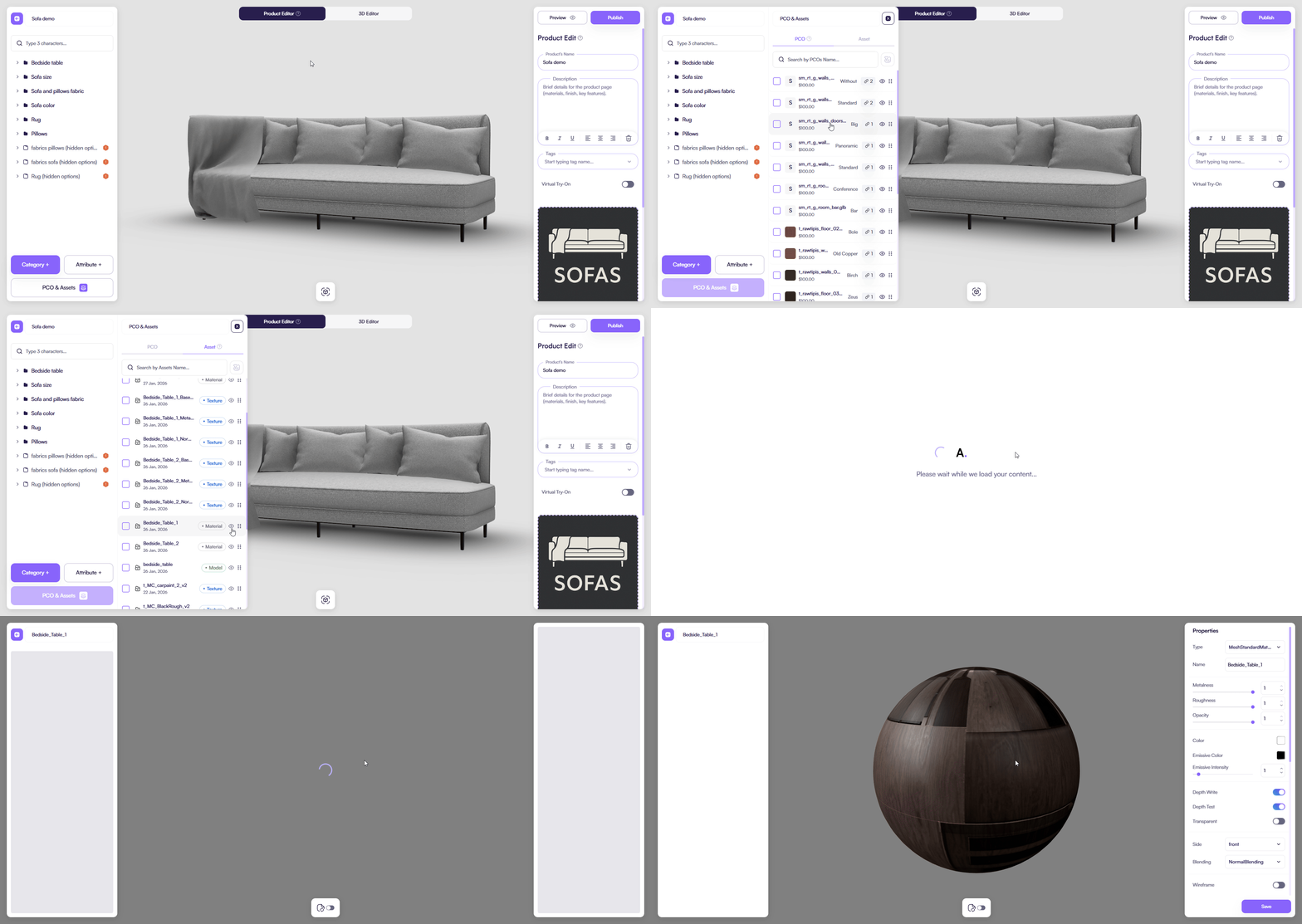
From PCO & Assets
You can access the Material Editor directly from PCO & Assets.
How it works:
- Open PCO & Assets
- Select a material asset
- Open the material configuration
This path is useful when you want to prepare or adjust materials before using them in products.
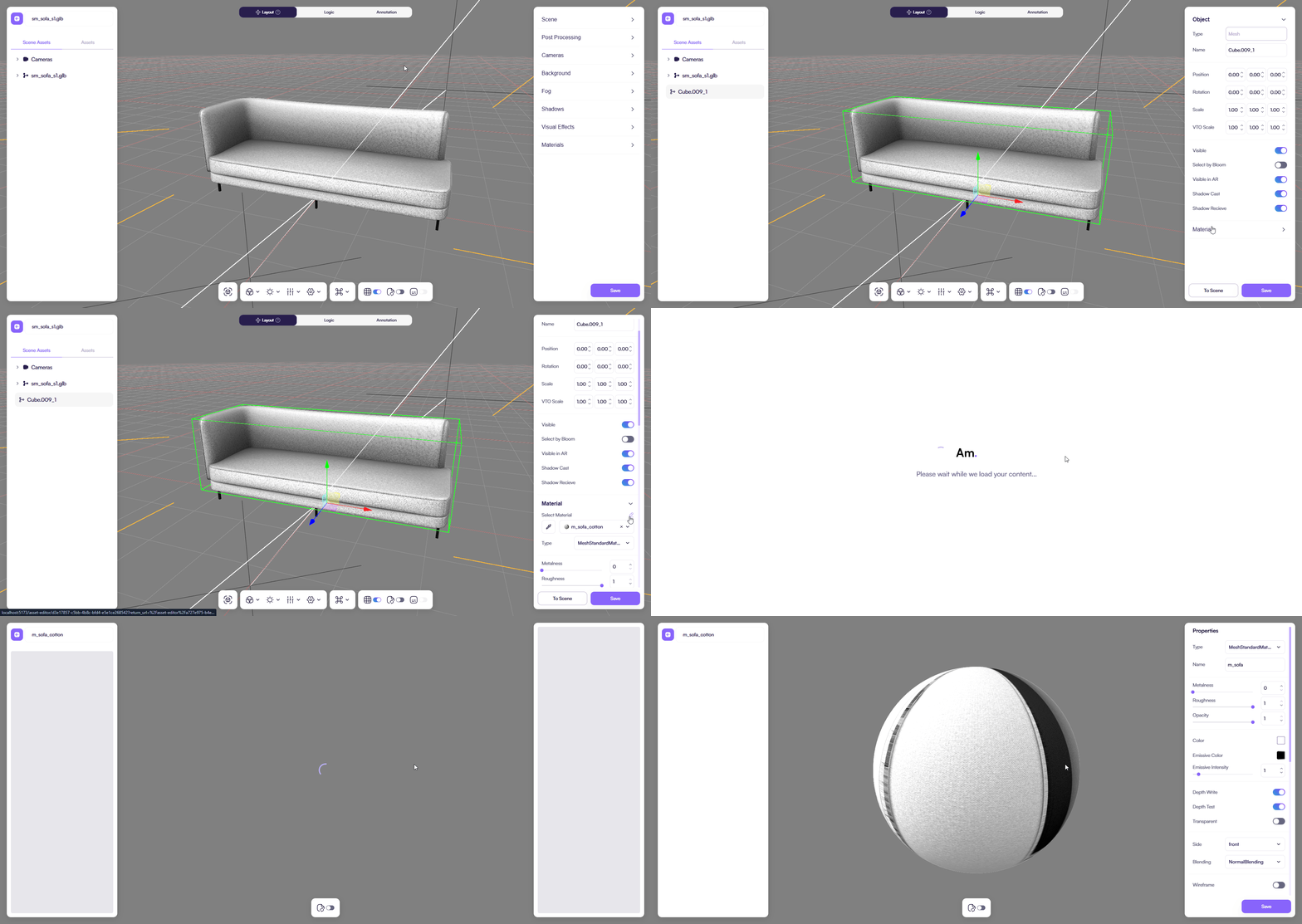
From the 3D Editor
You can access the Material Editor while working in the 3D Editor.
How it works:
- Open the 3D Editor
- Select a mesh or object
- Select its material
- Open the material settings
This path is typically used for visual fine-tuning directly in the scene.
Configure
Use the Properties panel to control how the material looks and behaves.
Material properties define how a surface is rendered and reacts to light in the 3D scene.
These settings control the overall visual appearance of the material, including color, reflectivity, transparency, and rendering behavior. You use them to fine-tune how a material looks under different lighting conditions.
For a detailed explanation of each property and how it affects rendering, see the full material reference:
→ Learn more: Materials
How changes apply
When you update any material property:
- The material updates instantly in the preview
- The 3D scene updates in real time
- Changes stay synchronized across editors
This makes the Material Editor ideal for visual iteration and fine-tuning.