Contact form setup
This article explains how to create and configure a contact form for your theme. You use the contact form to collect additional information from customers before an order is created.
What is a contact form
A contact form is an optional step in the configurator flow. Instead of creating an order immediately, the primary button opens a form where customers can provide extra details, such as contact information or custom requirements.
The contact form is available only when it is enabled in the theme settings. Its appearance automatically follows the theme styles, including colors, typography, and spacing, to ensure visual consistency.
Create a contact form
Follow these steps to create and configure a contact form for your theme.
Step 1. Open the contact form editor
To get started, open the contact form creation popup in Theme Editor.
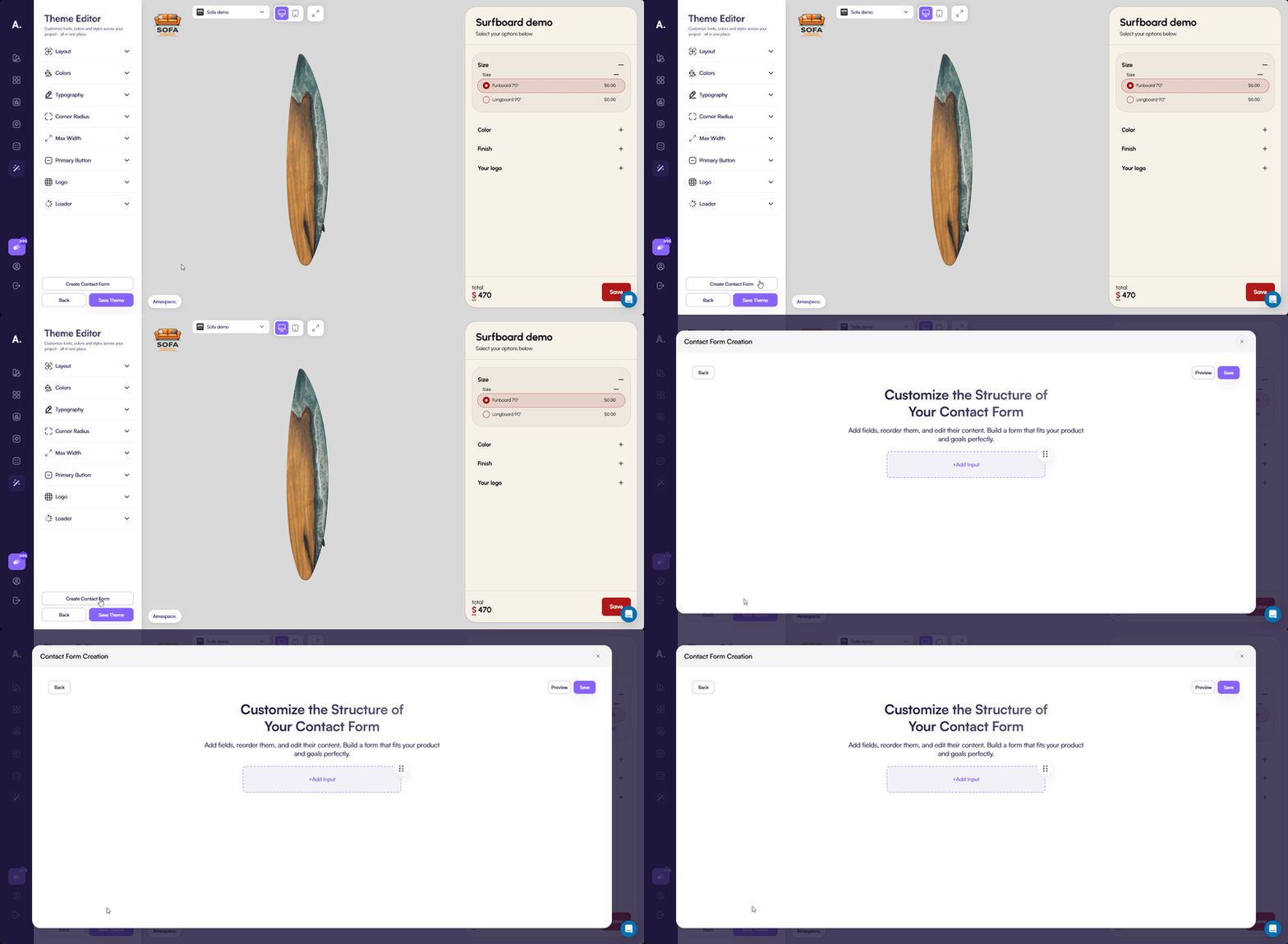
Step 2. Add and configure form fields
In this step, you create the required fields and arrange them in the desired order.
Click Add input to open the list of available field types. Selecting a field adds it to the form.
The following field types are available:
Short text
A single-line text input for short answers.
- Editable label
- Editable placeholder
Long text
A multi-line text input for longer messages or descriptions.
- Editable label
- Editable placeholder
Dropdown
A select field with predefined options.
- Editable label
- Editable placeholder
- Editable options
- Options are managed in a popup opened by clicking the field
Number
A numeric input field.
- Accepts integers and decimal values
- Editable label
- Editable placeholder
A text input with built-in email validation.
- Editable label
- Editable placeholder
- Validates email format automatically
URL
A text input with URL validation.
- Editable label
- Editable placeholder
- Validates URL format automatically
Phone
A phone number input with country code selection.
- Editable label
- Selectable country code
- Configurable default country code
Country
A country selection field.
- Editable label
- Editable placeholder
- Opens a popup with a list of available countries
- You can define which countries appear in the list
Field layout and behavior
You can manage form fields in the following ways:
- Reorder fields using drag and drop
- Arrange fields in up to two columns
- Mark fields as required
- Remove fields when they are no longer needed
Step 3. Save and preview the form
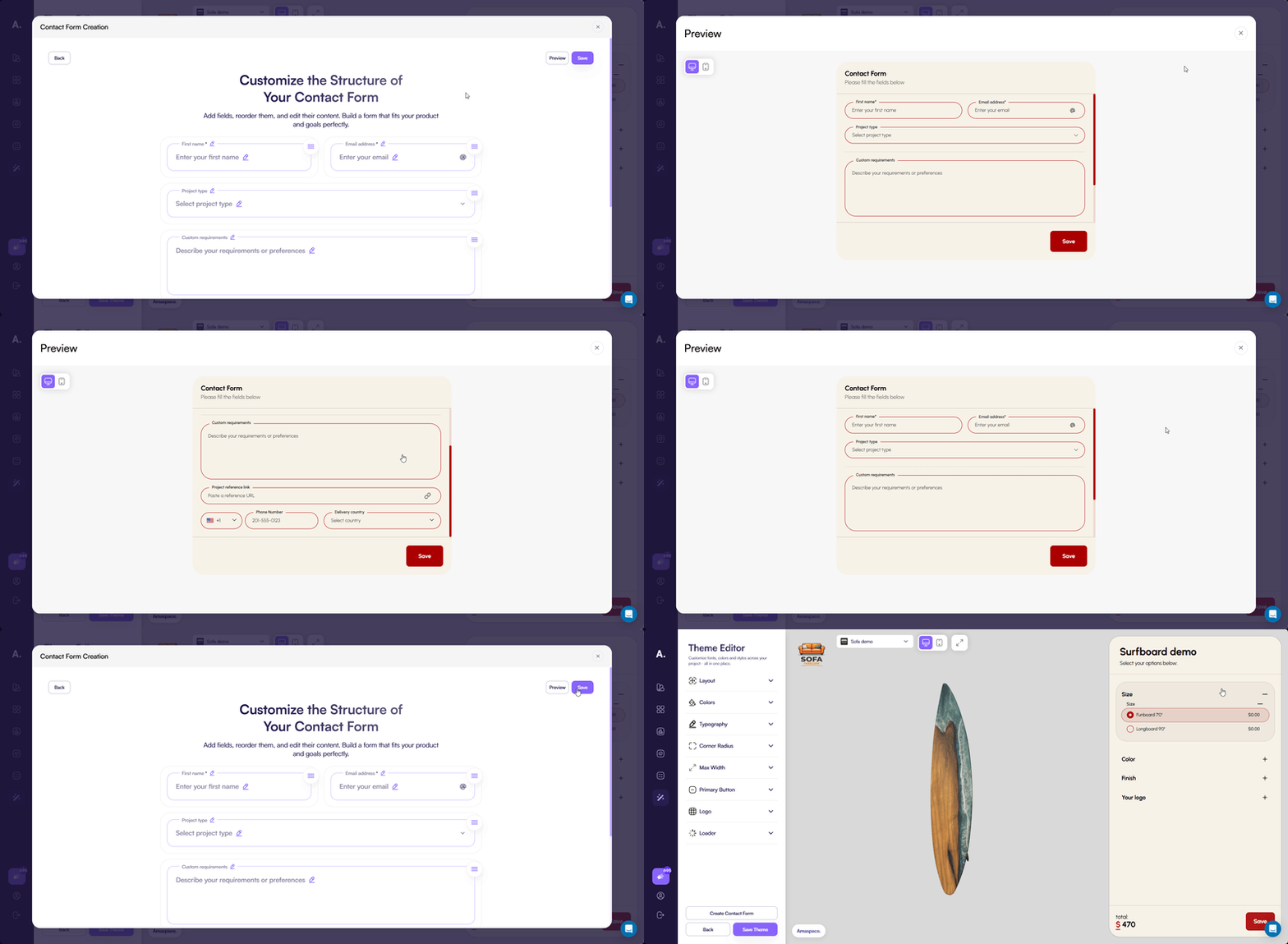
After adding and arranging fields, click Save to store the contact form.
If you close the editor without saving, all changes are discarded.
You can also click Preview to see how the contact form looks and behaves before saving.
Common issues
Contact form does not appear in the configurator
If the contact form is created but does not open in the configurator, check whether the Open contact form option is enabled in the Primary button section of the theme settings.
The contact form opens only when this option is turned on.