Presets
A preset is a saved starting point for a product. When a customer opens a preset, the configurator loads the product with that layout already applied — modules, positions, options, and connections — instead of an empty scene. They can change it and submit an order as usual.
A preset belongs to the product you saved it from. It is not a separate product in the catalog.
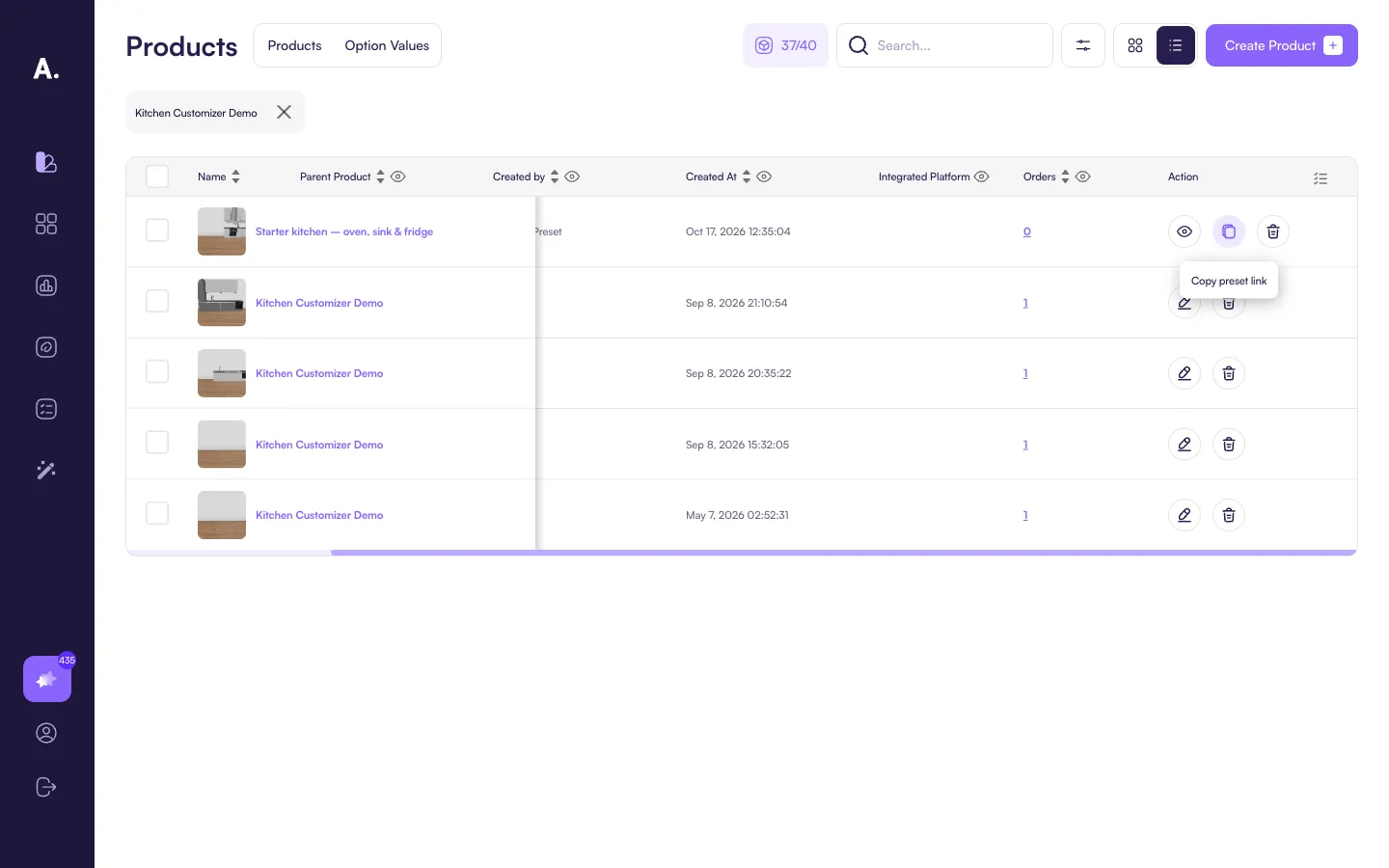
The list also includes configurations created from orders. Those rows are marked System. Presets you save yourself are marked Admin · Preset.
Create a preset
You create a preset from the product, inside the configurator.
Step 1: Open the product in preset mode
- Go to Products .
- On the product row, open the ⋯ menu.
- Click Create preset.
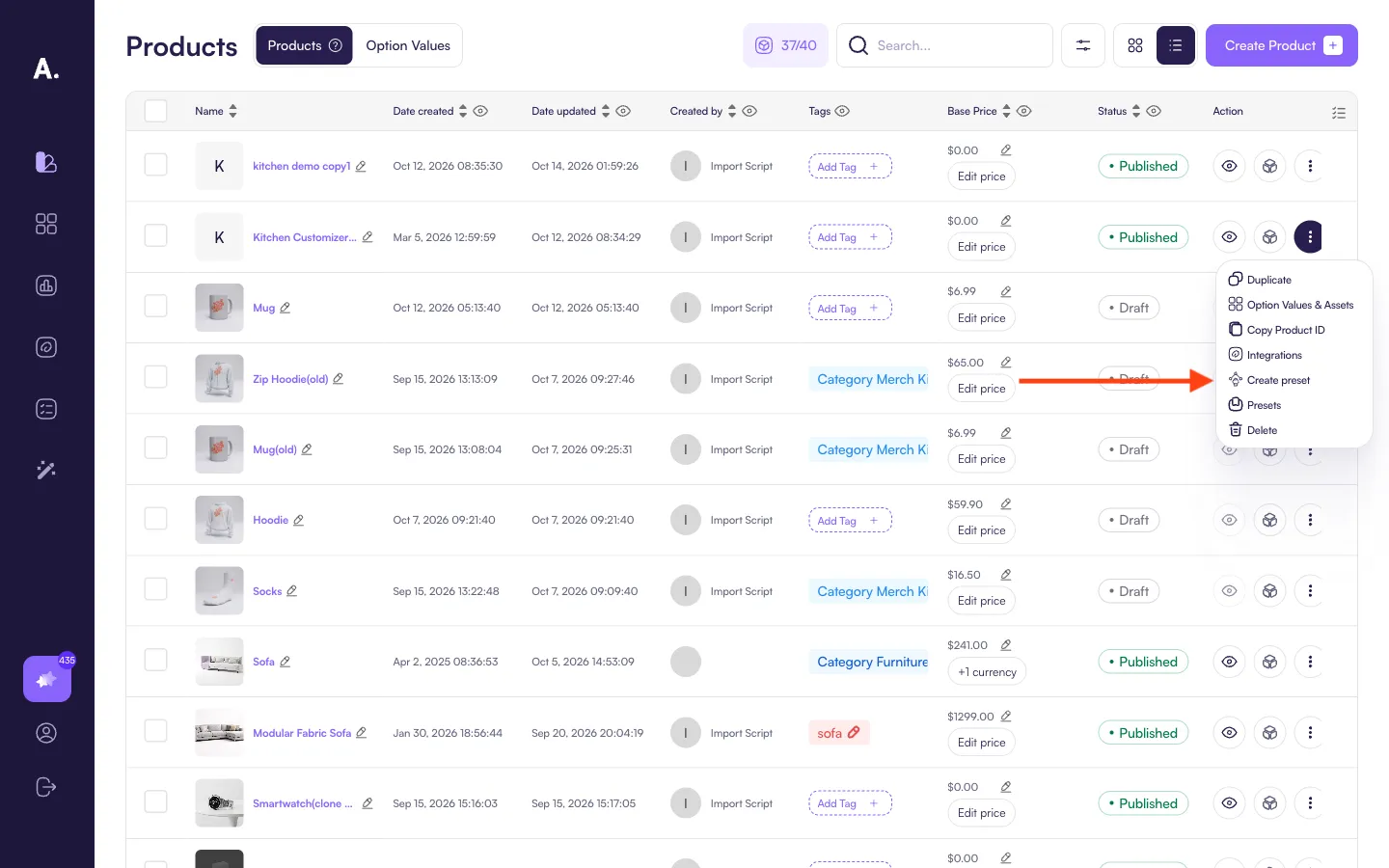
The configurator opens for that product. The button at the bottom of the sidebar says Save preset instead of Submit.
Step 2: Build the layout
Use the configurator the same way a customer would:
- Add modules and place them in the scene.
- Snap modules together where the product supports it.
- Set sizes, colors, and any other options.
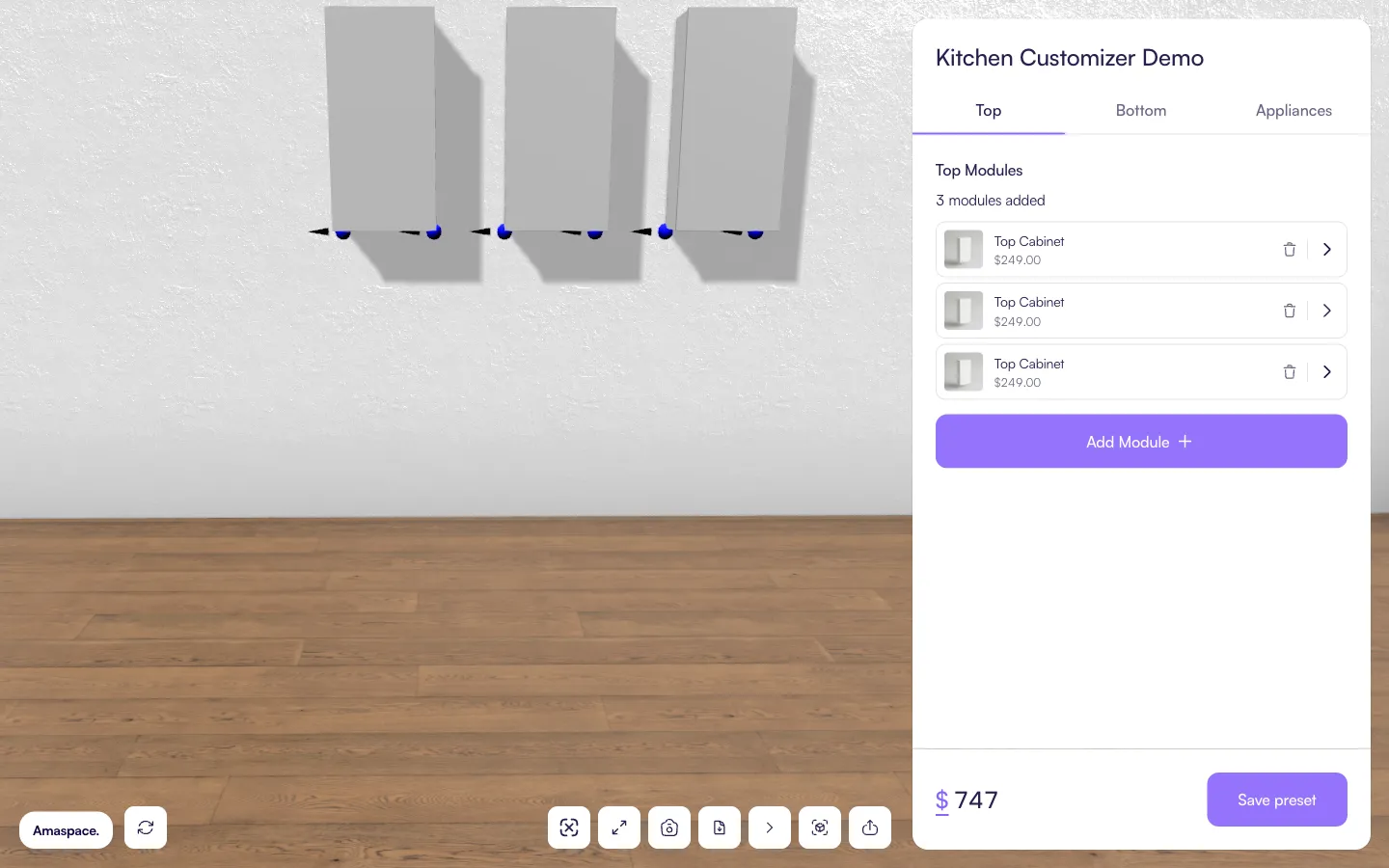
Everything currently on the scene is what gets saved.
Step 3: Save
- Click Save preset.
- Enter a name. The dialog suggests one from the product name.
- Click Save preset again.
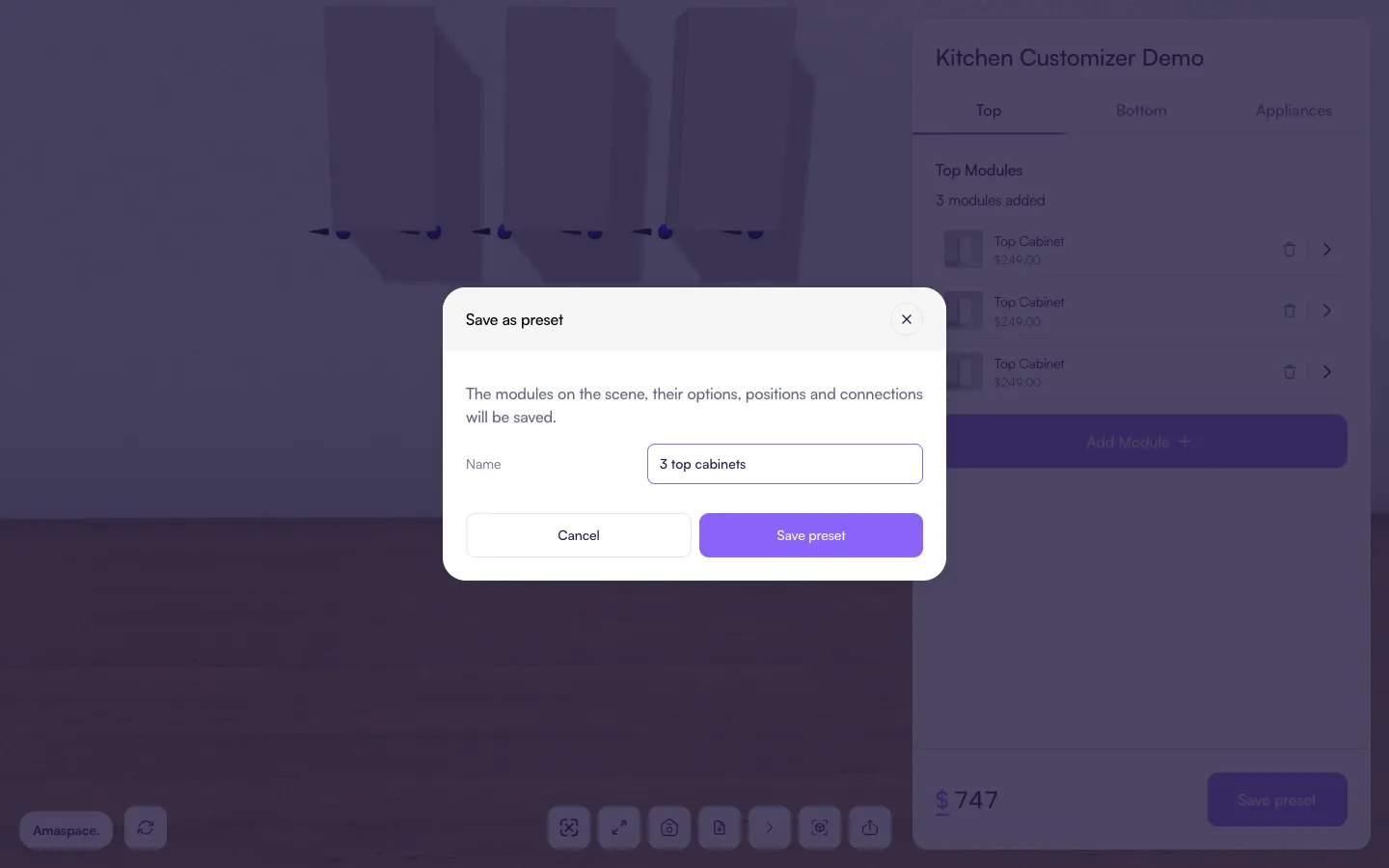
The dialog then shows a link that opens this product with the preset applied. Use Copy link to put that link on the clipboard, then Done.
You need to be signed in to the admin to save. The link itself works for anyone you send it to.
Find and open presets
- On the Products page, open the product’s ⋯ menu.
- Click Presets.
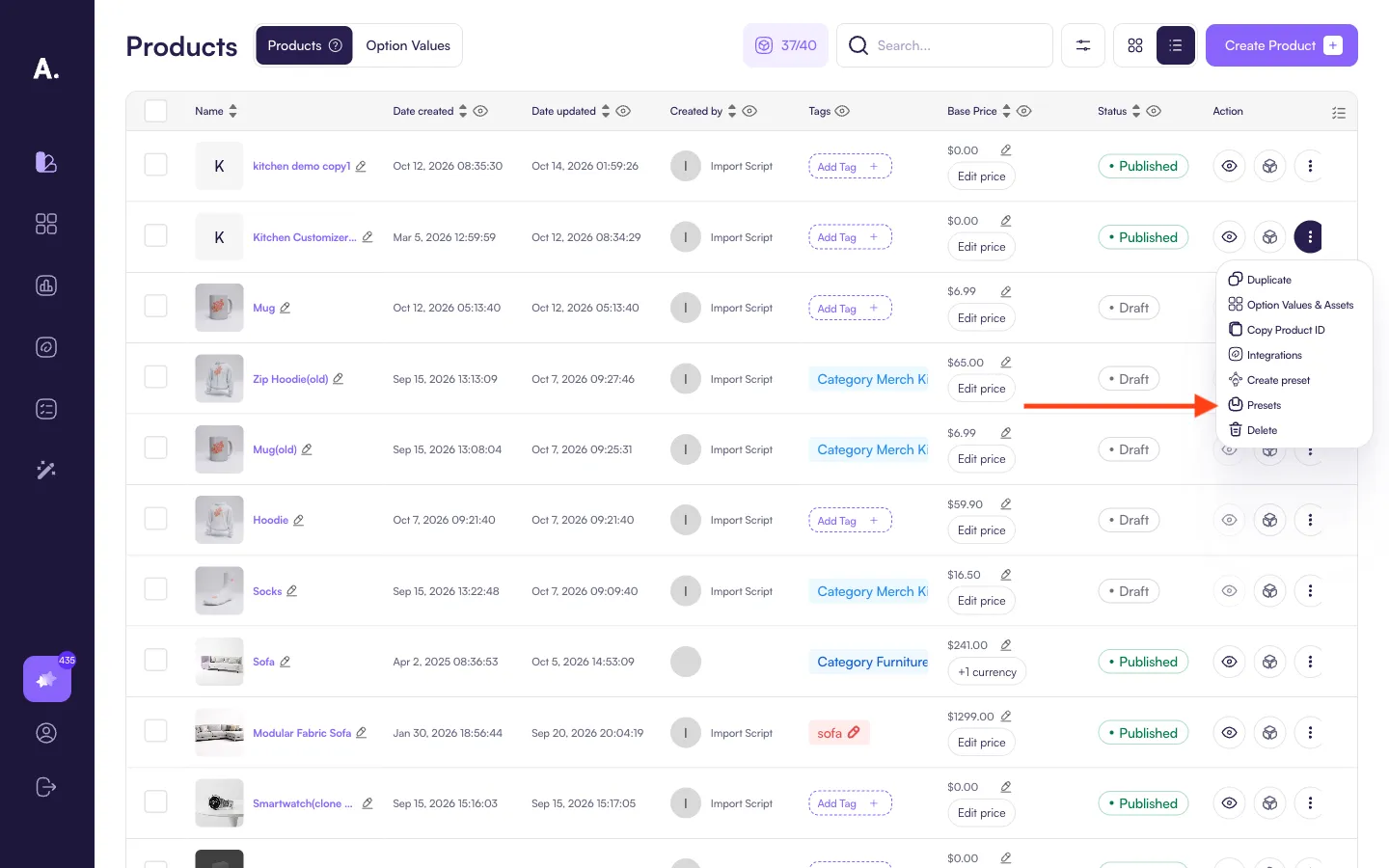
This opens the presets for that product.
Preset rows show Admin · Preset in the Created by column. Each preset row has three actions:
- Open preset — opens the configurator with the layout already applied.
- Copy preset link — copies the same link the save dialog shows.
- Delete — removes the preset. This cannot be undone.
Share a preset
Send the copied link, or embed it the same way you embed the product. The link is the product configurator with a preset parameter.
When someone opens it:
- The product loads.
- The loader stays up while the saved layout is applied.
- The finished scene appears, and they can keep customizing.
Opening the link on a phone and then using AR includes the modules from the preset, because they are already in the scene. A layout that was never saved is not part of the link.
What a preset stores
- Which modules are in the scene, and how many of each.
- Each module’s position and rotation.
- Option values set on those modules, such as width or facade color.
- Connections between modules.
It does not create a new product, and it does not change the product’s default empty scene. Customers who open the product without a preset link still start from that default.