Etsy Integration
Connect Amaspace to your Etsy shop, attach a 3D configurator to a listing, and review a custom order. The video below walks through the whole flow.
Step 1 — Connect your Etsy shop
-
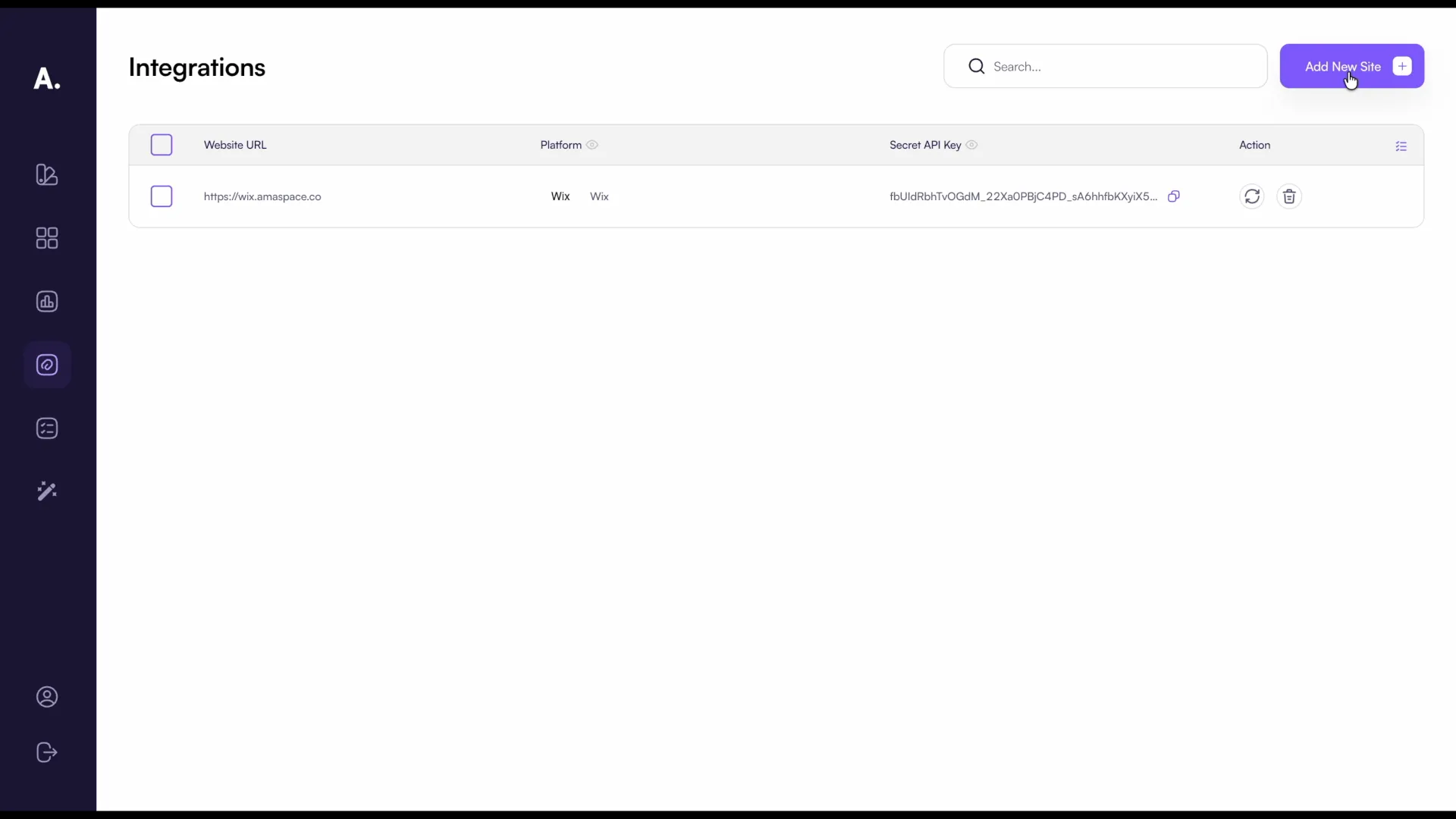
In Amaspace open the Integrations page and click Add New Site.
-
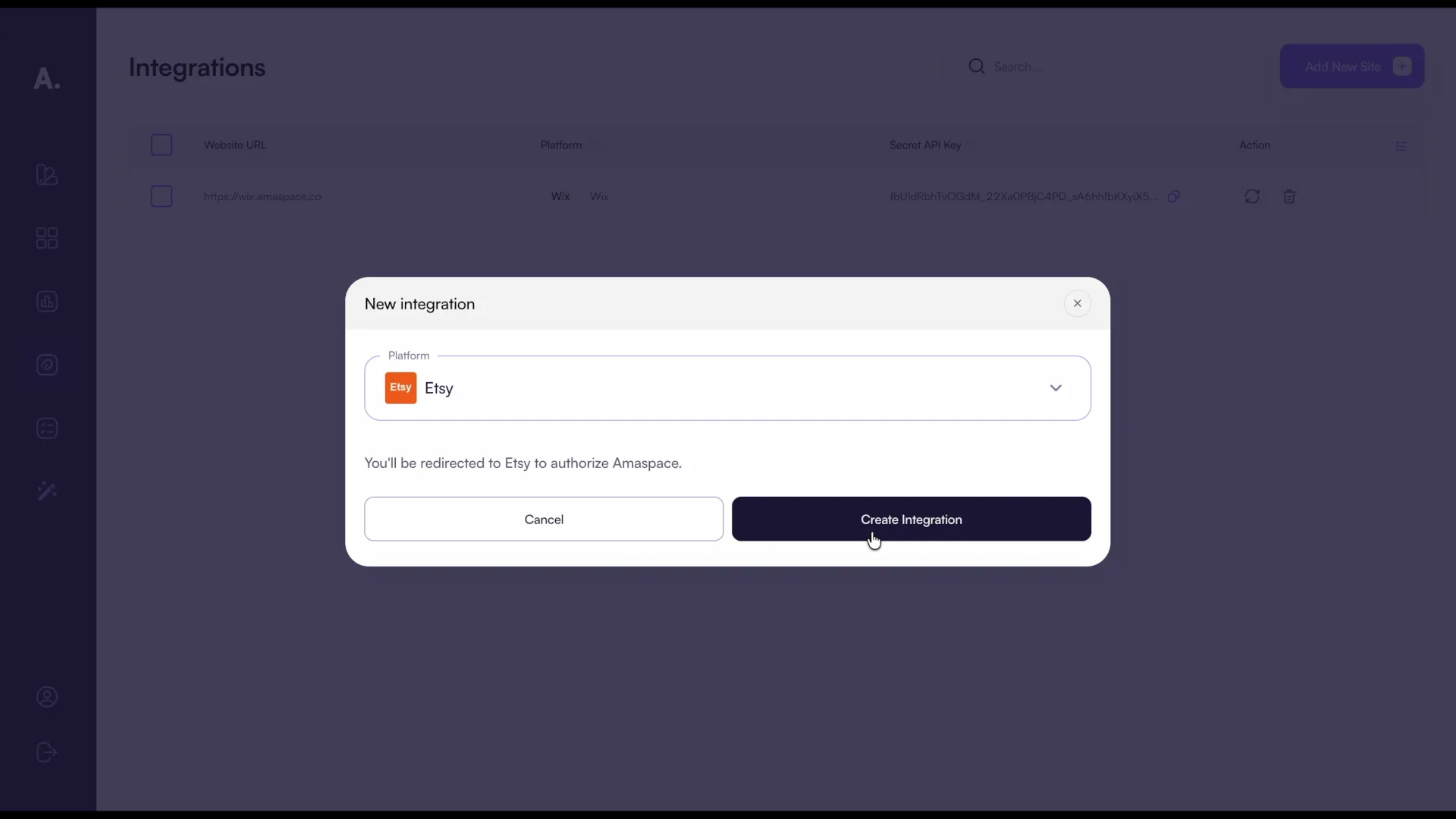
Choose Etsy as the platform, then click Create Integration to start authorization.
-
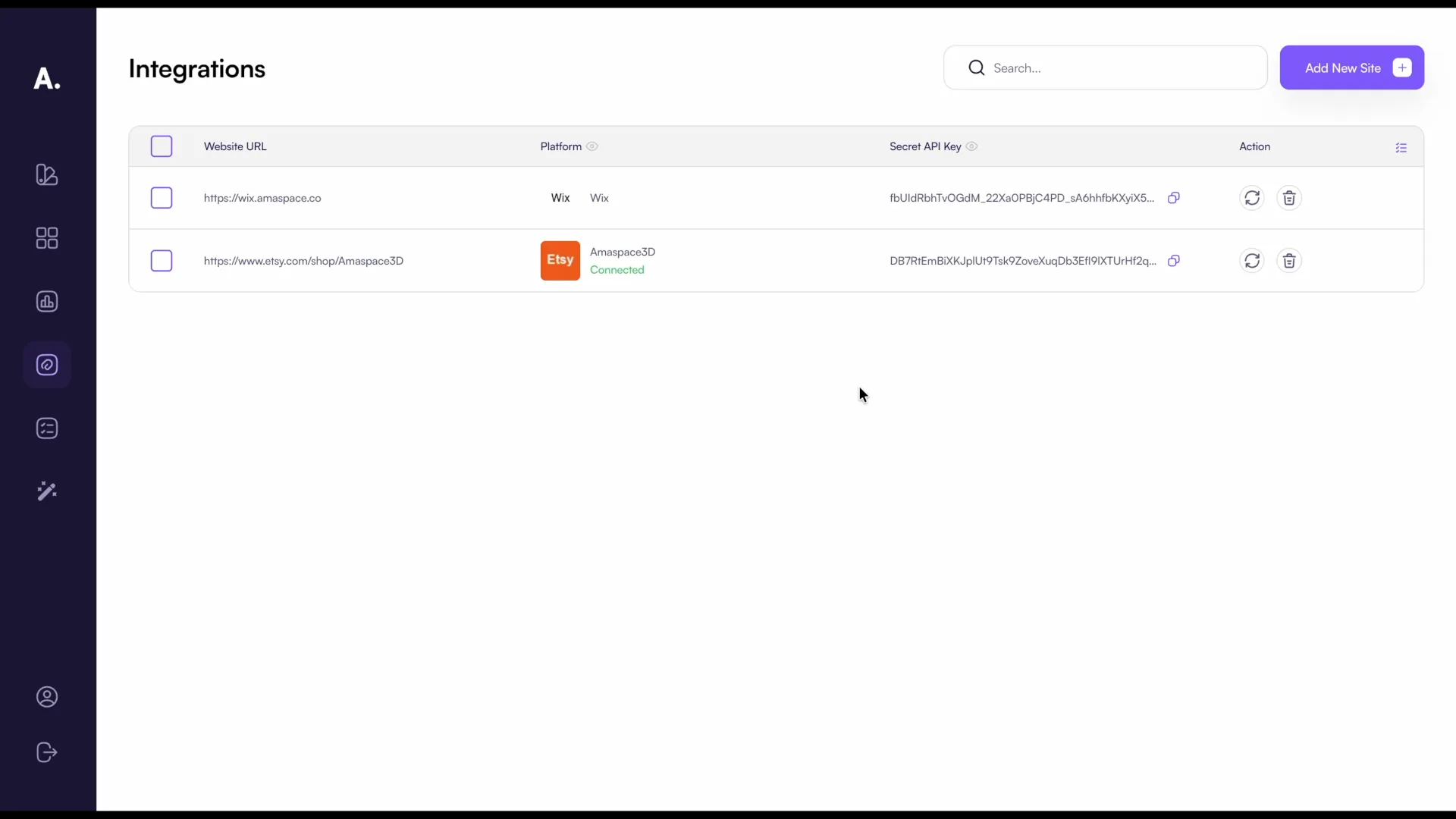
Confirm the connection on Etsy. This lets Amaspace receive orders containing customized products.
Step 2 — Link a product to a listing
-
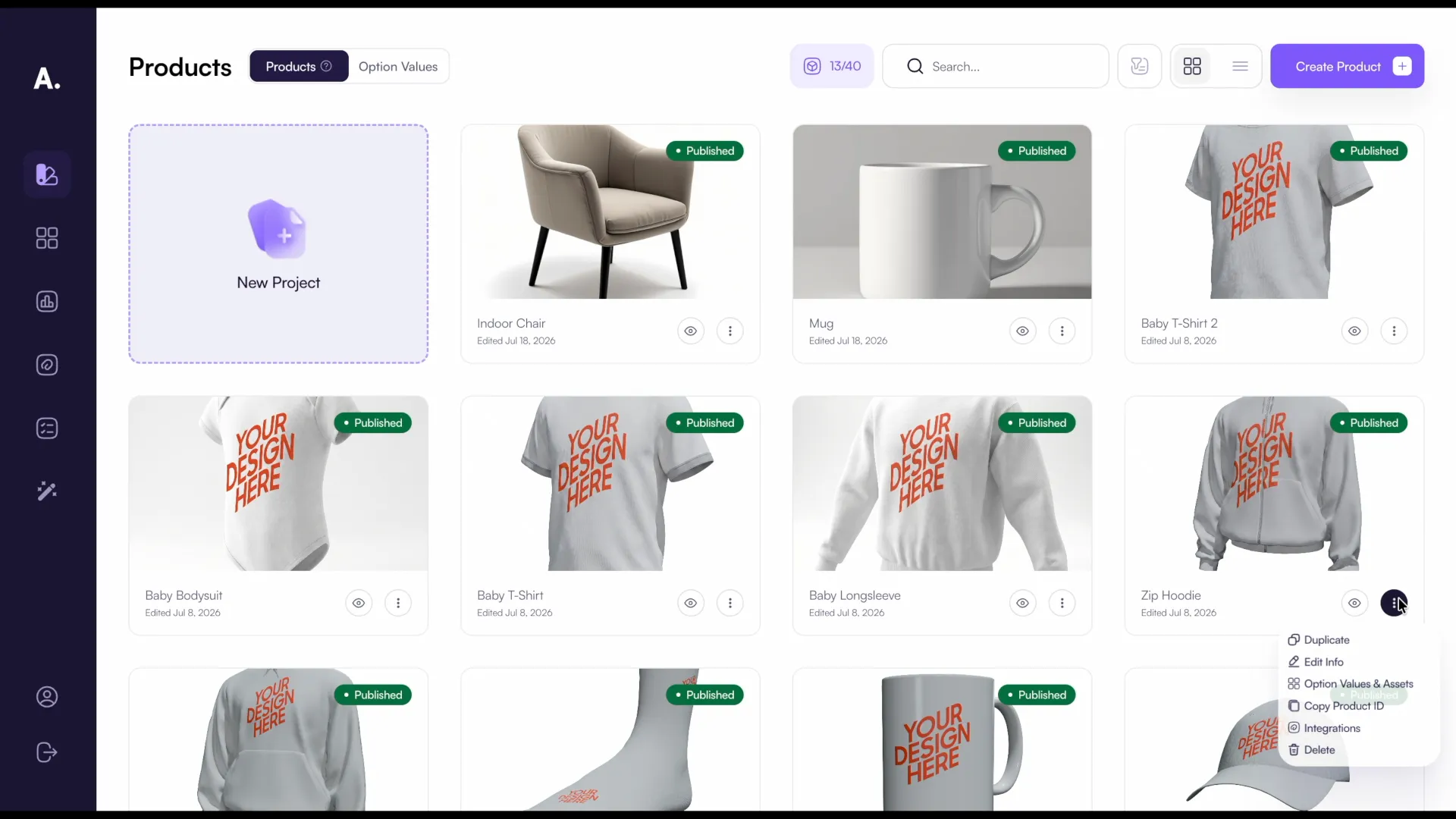
Open the Products page, click the ⋮ menu on your product and choose Integrations.
-
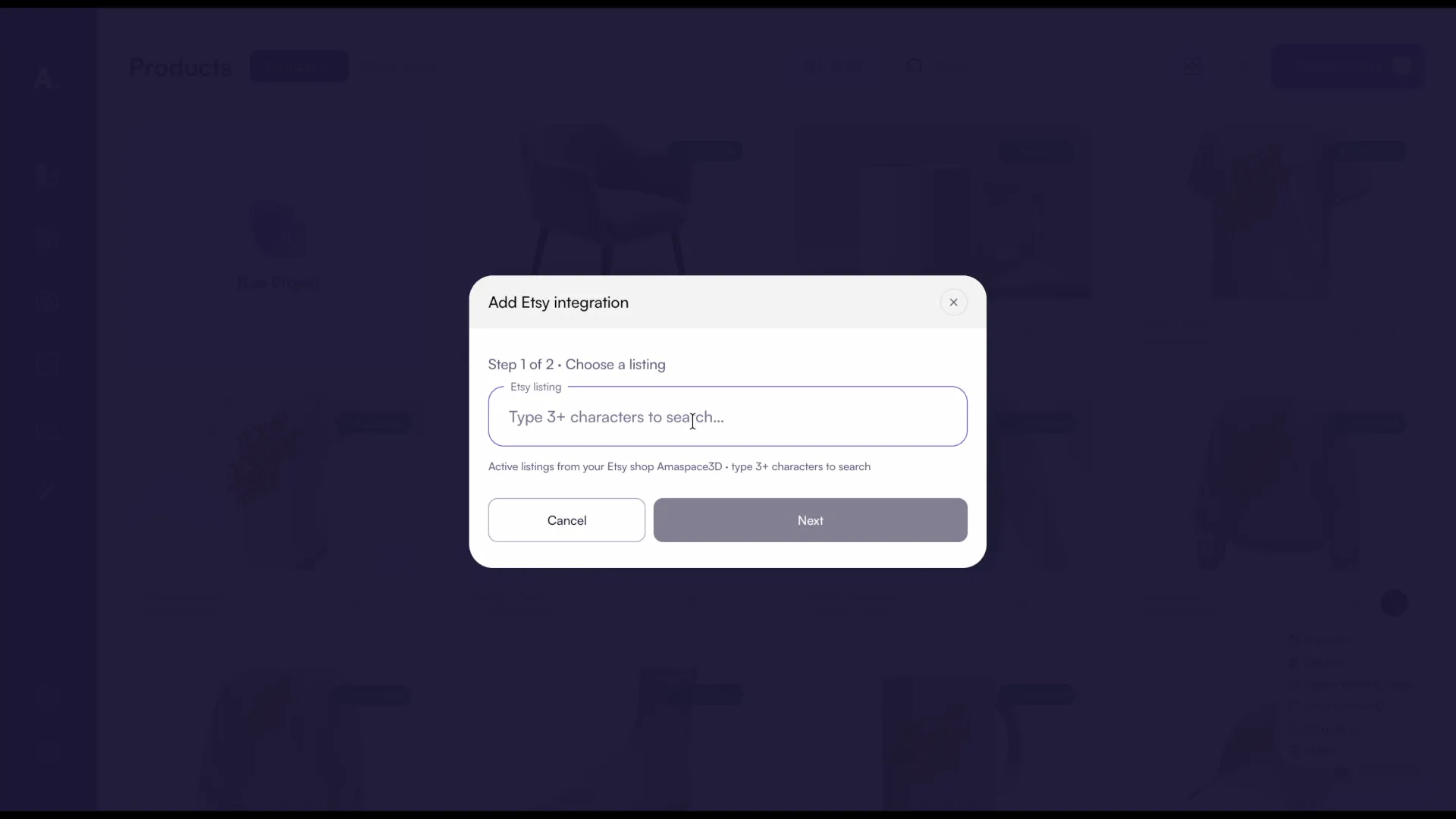
Click + beside your Etsy shop, then enter the name of the Etsy listing.
Step 3 — Set up personalization
-
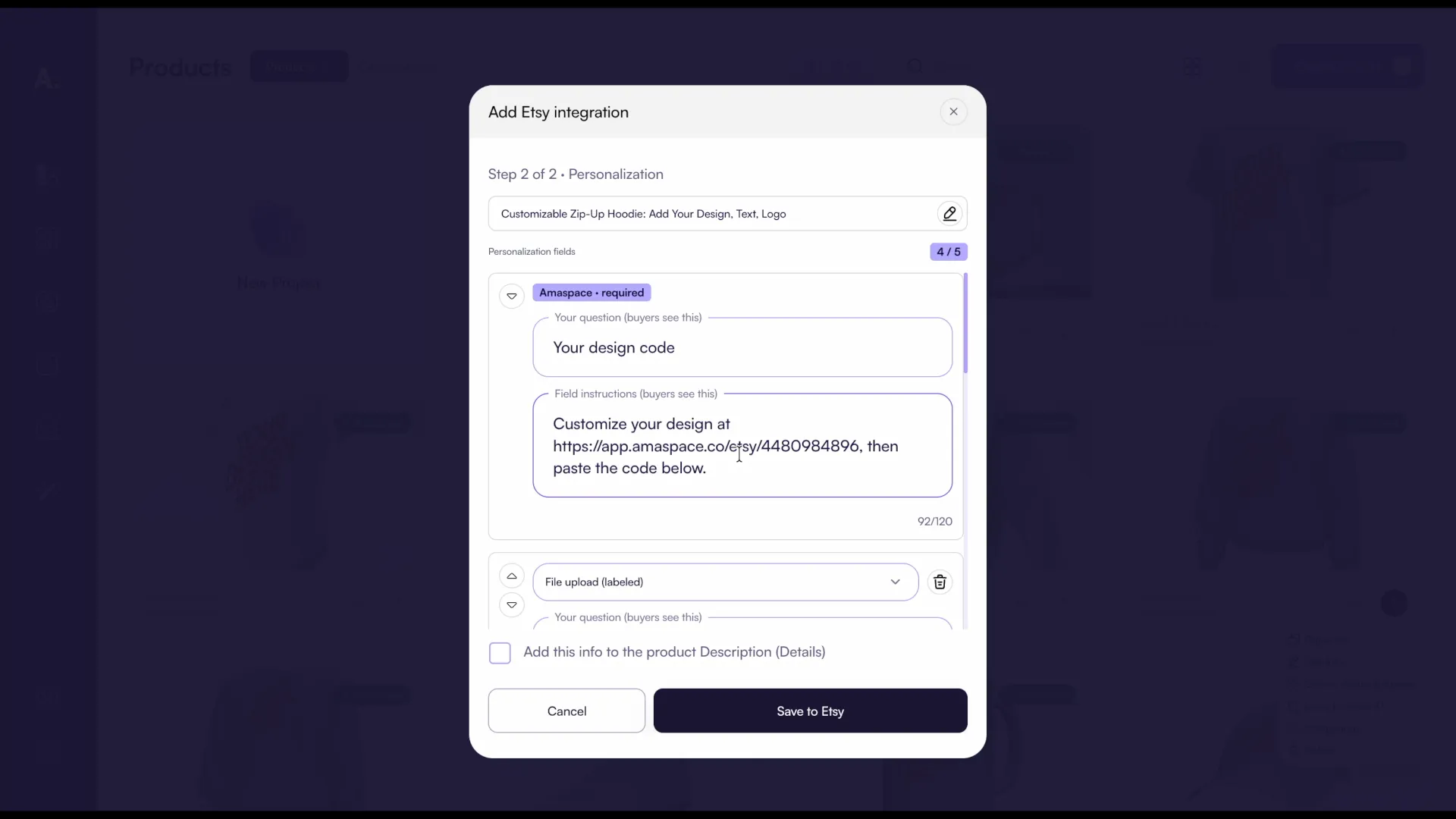
Step 2 of 2 shows all personalization fields on the listing, including the Amaspace field.
-
You can rename the field, but keep the configurator link — Etsy permits links like this.
-
Delete the other fields — all customization now happens inside the 3D configurator.
Step 4 — Add buyer instructions
-
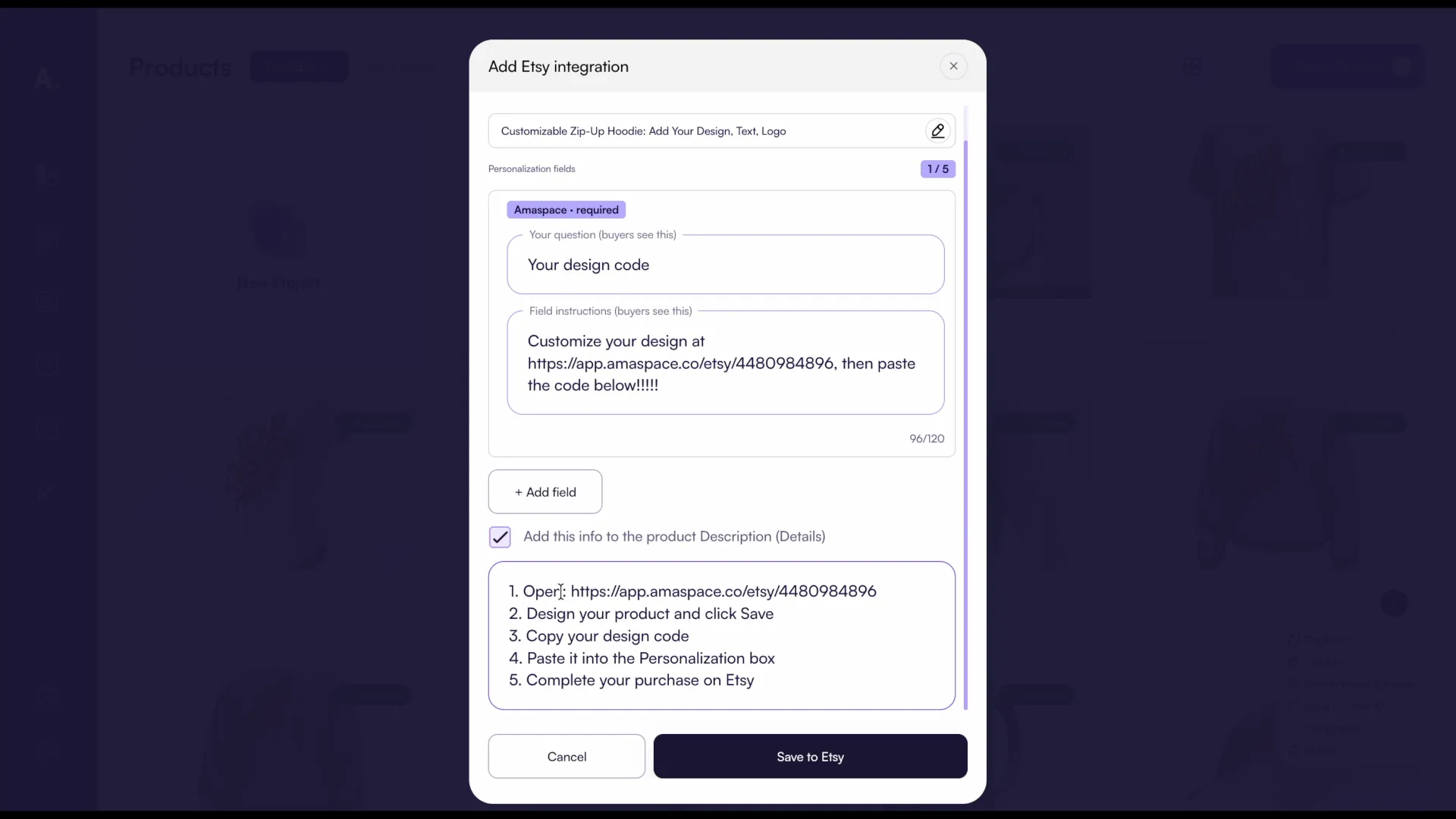
Tick Add this info to the product Description, edit the five-step text, then click Save to Etsy.
Step 5 — Check the live listing
-
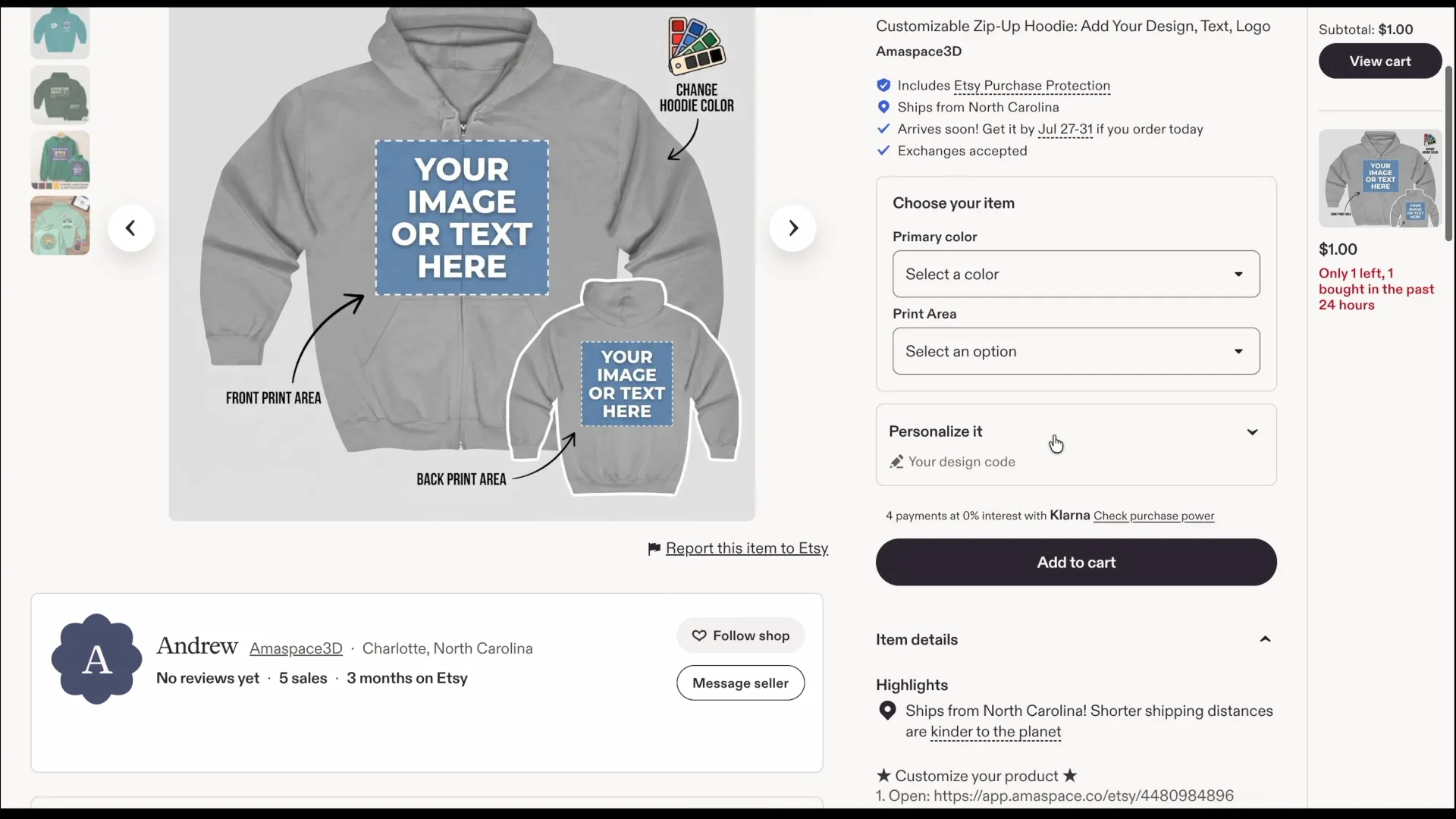
Open the listing. The design code field and the instructions now appear.
Step 6 — Customize the product
-
Follow the link in the field instructions or description to open the configurator.
-
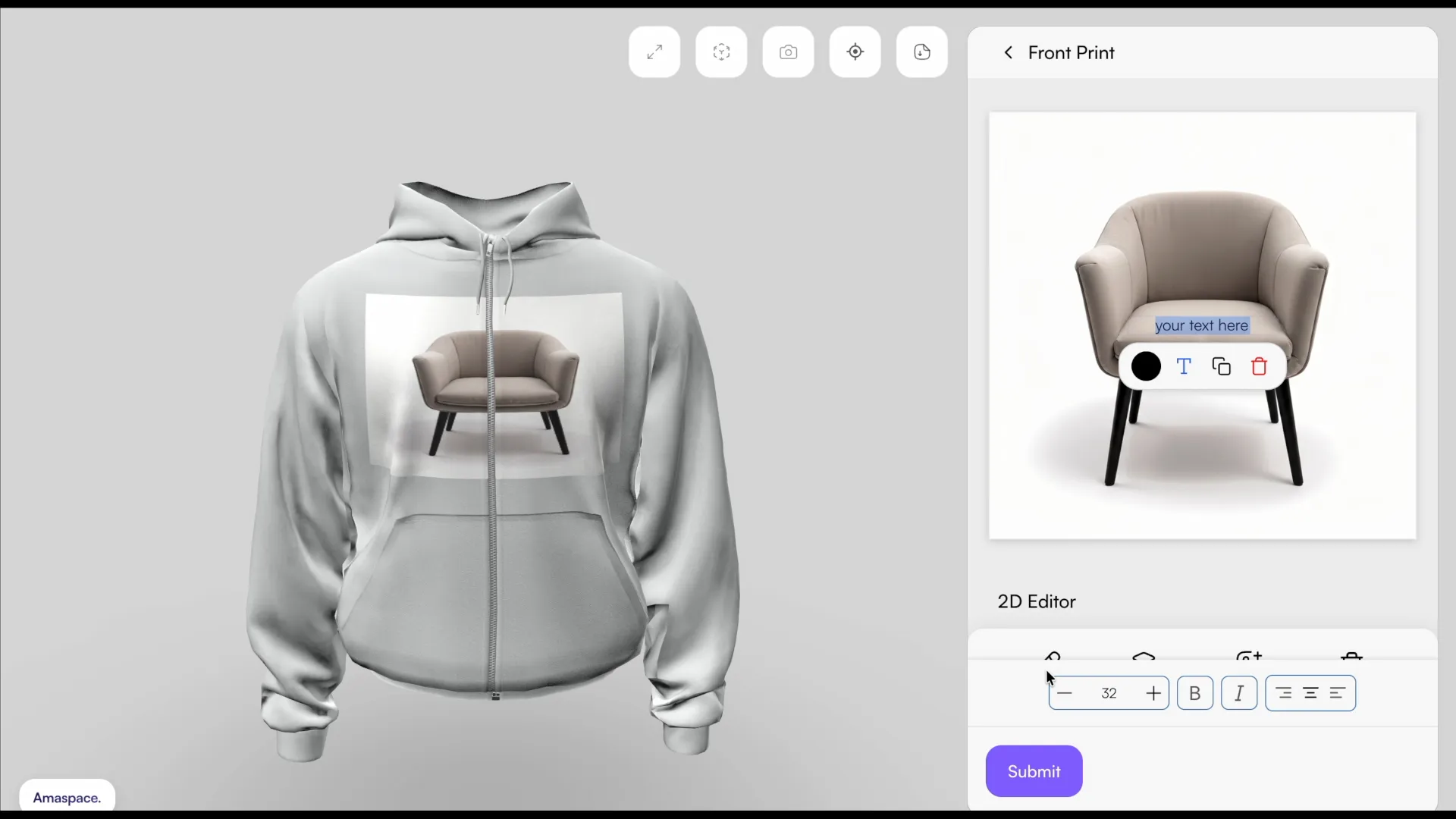
Pick a print area, upload an image and add text.
-
Choose the font, size and color of the text you added.
-
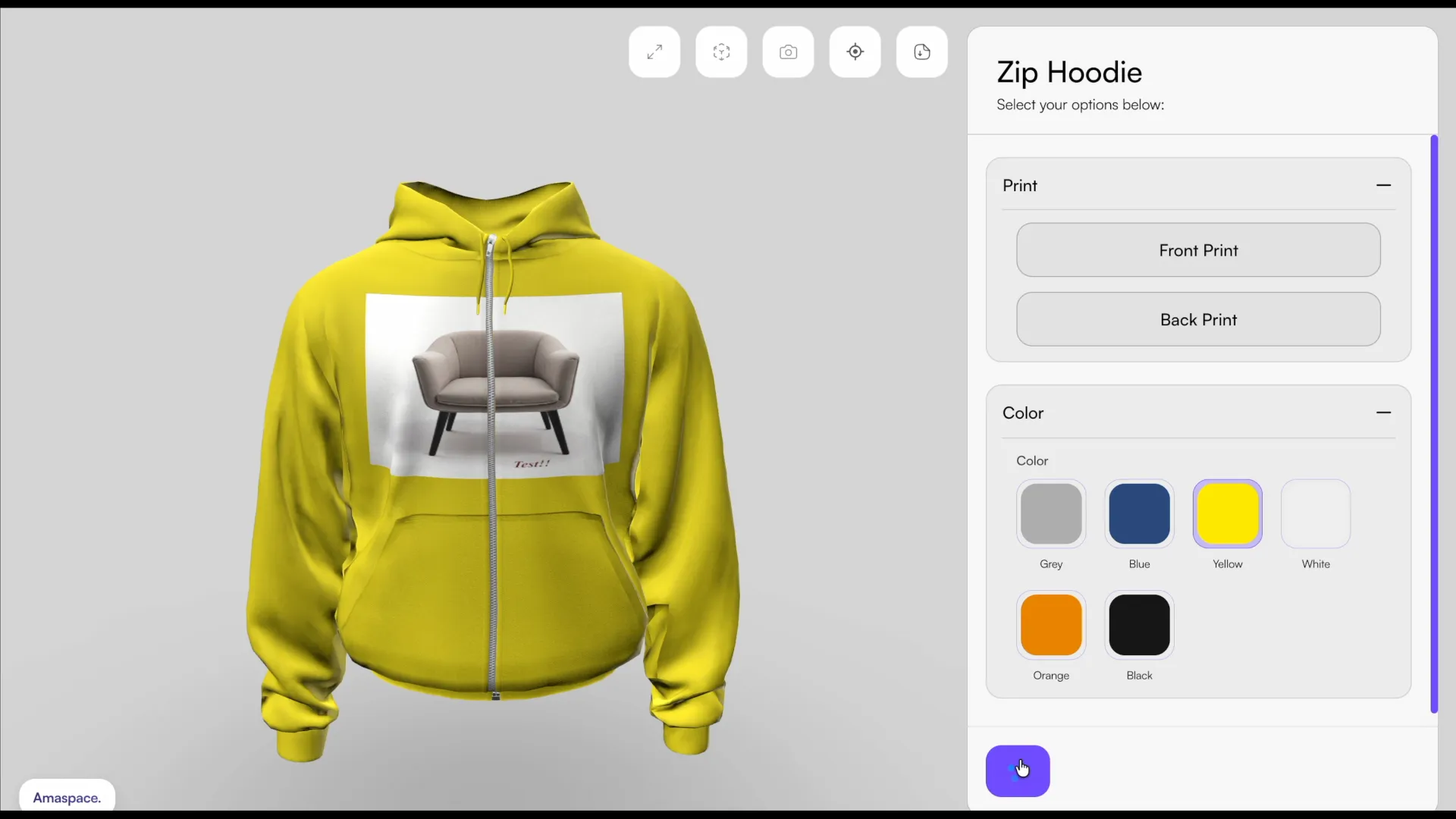
Select the product color and click Submit. Etsy’s rules don’t allow showing a price inside the configurator — pricing stays on the Etsy listing.
Step 7 — Place the order
-
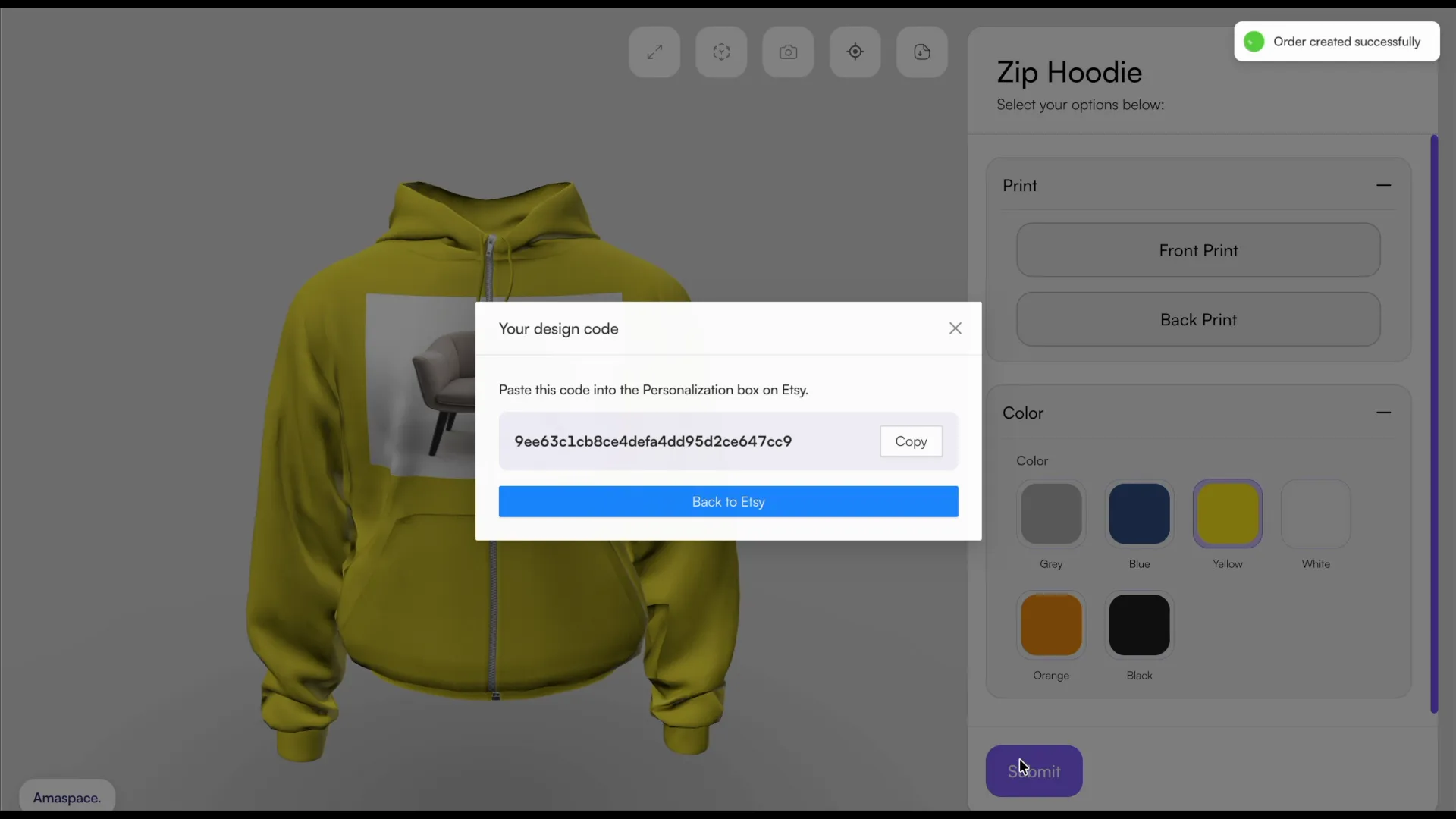
Copy the generated design code, then return to the Etsy listing.
-
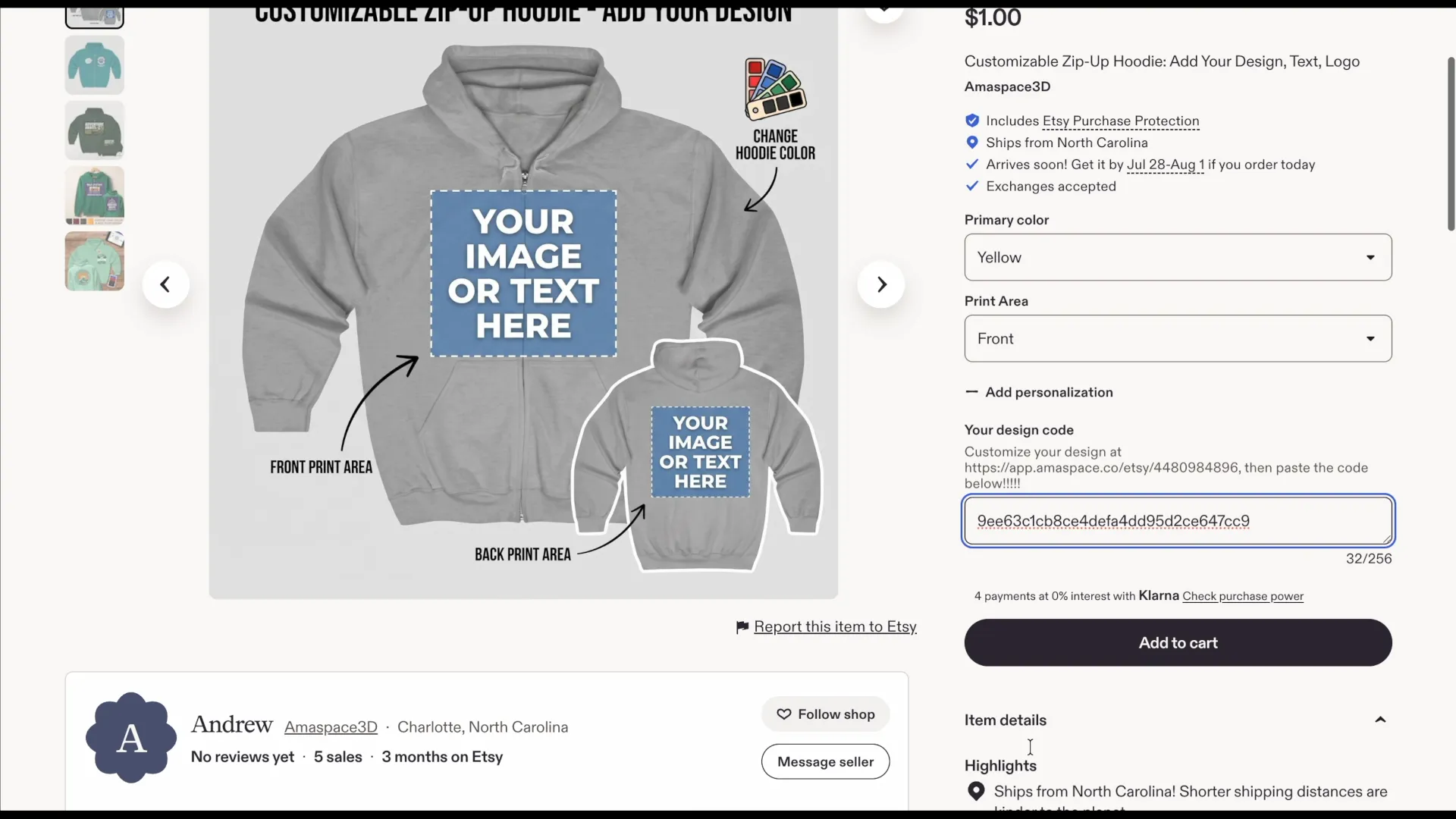
Choose the listing options, paste the code into the personalization box, then check out.
Step 8 — Review the order
-
You receive an email linking to the order, or copy the order number from Etsy.
-
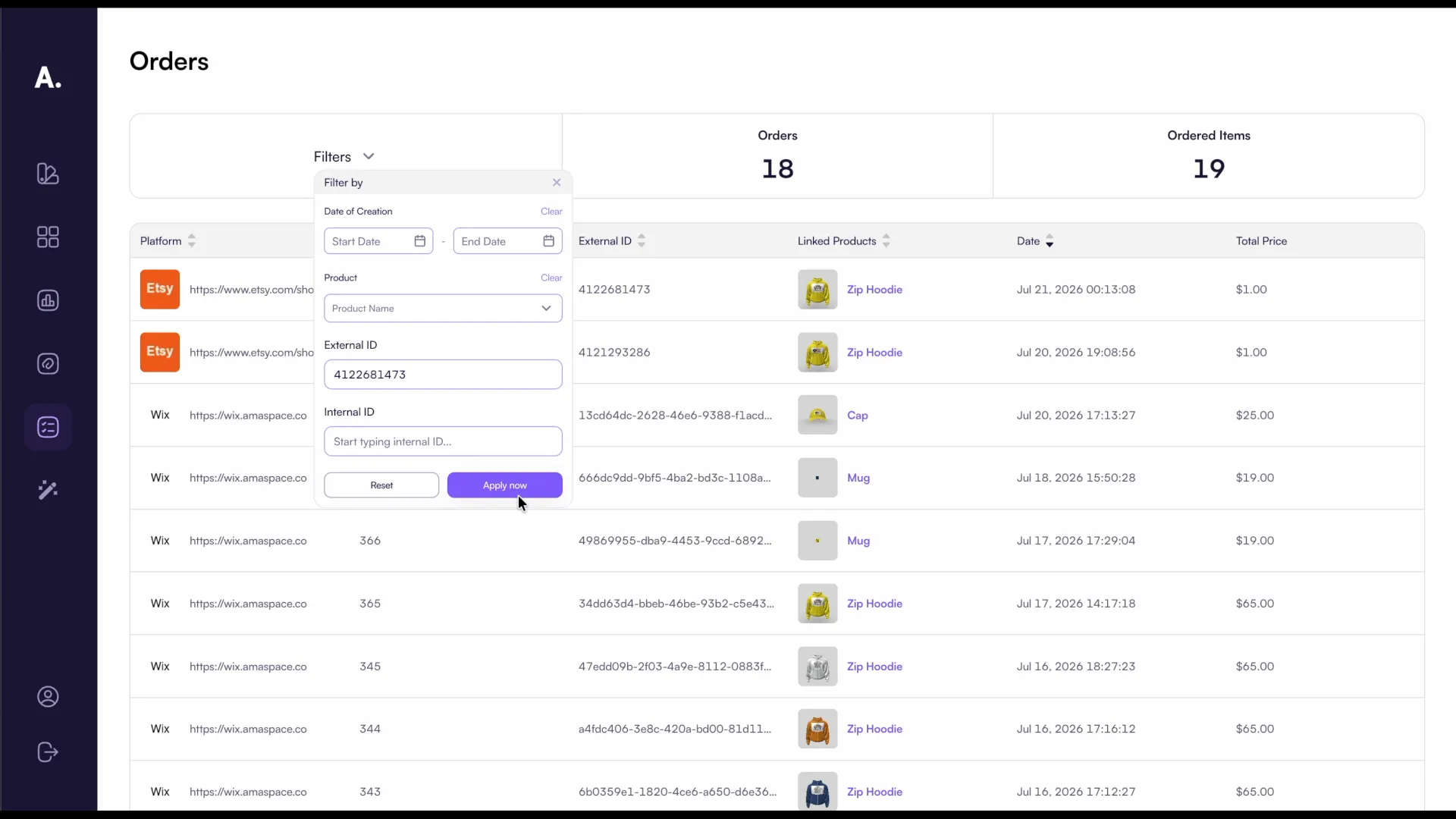
In Amaspace open Orders, expand Filters and paste the number into External ID.
-
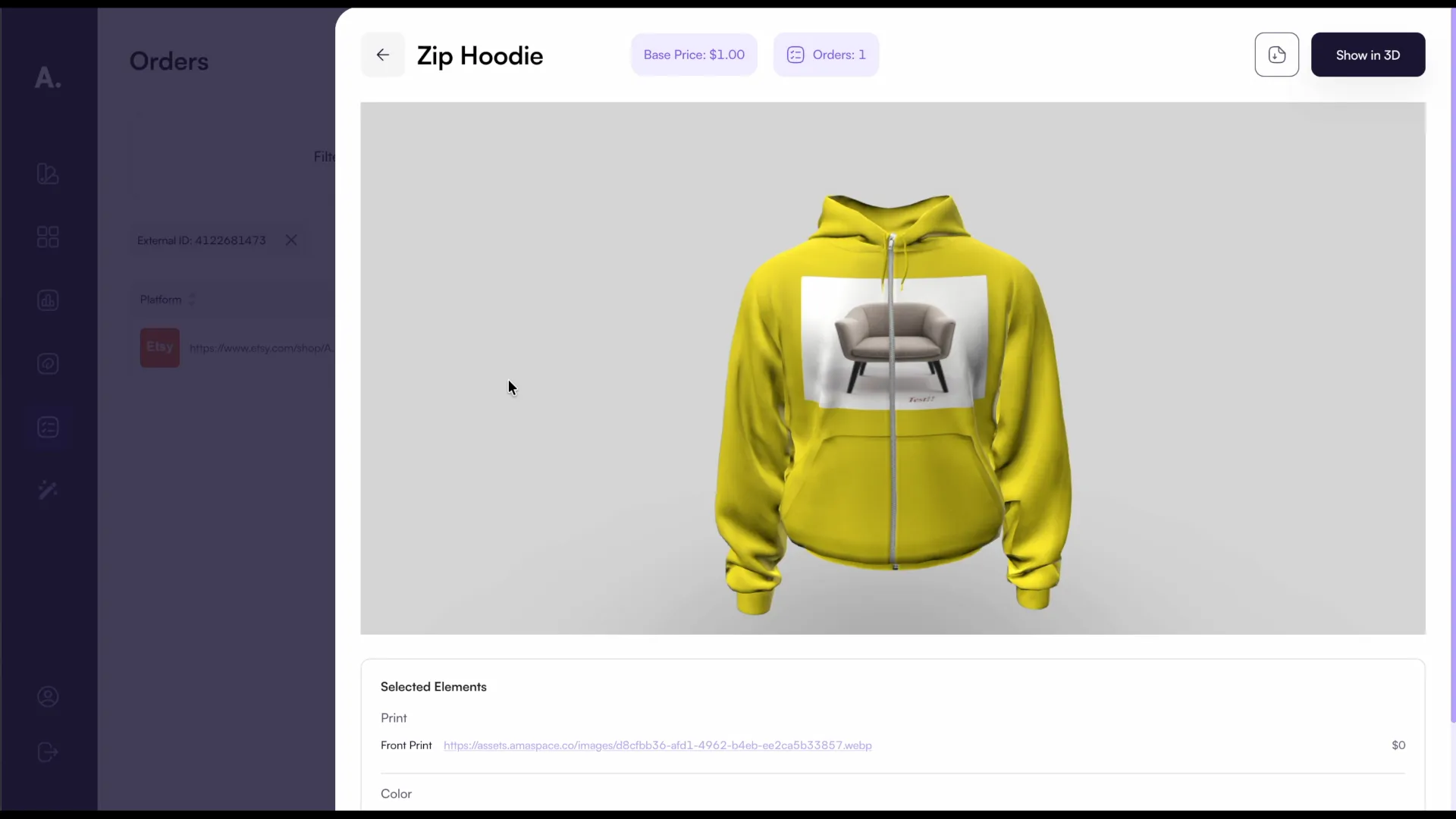
Open the order to review every configured detail: colors, images and text.
-
Click Show in 3D to see the product exactly as the customer saw it.